Is your taskbar frozen, unclickable, or missing key icons like the Start Menu and system tray? A locked taskbar makes switching between apps almost impossible. Knowing **How to Fix Windows 10 Taskbar Not Working** helps you restore full system controls rapidly without losing your opened workspace data.
In this practical troubleshooting guide, we will walk you through five safe and tested methods to unfreeze your Windows taskbar.
## Table of Contents
* [Why Is My Windows 10 Taskbar Frozen?](#causes)
* [How to Fix Windows 10 Taskbar Not Working: 5 Fast Solutions](#methods)
* [Frequently Asked Questions (FAQs)](#faq)
* [Conclusion](#conclusion)
## Why Is My Windows 10 Taskbar Frozen?
Before applying the fixes, it helps to understand why the taskbar stops responding:
* Windows Explorer (`explorer.exe`) process encountered a temporary freeze.
* Corrupted system core files interfering with modern UI components.
* Conflicts caused by recent cumulative Windows system updates.
* Outdated graphics card drivers failing to render desktop interface elements.
—
## How to Fix Windows 10 Taskbar Not Working: 5 Fast Solutions
Follow these step-by-step techniques to bring your taskbar back to life.
### Method 1: Restart Windows Explorer via Task Manager
This is the fastest fix for a frozen or unresponsive taskbar.
1. Press **Ctrl + Shift + Esc** to open **Task Manager**.
2. Click **More details** at the bottom if you are in simple view.
3. Scroll down the **Processes** tab and locate **Windows Explorer**.
4. Right-click it and select **Restart**.
### Method 2: Re-register the Windows Taskbar using PowerShell
If restarting Windows Explorer fails, re-registering system apps resolves deeper script conflicts.
1. Press **Ctrl + Shift + Esc** to open **Task Manager**.
2. Click **File** > **Run new task**.
3. Type **powershell**, check the box for **Create this task with administrative privileges**, and click **OK**.
4. Copy and paste the following command into PowerShell and press Enter:
`Get-AppXPackage -AllUsers | Foreach {Add-AppxPackage -DisableDevelopmentMode -Register “$($_.InstallLocation)\AppXManifest.xml”}`
5. Wait for the process to complete, then restart your PC.
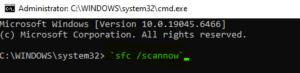
### Method 3: Run SFC and DISM Utility Scans
1. Open Task Manager (**Ctrl + Shift + Esc**), go to **File** > **Run new task**.
2. Type **cmd**, check administrative privileges, and click **OK**.
3. Type `sfc /scannow` and press Enter.
4. After SFC finishes, type `DISM /Online /Cleanup-Image /RestoreHealth` and press Enter.
Method 4: Update Your Display Graphics Drivers
1. Press **Windows Key + R**, type **devmgmt.msc**, and press Enter.
2. Expand **Display adapters**.
3. Right-click your active display adapter and select **Update driver**.

Method 5: Create a New Local User Account
Corrupted user profiles can permanently break desktop elements. Creating a new local profile often resolves persistent bugs.
1. Press **Windows Key + I** to open **Settings**.
2. Navigate to **Accounts** > **Family & other users**.
3. Select **Add someone else to this PC** and follow the prompts to create a fresh profile.
—
## Frequently Asked Questions (FAQs)
### FAQ 1: Why does my taskbar auto-hide and won’t reappear?
*Ans:* This usually happens when a background app demands attention or taskbar settings are misconfigured. Toggling “Automatically hide the taskbar in desktop mode” off and on in Settings usually resets this behavior.
### FAQ 2: Can a clean boot resolve taskbar freezing issues?
*Ans:* Yes! Performing a clean boot disables third-party startup applications, helping you isolate whether a third-party software conflict is causing the taskbar crash.
##Bonus Tip: Perform a System Restore
Learning How to Fix Windows 10 Taskbar Not Working through system restoration can quickly reverse recent update glitches. If the taskbar became unresponsive after a recent software update, using System Restore can revert your PC to an earlier point when the taskbar was working normally. Search for “Create a restore point” in the Start Menu and follow the wizard.
Conclusion
Mastering **How to Fix Windows 10 Taskbar Not Working** ensures you can quickly regain control of your desktop whenever system UI glitches occur. Keeping system drivers up to date and regularly scanning for file corruption will prevent these issues from recurring.
**Pro Tip:** For official system patch notes and bug fixes, always check the official [Microsoft](https://www.microsoft.com) support knowledge base.