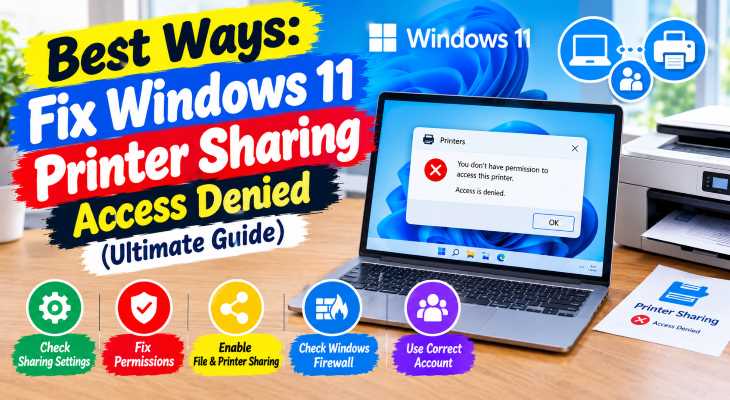
Sharing peripherals across a local home or office network should be straightforward, but permission blocks often disrupt workflow. If you have been searching for an effective method to fix windows 11 printer sharing access denied errors, you are in the right place. This frustrating connection failure typically occurs due to restricted permissions in the Windows Credential Manager, misconfigured SMB settings, or strict local security policy rules blocking guest network logons.
In this comprehensive guide, we will walk you through the top troubleshooting steps to resolve printer sharing access restrictions on your Windows 11 computers and restore seamless network printing.
Table of Contents
What Causes Windows 11 Printer Sharing Access Denied Errors?
Top Methods to Fix Windows 11 Printer Sharing Access Denied Issues
What Causes Windows 11 Printer Sharing Access Denied Errors?
Before applying the fixes, understanding why this happens helps:
Guest Account Restrictions: Modern Windows security defaults block anonymous network logons needed to access shared network resources.
Mismatched Network Profiles: Windows treating your secure local area network as a public profile instead of a private network.
Credential Credential Mismatches: Windows failing to pass the correct username and password credentials between client machines and the host PC.
Top Methods to Fix Windows 11 Printer Sharing Access Denied
Method 1: Enable File and Printer Sharing in Network Settings
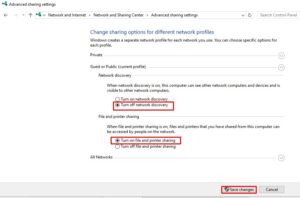
Ensuring your network profile allows printer discovery is the foundational step:
Open Windows Settings (press
Win + I) and navigate to Network & internet > Advanced network settings.Click on Advanced sharing settings.
Under your active network profile (Private), ensure File and printer sharing is turned On.
Method 2: Modify Password Protected Sharing Settings
Disabling password-protected sharing for local networks can bypass pesky authentication roadblocks:
In the same Advanced sharing settings panel, look for All Networks.
Expand the section and locate Password protected sharing.
Select Turn off password protected sharing (recommended only for trusted private home or office networks) and save changes.
If you’re also experiencing other Windows 10 & 11 Best Ways: Windows 11 Enterprise Domain Join Error Fix
Method 3: Update Group Policy Objects for Insecure Guest Logons
Windows 11 often blocks insecure guest logons by default, which stops client PCs from connecting to shared printers:
Press
Win + R, typegpedit.msc, and press Enter to open the Local Group Policy Editor.Navigate to
Computer Configuration>Administrative Templates>Network>Lanman Workstation.Double-click on Enable insecure guest logons, set it to Enabled, click Apply, and restart your computer.
Frequently Asked Questions (FAQs)
Q: Why do I get error code 0x00000709 or access denied when connecting to a network printer?
A: This error usually occurs because the client machine lacks permission to read registry drivers from the print server host, or Windows security policies are blocking anonymous remote access.
Q: Is it safe to turn off password-protected sharing?
A: It is generally safe only on closed, trusted home networks behind a secure hardware router firewall. Avoid doing this on public or shared Wi-Fi networks.
Conclusion
Keeping your office or home network infrastructure collaborative ensures uninterrupted daily productivity. By mastering these techniques to fix windows 11 printer sharing access denied errors, you can restore shared printing capabilities without completely reinstalling your network drivers.
Important Note:
Always verify firewall rules and network profile classifications between all connected computers before executing advanced group policy modifications.
Final Thoughts on Local Network Optimization
To wrap it up, maintaining a fully functional and secure peripheral sharing ecosystem is crucial for seamless daily multi-device operations. By proactively configuring network discovery rules and managing secure guest logons, you protect your workflow against unexpected permission blocks and maintain maximum digital efficiency. Always keep regular backups of your important configuration files before executing deep system modifications or registry updates. Staying proactive with modern diagnostic tools guarantees long-term digital efficiency and peace of mind.