Encountering sudden crashes, black screens, or failure to capture screenshots when opening the built-in screen capture utility can severely disrupt your workflow. If you have been searching for an effective method to apply a windows 11 snipping tool not working fix, you are in the right place. This annoying malfunction typically occurs due to expired certificate issues, corrupted app caches, disabled background permissions, or outdated Windows system components.
In this comprehensive guide, we will walk you through the top troubleshooting steps to resolve snipping tool failures on your Windows 11 computer and get your screen captures running smoothly again.
Table of Contents
What Causes Windows 11 Snipping Tool Failures?
Before applying the fixes, understanding why this happens helps:
Expired Internal Certificates: A well-known Microsoft digital certificate bug that historically prevented the app from launching past a specific date.
Corrupted App Cache: Damaged temporary files or misconfigured app background settings preventing proper UI rendering.
Outdated Store Packages: Pending updates for modern Windows apps managed through the Microsoft Store ecosystem.
Top Methods to Apply Windows 11 Snipping Tool Not Working Fix
Method 1: Check and Correct Your System Date & Time
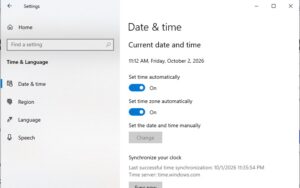
An incorrect system date can trigger security certificate blocks on native Windows apps:
Open Windows Settings (press
Win + I).Navigate to Time & language > Date & time.
Toggle on Set time automatically and click the Sync now button to ensure your clock matches global servers.
Method 2: Repair or Reset the Snipping Tool App
Clearing corrupted caches and resetting app data often fixes sudden launch freezes:
Open Settings > Apps > Installed apps (or Apps & features).
Search for Snipping Tool in the list.
Click the three dots menu next to it and select Advanced options.
Scroll down and click Repair. If that doesn’t work, click Reset to clear corrupted local data.
Method 3: Update the App via Microsoft Store
Running an older version of the app bundled with outdated dependencies can cause continuous crashes:
Open the Microsoft Store application from your start menu.
Go to the Library tab on the bottom left.
Click Get updates to check for pending updates for the Snipping Tool and related system frameworks.
If you’re also experiencing other Windows 10 or 11 Best Ways: How to Fix Windows 11 HDR Display Washed Out Colors
Frequently Asked Questions (FAQs)
Q: Why does the Snipping Tool crash immediately upon opening?
A: This is usually caused by corrupted local app cache files, an incorrect system date triggering security blocks, or pending Microsoft Store updates.
Q: Can I use a keyboard shortcut to force-reset the app?
A: While there is no direct shortcut to reset the app, you can instantly open the screen capture overlay using Win + Shift + S or re-enable it via Windows Settings.
Conclusion
Keeping your daily productivity tools fully functional ensures an uninterrupted working experience. By mastering these techniques to apply a windows 11 snipping tool not working fix, you can restore your screenshot capabilities without unnecessary software reinstalls.
Important Note:
Always maintain regular system backups and keep your Microsoft Store apps updated to avoid sudden application crashes during major system updates.
Final Thoughts on System Utilities and Troubleshooting
To wrap it up, maintaining a fully functional and optimized utility ecosystem is crucial for seamless daily operations. By proactively using built-in app repair tools and keeping your system time synchronized, you protect your valuable workflow against unexpected software failures and maintain maximum digital efficiency. Always keep regular backups of your important data before executing deep system modifications or registry updates. Staying proactive with modern diagnostic tools guarantees long-term digital efficiency and peace of mind.