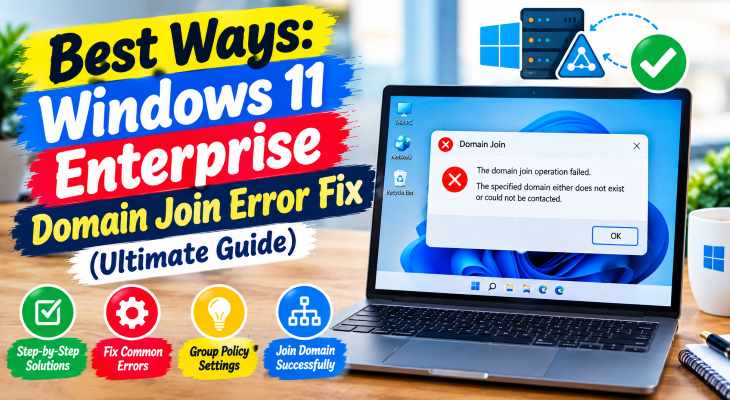
Connecting corporate workstations to an Active Directory network is a critical responsibility for IT administrators. However, encountering unexpected network path failures, DNS mismatches, or security policy blocks can halt deployment instantly. If you have been searching for an effective method to apply a windows 11 enterprise domain join error fix, you are in the right place. This specific error typically appears due to incorrect primary DNS server addresses, disabled NetBIOS over TCP/IP settings, or strict domain controller security authentications.
In this comprehensive guide, we will walk you through the top troubleshooting steps to resolve domain connection failures on your Windows 11 Enterprise computers and join your corporate network smoothly.
Table of Contents
What Causes Windows 11 Enterprise Domain Join Errors?
Before applying the fixes, understanding why this happens helps:
Incorrect DNS Configuration: Workstations failing to resolve the Active Directory domain controller name due to external public DNS usage.
Network Profile Mismatch: Windows treating the corporate network connection as “Public” instead of “Private” or “Domain”.
SMB / Kerberos Protocol Restrictions: Outdated security handshakes or mismatched system times between the client and the domain server.
Top Methods to Apply Windows 11 Enterprise Domain Join Error Fix
Method 1: Point Your Network Adapter to the Domain Controller DNS
Without proper internal DNS resolution, Windows cannot locate the active directory domain:
Open Windows Settings (press
Win + I) and go to Network & internet > Ethernet (or Wi-Fi).Look for DNS server assignment and click Edit.
Change it to Manual, enable IPv4, and set your primary DNS to the internal IP address of your Active Directory Domain Controller.
Save changes and attempt to join the domain again.
If you’re also experiencing other Windows 10 or 11Best Ways: Windows 11 Snipping Tool Not Working Fix.
Method 2: Verify System Time and Date Synchronization
Even a small time difference between your PC and the domain controller will cause Kerberos authentication failures:
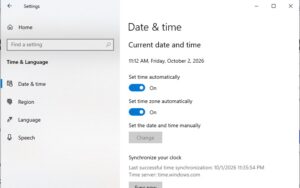
Open Settings > Time & language > Date & time.
Toggle on Set time automatically and click the Sync now button.
Ensure your local time zone matches the domain controller environment precisely.
Method 3: Use Full Domain Name (FQDN) Instead of NetBIOS
Sometimes short domain names fail to trigger proper forest discovery during setup:
Open System Properties (
sysdm.cplvia Run dialog).Click Change next to “To rename this computer or join a domain”.
Select Domain and instead of typing a short name (e.g.,
company), type the Fully Qualified Domain Name likecompany.local.Enter administrator credentials when prompted and restart your PC.
Frequently Asked Questions (FAQs)
Q: Why do I get error code 0x525 or “The specified domain either does not exist or could not be contacted”?
A: This error almost always indicates that your Windows 11 PC cannot reach the Active Directory Domain Controller via DNS, or the primary network profile is set to Public.
Q: Do I need a specific Windows 11 edition for domain joining?
A: Yes, joining a traditional Active Directory domain natively requires Windows 11 Pro, Enterprise, or Education editions. Home editions do not support domain join natively.
Conclusion
Keeping your corporate network environment stable ensures seamless multi-user deployment and security compliance. By mastering these techniques to apply a windows 11 enterprise domain join error fix, you can restore your corporate connectivity without formatting your drives.
Important Note:
Always verify physical network connectivity and firewall rules between your workstation and the domain controller before executing deep system modifications.
Final Thoughts on Enterprise Network Management
To wrap it up, maintaining a fully functional and optimized enterprise integration workflow is crucial for seamless daily IT operations. By proactively using proper DNS configurations and keeping system clocks synchronized, you protect your infrastructure against unexpected domain dropouts and maintain maximum digital efficiency. Always keep regular backups of your important configuration files before executing deep registry modifications or network profile resets. Staying proactive with modern diagnostic tools guarantees long-term digital efficiency and peace of mind.