Are your wireless headphones, mouse, or keyboard failing to connect to your PC suddenly? Bluetooth connectivity issues are frustrating, especially when options disappear from the Action Center altogether. Knowing **How to Fix Windows 10 Bluetooth Not Working** helps you restore wireless connectivity rapidly without technical hassle.
In this comprehensive guide, we will walk you through five proven solutions to get your Bluetooth devices reconnected smoothly. Following these steps guarantees a permanent solution on How to Fix Windows 10 Bluetooth Not Working problems.
—
## Table of Contents
* [Why Is My Windows 10 Bluetooth Not Working?](#causes)
* [How to Fix Windows 10 Bluetooth Not Working: 5 Simple Fixes](#methods)
* [Frequently Asked Questions (FAQs)](#faq)
* [Conclusion](#conclusion)
—
## Why Is My Windows 10 Bluetooth Not Working?
Before applying the fixes, it helps to understand why Bluetooth service stops responding:
* Bluetooth device drivers are outdated, corrupted, or missing.
* The physical Bluetooth adapter or USB dongle is improperly connected.
* The core Windows Bluetooth Support Service is disabled in system services.
* Interference from fast startup options or aggressive power-saving settings.
—
## How to Fix Windows 10 Bluetooth Not Working: 5 Simple Fixes
Follow these practical step-by-step solutions to fix your wireless connection.
### Method 1: Turn Bluetooth Off and On Again
1. Press **Windows Key + I** to open **Settings**.
2. Go to **Devices** > **Bluetooth & other devices**.
3. Toggle the **Bluetooth** switch to **Off**, wait 10 seconds, and turn it back **On**.
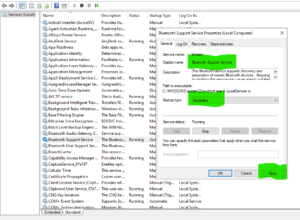
### Method 2: Restart Bluetooth Support Service
1. Press **Windows Key + R**, type **services.msc**, and press Enter.
2. Scroll down and find **Bluetooth Support Service**.
3. Right-click it and select **Restart**.
4. Right-click again, choose **Properties**, change Startup type to **Automatic**, and click **Apply**.
Method 3: Run the Built-in Windows Bluetooth Troubleshooter
1. Open **Settings** and navigate to **Update & Security**.
2. Select **Troubleshoot** from the left panel, then click **Additional troubleshooters**.
3. Select **Bluetooth** and click **Run the troubleshooter**.
### Method 4: Update or Reinstall Bluetooth Drivers
1. Right-click the Start menu and open **Device Manager**.
2. Expand the **Bluetooth** section.
3. Right-click your primary Bluetooth adapter and select **Update driver**.
4. If updating fails, select **Uninstall device**, then restart your PC to allow Windows to reinstall fresh drivers automatically.
### Method 5: Turn Off Power Management Constraints
1. Open **Device Manager** and expand **Bluetooth**.
2. Right-click your Bluetooth radio adapter and select **Properties**.
3. Go to the **Power Management** tab.
4. Uncheck **Allow the computer to turn off this device to save power** and click **OK**.
##Check for External Physical Hardware Switches
Some laptops and external keyboards feature physical toggles or dedicated function keys (like Fn + F2) that enable or disable wireless in connectivity. Ensure your physical Bluetooth switch is turned on before modifying complex system settings.
## Frequently Asked Questions (FAQs)
### FAQ 1: Why did my Bluetooth toggle switch disappear completely?
*Ans:* When the toggle switch disappears, Windows cannot detect your Bluetooth hardware. This usually happens due to driver corruption or an outdated motherboard BIOS. Restarting the Bluetooth service or reinstalling drivers usually brings it back.
### FAQ 2: Can a pending Windows Update fix Bluetooth errors?
*Ans:* Yes! Microsoft frequently releases cumulative patches to resolve driver incompatibility bugs. Updating Windows often restores broken Bluetooth functions.
##Bonus Tip: Run Hardware and Devices Troubleshooter
If Bluetooth still remains unresponsive after driver reinstallation, run the legacy Hardware Troubleshooter via Command Prompt. Press Windows Key + R, type msdt.exe -id DeviceDiagnostic, and hit Enter. Follow the on-screen repair steps to fix hardware conflicts automatically.
## Conclusion
Try now Understanding **How to Fix Windows 10 Bluetooth Not Working** ensures your daily wireless peripherals stay connected reliably. Regular driver updates and proper power settings will keep your system running without unexpected drops.
**Pro Tip:** For official system patch notes and device compatibility tools, always consult the ofFollowing these steps guarantees a smooth experience on How to Fix Windows 10 Bluetooth Not Working errors. ficial [Microsoft](https://www.microsoft.com) support center..









