Is your computer taking minutes to reach the desktop every time you turn it on? A delayed startup sequence can be extremely frustrating. Knowing **how to Fix Windows 10 Slow Boot Issue** helps you streamline system startup programs, clear unwanted cache, and drastically improve your PC’s boot speed.
In this practical guide, we will walk you through five safe and proven methods to speed up your Windows Tips startup without risking any of your personal files.
—
## Table of Contents
* [What Causes Windows 10 Slow Startup?](#causes)
* [How to Fix Windows 10 Slow Boot Issue: 5 Fast Methods](#methods)
* [Frequently Asked Questions (FAQs)](#faq)
* [Conclusion](#conclusion)
—
## What Causes Windows 10 Slow Startup?
Before applying the fixes, it helps to understand why your operating system takes so long to load:
* Too many third-party startup applications launching simultaneously during boot.
* Fast Startup feature being misconfigured or corrupted in power settings.
* Outdated or incompatible graphics and storage drivers.
* Low virtual memory allocation or corrupted system updates.
Bonus Tip: Disable Visual Effects
If your system is still booting slowly, turning off unnecessary animations can speed up startup responsiveness. Open System Properties by searching for “sysdm.cpl” in the Start Menu. Under the Advanced tab, click Settings in the Performance section and select Adjust for best performance. This lightens the system load right when Windows boots up.
## How to Fix Windows 10 Slow Boot Issue: 5 Fast Methods
Follow these step-by-step techniques to significantly decrease your boot times.
### Method 1: Turn On (or Re-enable) Fast Startup
Windows 10 includes a Fast Startup feature that combines hibernation and shutdown modes to boot faster. Understanding How to Fix Windows 10 Slow Boot Issue effectively allows your computer to start up smoothly without background delays.
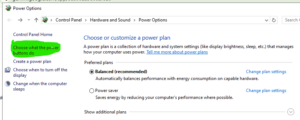
1. Press **Windows Key + R**, type **powercfg.cpl**, and press Enter.
2. Click **Choose what the power buttons do** on the left menu.
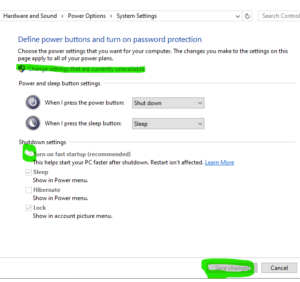
3. Click **Change settings that are currently unavailable**.
4. Check the box for **Turn on fast startup (recommended)** and click **Save changes**.
Method 2: Disable Unnecessary Startup Programs
1. Press **Ctrl + Shift + Esc** to open **Task Manager**.
2. Switch to the **Startup** tab at the top.
3. Select non-essential apps (like Skype, Cortana, or Steam) and click **Disable**.
### Method 3: Update Your Graphics Card Drivers
Outdated display drivers often hang during the Windows startup animation phase.
1. Right-click the Start button and select **Device Manager**.
2. Expand **Display adapters**.
3. Right-click your dedicated or integrated graphics card and select **Update driver**.
### Method 4: Adjust Virtual Memory Settings
1. Type **Performance** in the taskbar search bar and select **Adjust the appearance and performance of Windows**.
2. Go to the **Advanced** tab and click **Change** under Virtual memory.
3. Uncheck **Automatically manage paging file size**, set custom initial and maximum sizes, and click **Set**.
### Method 5: Run SFC Scan to Repair Corrupted System Files
1. Type **cmd** in the Windows search bar, right-click **Command Prompt**, and select **Run as administrator**.
2. Type **sfc /scannow** and press Enter.
3. Wait for the system scan to complete and restart your computer.
—
## Frequently Asked Questions (FAQs)
### FAQ 1: Will an SSD fix slow boot times on Windows 10?
*Ans:* Yes! Replacing a traditional mechanical Hard Disk Drive (HDD) with a Solid-State Drive (SSD) is the single most effective hardware upgrade, often reducing boot times from minutes to under 15 seconds.
### FAQ 2: Why did my PC start booting slowly after an update?
*Ans:* Pending system updates or temporary installation cache files can temporarily slow down startup. Running a disk cleanup usually resolves this issue.
—
## Conclusion
Understanding **how to Fix Windows 10 Slow Boot Issue** keeps your operating system snappy and ready for action. By managing startup applications, keeping device drivers current, and adjusting power options, you can enjoy a seamless startup experience every day.
**Pro Tip:** Always download official system drivers directly from the [Microsoft](https://www.microsoft.com) update center for maximum stability.









