If you want to know **How To Fix High CPU Usage In Windows 10**, your computer is likely freezing, fanning loudly, or lagging during basic tasks. High Central Processing Unit (CPU) utilization—often spiking up to 100%—is a common problem that prevents your operating system from executing processes smoothly.
In this complete step-by-step guide, we will share the most effective and safe methods to reduce CPU usage and restore your system speed without needing expensive hardware upgrades.
Table of Contents
## What Causes 100% CPU Usage in Windows 10?
Before diving into the solutions, it helps to understand why your processor gets overloaded so quickly:
* Resource-heavy background applications and startup programs running simultaneously.
* System file corruption or outdated device drivers.
* Background Windows Updates indexing or downloading files.
* Hidden malware, adware, or crypto mining scripts using system resources.
—
## How to Fix High CPU Usage in Windows 10: 5 Safe Methods
Here are the tested troubleshooting techniques to eliminate CPU bottleneck issues quickly.
### Method 1: End Resource-Hogging Tasks via Task Manager
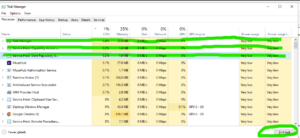
1. Press **Ctrl + Shift + Esc** to open the Task Manager.
2. Click on the **CPU** column header to sort processes by highest resource usage.
3. Select any unnecessary program taking up high percentage and click **End task**.
Method 2: Disable Unnecessary Startup Apps
1. Open Task Manager and navigate to the **Startup** tab.
2. Review the list of applications enabled at boot.
3. Right-click on non-essential apps (like Spotify or Skype) and select **Disable**.
### Method 3: Change Your Power Plan Settings
1. Open **Control Panel** and go to **Power Options**.
2. Select the **Balanced (recommended)** plan instead of High Performance.
3. Click **Change plan settings** > **Change advanced power settings**.
4. Expand **Processor power management** and set **Maximum processor state** to 95%.
### Method 4: Update Your Device Drivers
Outdated drivers often cause system interrupts that overload your processor. Keep your operating system updated by visiting the official Microsoft website for essential security patches and bug fixes.
### Method 5: Run a Full System Scan for Malware
1. Open **Windows Security** from the Start Menu.
2. Select **Virus & threat protection**.
3. Click **Scan options**, select **Full scan**, and click **Scan now**.
—
## Frequently Asked Questions (FAQs)
### FAQ 1: Is 100% CPU usage harmful to my processor?
*Ans:* While modern CPUs have built-in thermal protection to prevent immediate damage, running continuously at 100% usage generates excessive heat and shortens the component lifespan over time.
### FAQ 2: Will restarting my PC fix high CPU usage?
*Ans:* Yes! Restarting clears temporary system memory (RAM), terminates rogue background processes, and temporarily resets CPU allocation.
## Additional Steps for Persistent CPU Spikes
If basic troubleshooting does not lower your processor usage, consider checking for pending Windows updates. System updates often contain crucial bug fixes that resolve underlying service conflicts causing severe CPU memory leaks. Furthermore, performing a clean boot helps pinpoint specific third-party startup software that might be triggering high system interrupts during daily use.
## When to Consider Hardware Upgrades
If software fixes do not permanently solve high CPU usage, your hardware might be struggling with modern application demands. Upgrading your processor or adding more RAM can significantly reduce system bottlenecks and enhance overall multitasking speed for heavy applications.
## Final Troubleshooting Tip
If your system performance remains sluggish after executing these steps, consider performing a quick RAM cleanup or scanning for Windows updates. Keeping system drivers up-to-date prevents future CPU allocation spikes and guarantees efficient multitasking capabilities.
## Quick Summary
To successfully How to Fix High CPU Usage in Windows 10, make sure to regularly end unnecessary background tasks, update key drivers, and keep your Windows operating system patched with the latest updates.
## Final Thoughts
Maintaining overall system efficiency is essential for smooth daily multitasking. Understanding **how to fix high CPU usage in Windows 10** ensures your computer runs reliably without unexpected slowdowns. Regular system maintenance will protect your hardware from unnecessary strain.









