Is your PC responding slowly, freezing during normal operations, or showing 100% disk usage in Task Manager? High disk usage is a common issue that hampers performance. Knowing How To Fix High Disk Usage on Windows 10 helps restore your computer’s speed and responsiveness quickly.
In this guide, we will walk you through five simple and practical methods to solve this problem without losing any personal data.
What Causes 100% High Disk Usage in Windows 10?
Before diving into the solutions, it helps to understand why your hard drive or SSD is running at maximum capacity:
Background system services like Windows Search or SysMain consuming heavy resources.
Outdated or corrupted device drivers interfering with storage drives.
Corrupted system files created after a recent update.
Unnecessary temporary files cluttering your primary system storage.
How to Fix High Disk Usage on Windows 10 Step-by-Step
Follow these tested methods to lower your disk usage back to normal percentages.
1. Disable the SysMain (Superfetch) Service
How to Fix High Disk Usage on Windows 10
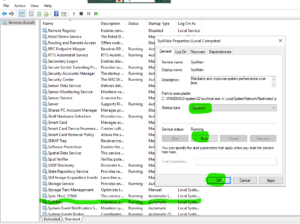
The SysMain service preload apps you frequently use, but it often causes continuous 100% disk spikes on many PCs.
Press Windows Key + R to open the Run dialog box.
Type services.msc and press Enter.
Scroll down to locate SysMain (or Superfetch).
Right-click on it, select Properties, change Startup type to Disabled, and click Stop.
2. Disable Windows Search
Windows Search indexes your files constantly, which can severely overload your hard disk.
Open the Run dialog box again (Win + R).
Type services.msc and press Enter.
Locate Windows Search, right-click it, and select Properties.
Set Startup type to Disabled and stop the service temporarily to check if disk usage drops.
3. Update Your Storage Controller Drivers
Outdated storage drivers cause severe communication loops between your motherboard and hard drive.
Right-click the Start Menu button and select Device Manager.
Expand the Storage controllers category.
Right-click your AHCI controller and select Update driver.
4. Run CHKDSK to Repair Disk Errors
Physical errors or corrupted sectors on your drive can keep Windows constantly trying to read data.
Type cmd in the taskbar search bar.
Right-click Command Prompt and choose Run as administrator.
Type chkdsk /f /r and press Enter to scan and fix disk errors upon your next reboot.

Frequently Asked Questions (FAQs)
FAQ 1: Is 100% disk usage harmful to my hard drive?
Ans: While it won’t instantly destroy your drive, continuous high disk usage generates excess heat and causes severe system slowdowns, reducing the drive’s lifespan over time.
FAQ 2: Will switching to an SSD fix high disk usage?
Ans: Yes! Upgrading from a traditional HDD to a Solid-State Drive (SSD) is one of the most effective hardware solutions for eliminating disk bottleneck problems entirely.
Additional Tips for Smooth Performance
If you have tried all the above methods and your disk usage still hits 100%, consider performing a clean boot in Windows 10. A clean boot starts Windows with a minimal set of drivers and startup programs so that you can determine whether a background program is interfering with your system performance. Additionally, performing a full system scan with Windows Defender ensures no hidden malware is causing excessive disk read/write operations.
Conclusion
By disabling heavy background services, updating drivers, and checking for system file corruption, you can easily How to Fix High Disk Usage on Windows 10 and enjoy a snappy computing experience.
Pro Tip: Always keep your operating system updated by visiting the official Microsoft website for essential security patches and bug fixes.
Final Thoughts
“Understanding How to Fix High Disk Usage on Windows 10 is essential for overall system performance.” Maintaining your hard drive health is essential for overall system performance. Following these troubleshooting steps will prevent background bottleneck issues and ensure your computer functions at optimal speeds every day. Maintaining your hard drive health is essential for overall system performance. Following these troubleshooting steps will prevent background bottleneck issues and ensure your computer functions at optimal speeds every day. Regular maintenance will protect your system from unexpected errors.









