Is your computer suddenly muted, or are your speakers failing to output audio? Sound problems can be deeply frustrating, especially during video meetings, media playback, or gaming sessions. Knowing **How to Fix Windows 10 Sound Not Working** helps you restore your audio output rapidly without needing expert technician assistance.
In this practical troubleshooting guide, we will walk you through five proven solutions to bring your computer’s sound back.
—
## Table of Contents
* [Why Is My Windows 10 Audio Not Working?](#causes)
* [How to Fix Windows 10 Sound Not Working: 5 Simple Steps](#methods)
* [Frequently Asked Questions (FAQs)](#faq)
* [Conclusion](#conclusion)
—
## Why Is My Windows 10 Audio Not Working?
Before applying the fixes, it helps to understand why Windows sound services stop responding:
* Sound card drivers are outdated, corrupted, or disabled.
* The default playback device is misconfigured in system settings.
* The core Windows Audio service has stopped running unexpectedly.
* Enhancements or spatial audio settings are causing driver conflicts. How to Fix Windows 10 Sound Not Working.
—
## How to Fix Windows 10 Sound Not Working: 5 Simple Steps
Follow these practical step-by-step methods to resolve your audio glitches. How to Fix Windows 10 Sound Not Working
### Method 1: Check Your Default Playback Device
1. Click the **Speaker icon** in the taskbar system tray (bottom-right corner).
2. Click the arrow next to the device name to expand the list.
3. Select the correct audio device (e.g., Realtek High Definition Audio or your external headset).
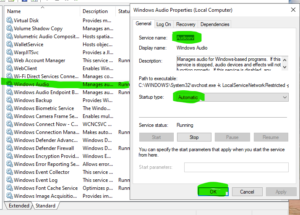
### Method 2: Restart Windows Audio Services
1. Press **Windows Key + R**, type **services.msc**, and press Enter.
2. Scroll down and locate **Windows Audio**.
3. Right-click it and select **Restart**.
4. Right-click again, select **Properties**, set Startup type to **Automatic**, and click **OK**.
Method 3: Run the Built-in Audio Troubleshooter
1. Press **Windows Key + I** to open **Settings**.
2. Go to **Update & Security** > **Troubleshoot**.
3. Select **Additional troubleshooters**, choose **Playing Audio**, and click **Run the troubleshooter**.
### Method 4: Reinstall Audio Drivers via Device Manager
1. Right-click the Start menu and open **Device Manager**.
2. Expand the **Sound, video and game controllers** category.
3. Right-click your audio driver (e.g., Realtek Audio) and select **Uninstall device**.
4. Restart your computer. Windows will automatically reinstall fresh audio drivers upon reboot.
### Method 5: Disable Audio Enhancements
1. Press **Windows Key + R**, type **mmsys.cpl**, and press Enter to open Sound Settings.
2. Right-click your default playback device and select **Properties**.
3. Go to the **Enhancements** tab.
4. Check **Disable all enhancements** and click **Apply**.
### Method 6: Update Audio Drivers via Windows Update
Sometimes core system drivers receive critical patches directly through official operating system updates.
1. Press **Windows Key + I** to open **Settings**.
2. Go to **Update & Security** > **Windows Update**.
3. Click **Check for updates**.
4. Look under **View optional updates** for any pending audio driver releases and install them.
### Method 7: Change Audio Format Settings
1. Press **Windows Key + R**, type **mmsys.cpl**, and press Enter.
2. Right-click your default playback device and select **Properties**.
3. Navigate to the **Advanced** tab.
4. Change the sample rate under **Default Format** to **24-bit, 44100 Hz** or **16-bit, 48000 Hz** and click **Apply**.
## Frequently Asked Questions (FAQs)
### FAQ 1: Why does my PC say “No Audio Output Device is installed”?
*Ans:* This error usually indicates a missing or corrupted sound driver. Reinstalling the sound card driver through Device Manager or updating Windows resolves this immediately.
### FAQ 2: Can a Windows update break audio settings and require you to learn How to Fix Windows 10 Sound Not Working?
*Ans:* Yes! System updates sometimes replace default manufacturer drivers with generic ones. Updating drivers directly from your motherboard or laptop manufacturer’s website fixes sound bugs.
## Conclusion
If these steps do not resolve the issue, checking hardware connections is another essential step in How to Fix Windows 10 Sound Not Working. Mastering **How to Fix Windows 10 Sound Not Working** ensures your daily media playback and communication channels stay clear. Regular audio driver maintenance will keep your computer’s sound running smoothly.
**Pro Tip:** For official system patch notes and audio driver downloads, always visit the official [Microsoft](https://www.microsoft.com) support center.









