Are you experiencing screen flickering, blurry text, wrong display resolution, or color distortion on your PC monitor? Visual issues can immediately strain your eyes and disrupt your work or gaming sessions. Knowing **How to Fix Windows 10 Display Problems** helps you restore your screen’s clarity and proper scaling without buying a new monitor.
In this practical troubleshooting guide, we will walk you through five reliable solutions to fix system display glitches.
—
## Table of Contents
* [Why Are Windows 10 Display Problems Occurring?](#causes)
* [How to Fix Windows 10 Display Problems: 5 Fast & Easy Solutions](#methods)
* [Frequently Asked Questions (FAQs)](#faq)
* [Conclusion](#conclusion)
—
## Why Are Windows 10 Display Problems Occurring?
Visual defects and screen errors usually stem from these common technical causes:
* Corrupted, outdated, or generic graphics card (GPU) display drivers.
* Incorrect screen resolution or DPI display scaling settings.
* Faulty, loose, or damaged video connection cables (HDMI, DisplayPort, or VGA).
* System conflicts caused by recent Windows updates or background desktop software.
—
## How to Fix Windows 10 Display Problems: 5 Fast & Easy Solutions
Follow these step-by-step methods to resolve your desktop display errors.
### Method 1: Restart Graphics Drivers for How to Fix Windows 10 Display Problems
If your screen flickers or suddenly freezes, reset your display driver stack instantly.
1. Press **Windows Key + Ctrl + Shift + B** simultaneously on your keyboard.
2. The screen will blink briefly and beep once.
3. Wait 5 seconds for Windows to refresh your display adapter.
### Method 2: Adjust Screen Resolution and Display Scaling
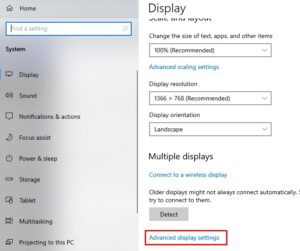
1. Right-click any empty space on your desktop and select **Display settings**.
2. Under **Scale and layout**, ensure scaling is set to **100% (Recommended)** or your preferred display scale.
3. Under **Display resolution**, choose the native resolution recommended for your monitor (e.g., 1920 x 1080).
### Method 3: Update or Reinstall Graphics Drivers
1. Right-click the Start menu button and select **Device Manager**.
2. Expand the **Display adapters** category.
3. Right-click your graphics card (Intel, NVIDIA, or AMD) and select **Update driver**.
4. Choose **Search automatically for drivers**.
5. If issues persist, select **Uninstall device**, then restart your PC so Windows automatically installs a fresh driver.
### Method 4: Roll Back Recent Display Driver Updates
If display glitches appeared right after a Windows update:
1. Open **Device Manager** and expand **Display adapters**.
2. Right-click your GPU driver and choose **Properties**.
3. Switch to the **Driver** tab and click **Roll Back Driver**.
### Method 5: Check Cable Connections and Refresh Rate Settings
1. Ensure your HDMI, DisplayPort, or VGA cables are firmly attached to both your monitor and graphics card ports.
2. Open **Settings** > **System** > **Display** > **Advanced display settings**.
3. Click **Display adapter properties for Display 1**, go to the **Monitor** tab, and set the **Screen refresh rate** to match your display’s native rate (e.g., 60Hz or 144Hz).


Frequently Asked Questions (FAQs)
### FAQ 1: Why is my desktop screen stretched or blurry?
*Ans:* A stretched screen usually means Windows is using a basic default display driver or your screen resolution is set incorrectly. Adjusting resolution in Display Settings or updating the GPU driver fixes this instantly.
### FAQ 2: Can a faulty HDMI cable cause display flickering?
*Ans:* Yes! Loose, bent, or low-quality cables often cause signal drops, resulting in screen flickering or black display pop-ups.
—
## Conclusion
Proper screen resolution configuration and updated display drivers make learning How to Fix Windows 10 Display Problems seamless. Always ensure your graphics software stays updated to prevent future monitor glitches. Mastering **How to Fix Windows 10 Display Problems** keeps your visual workflow smooth and free from screen distortion. Regularly updating graphics drivers and maintaining proper monitor settings will ensure a clear viewing experience.
**Pro Tip:** For official graphics driver releases and display diagnostic tools, always check the official [Microsoft](https://www.microsoft.com) support center.









