Upgrading your operating system brings a modernized user interface, improved gaming performance, enhanced multitasking layouts, and stronger security protocols. Knowing **how to upgrade to windows 11 from windows 10** allows you to update your PC smoothly without losing your personal files, programs, or desktop settings.
In this step-by-step guide, we will walk you through five practical methods on how to upgrade to windows 11 from windows 10 safely.
—
## Table of Contents
* [System Requirements Before Upgrading](#requirements)
* [How to Upgrade to Windows 11 from Windows 10: 5 Easy Steps](#methods)
* [Frequently Asked Questions (FAQs)](#faq)
* [Conclusion](#conclusion)
—
## System Requirements Before Upgrading
Before initiating the setup, ensure your computer satisfies Microsoft’s official system prerequisites:
* **Processor:** 1 GHz or faster with 2 or more cores on a compatible 64-bit processor.
* **RAM:** Minimum 4 GB (8 GB or higher recommended).
* **Storage:** 64 GB or larger available drive space.
* **System Firmware:** UEFI, Secure Boot capable.
* **TPM:** Trusted Platform Module (TPM) version 2.0 enabled.
—
## How to Upgrade to Windows 11 from Windows 10: 5 Easy Steps
Follow these verified installation channels to transition your system seamlessly.
### Step 1: Run the PC Health Check App
1. Download and open Microsoft’s official **PC Health Check** tool.
2. Click **Check now** under the Windows 11 banner.
3. Confirm that your hardware meets all CPU, RAM, and TPM 2.0 requirements.
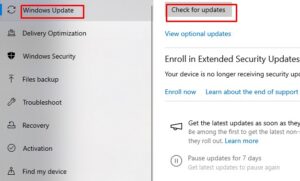
### Step 2: Check Windows Update inside System Settings
The standard method to learn **how to upgrade to windows 11 from windows 10** is through the built-in updater:
1. Press **Windows Key + I** to open **Settings**.
2. Click **Update & Security** > **Windows Update**.
3. Click **Check for updates**. If the upgrade is staged for your device, click **Download and install**.
Step 3: Use the Windows 11 Installation Assistant
If the update doesn’t appear in settings automatically:
1. Visit the official Microsoft software download page.
2. Under **Windows 11 Installation Assistant**, click **Download Now**.
3. Run `Windows11InstallationAssistant.exe` as an administrator.
4. Click **Accept and Install**, then let the wizard complete the OS deployment.
### Step 4: Create Installation Media using a USB Drive
1. Insert a blank USB flash drive with at least 8 GB space.
2. Download the **Media Creation Tool** from Microsoft.
3. Launch the tool, select **Create installation media for another PC**, and choose your USB drive.
4. Open the USB drive in File Explorer, double-click `setup.exe`, and follow the on-screen instructions.
### Step 5: Upgrade via Clean ISO File Mounting
1. Download the official **Windows 11 Disk Image (ISO)** file from Microsoft.
2. Right-click the downloaded ISO file and choose **Mount**.
3. Open the newly created virtual drive and run `setup.exe`.
4. Choose **Keep personal files and apps**, then click **Install**.
### Step 6: Roll Back to Windows 10 if Necessary
If you experience software incompatibility after updating, Microsoft provides a safety net:
1. Open **Settings** > **System** > **Recovery**.
2. Under **Recovery options**, locate **Go back**.
3. Click **Go back** to restore your system to Windows 10 safely (available for 10 days after upgrade).
## Frequently Asked Questions (FAQs)
### FAQ 1: Is upgrading from Windows 10 to Windows 11 free?
*Ans:* Yes! The upgrade is completely free for all genuine Windows 10 license holders, provided your hardware meets the minimum system requirements.
### FAQ 2: Will upgrading to Windows 11 delete my personal files?
*Ans:* No. Choosing the standard upgrade option retains all your personal files, documents, pictures, and installed software applications intact.
—
## Conclusion
Understanding **how to upgrade to windows 11 from windows 10** ensures a smooth transition to Microsoft’s modern desktop environment. Regular system backups and driver updates will keep your updated computer operating efficiently..
Knowing **how to upgrade to windows 11 from windows 10** also allows you to unlock improved performance features like DirectStorage and Snap Layouts.
**Pro Tip:** For official system requirement details and ISO downloads, visit the official [Microsoft](https://www.microsoft.com) support portal.









