Windows 10 remains one of the most stable and widely used operating systems for laptops around the world. Mastering your laptop windows 10 device allows you to optimize battery life, manage background processes, and enhance overall system performance efficiently.
In this comprehensive guide, we will explore essential tips, optimization techniques, and troubleshooting steps to get the best experience from your Windows 10 laptop.
Table of Contents
Why Optimize Windows 10 on Your Laptop?
Laptops have unique power and hardware constraints compared to desktop computers. Proper optimization offers several key advantages:
Extended Battery Life: Managing power plans and background apps helps your laptop battery last longer on a single charge.
Faster Boot and Loading Times: Cleaning up startup apps speeds up system response times significantly.
Stable Thermal Performance: Preventing CPU over-utilization keeps your laptop cooler during heavy tasks.
Enhanced Security: Keeping your system updated protects your personal data from evolving security threats.
Top Tips to Enhance Laptop Windows 10 Performance
Method 1: Adjust Power and Sleep Settings
Maximizing battery efficiency is crucial for any laptop user:
Press
Win + Ito open Settings and click on System.Select Power & sleep from the left-hand menu.
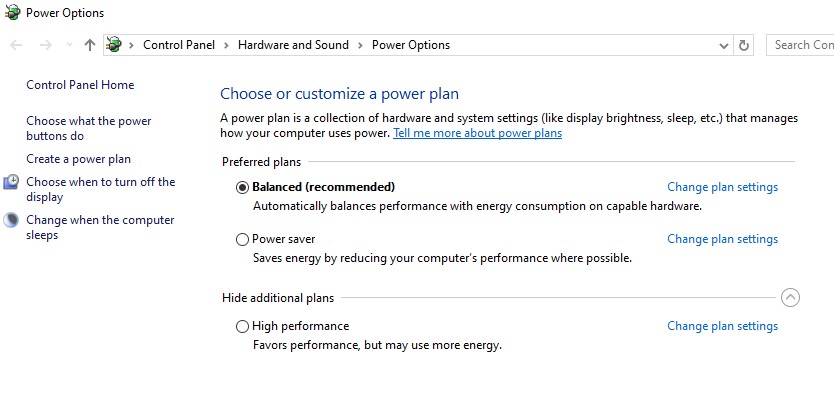
Adjust screen timeout settings and click on Additional power settings to choose the Balanced or Power Saver plan based on your usage.
Method 2: Disable Unnecessary Startup Apps
Preventing apps from launching automatically when you turn on your laptop speeds up startup:
Press
Ctrl + Shift + Escto open the Task Manager.Click on the Startup tab at the top.
Right-click on non-essential applications (like app updaters or helper tools) and select Disable.
Method 3: Keep Your System and Drivers Updated
Regular updates ensure hardware components communicate smoothly with Windows 10:
Go to Settings > Update & Security > Windows Update.
Click Check for updates to download the latest security patches and system improvements.
Use Device Manager to update specific display or audio drivers if needed.
Method 4: Clean Up Storage Space Regularly
Low disk space on your laptop’s main drive can cause sudden lagging:
Press
Win + I, go to System > Storage.Turn on Storage Sense to let Windows automatically delete temporary files and items in your Recycle Bin. If you encounter audio disruptions during media playback, you can check our guide on how to fix windows 10 sound problems for quick fixes.
- Frequentl”Additionally, maintaining proper battery health management and preventing overheating are vital for long-term laptop longevity. Avoid placing your laptop on soft surfaces like beds or couches that block air vents. Regularly cleaning dust from cooling fans and keeping your operating system optimized will prevent unexpected freezes, thermal throttling, and hardware wear. Taking these extra preventative measures ensures your device operates at peak efficiency during intensive daily tasks, gaming, or professional multimedia editing workloads. “y Asked Questions (FAQs)
FAQ: Question
Q: Is Windows 10 still safe to use on a laptop?
A: Yes, Windows 10 is widely used and stable, though keeping security updates enabled is essential for safety.
Q: How can I make my old Windows 10 laptop run faster?
A: You can disable startup apps, clear temporary files, manage background processes, or upgrade your storage to an SSD for massive performance gains.
Conclusion
“Additionally, regular maintenance and proper system care ensure your laptop remains responsive, fast, and completely reliable for all your daily tasks.” Managing your laptop windows 10 experience effectively ensures your device stays fast, secure, and responsive for years. By applying these optimization tips, you can enjoy a seamless daily computing experience. For official downloads and resources, visit Microsoft Support.