Stuck application downloads, failed update error codes, or freezing app interfaces in the Microsoft Store can disrupt your software management routines. Learning how to clear microsoft store cache windows 10 allows you to wipe corrupted temporary package files, reset the store environment, and restore smooth app downloads.
In this step-by-step troubleshooting guide, we will examine why clearing the store cache is necessary and walk you through four fast methods to reset it.
Table of Contents
Why Clear Microsoft Store Cache on Windows 10?
Temporary cache files can sometimes become corrupted, blocking apps from installing or updating properly:
Fixes Stuck App Downloads: Resolves updates or installations frozen at pending or starting states.
Clears Error Codes: Bypasses stubborn error prompts that prevent user sign-ins or purchases.
Repairs Corrupted Store Apps: Resets the local package registry without needing a full operating system reinstall.
Frees Up Temporary Storage: Removes obsolete installation residues from your main disk partition.
How to Clear Microsoft Store Cache Windows 10: 4 Easy Steps
Step 1: Reset Store Cache Using WS Reset Command
The fastest and official built-in method to clear local store cache files:
Press
Win + Ron your keyboard to open the Run dialog box.Type
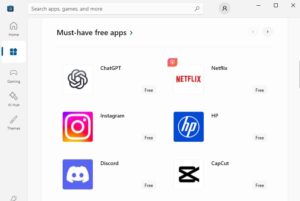
and press Enter (or click OK).A blank Command Prompt window will appear. Leave it open; it will automatically clear the cache and launch the Microsoft Store app after a few seconds.
Step 2: Clear Store Cache via Windows Settings Apps Menu
You can reset the Microsoft Store application package directly from system settings:
Press
Win + Ito open Settings and click Apps.Select Apps & features from the left list and scroll down to find Microsoft Store.
Click on Microsoft Store, then click Advanced options.
Scroll down and click the Reset button. Confirm the prompt to clear all local app data.
Step 3: Re-register Microsoft Store via PowerShell
If basic cache clearing does not resolve your installation errors, you can re-register the application package:
Press the Windows key, type
powershell, right-click Windows PowerShell, and select Run as administrator.Type the following command and press Enter:
Get-AppXPackage *WindowsStore* -AllUsers | Foreach {Add-AppxPackage -DisableDevelopmentMode -Register "$($_.InstallLocation)\AppXManifest.xml"}Allow the script to finish processing, then restart your PC.
Step 4: Clear DNS and Temporary System Cache
Network routing problems can sometimes mimic Microsoft Store download errors. If network timeouts persist, check our guide on how to clear dns cache windows 10 to ensure smooth server communication.
Frequently Asked Questions (FAQs)
Q: Does learning how to clear Microsoft store cache windows 10 delete my purchased apps?
A: No, resetting or clearing the store cache only removes temporary installation data. Your purchased apps and active licenses remain safely tied to your Microsoft account.
Q: What should I do if WSReset.exe shows an error?
A: If WSReset fails, you can use Step 2 (Reset via Settings) or run the PowerShell re-registration command in Step 3 to rebuild the app environment.
Conclusion
Mastering how to clear microsoft store cache windows 10 ensures your application downloads run smoothly without unexpected interruption. Learning how to clear microsoft store cache windows 10 helps you resolve installation glitches safely. For official Windows app support, visit Microsoft.