Unexpected system crashes, faulty driver updates, or corrupted software installations can cause your computer to become unstable. Utilizing the windows 10 system restore feature allows you to revert your operating system files, registry settings, and installed applications back to a previous healthy state without deleting your personal files.
In this step-by-step guide, we will break down how system restore points work and walk you through five practical steps to restore your PC safely.
Table of Contents
What Is Windows 10 System Restore?
System Restore is a built-in Windows recovery tool that takes periodic snapshots of your system’s essential files and settings, known as Restore Points. Key benefits include:
-
Undoing harmful registry changes made by recent software installations.
-
Rolling back unstable device drivers after a system update.
-
Recovering system stability without losing personal photos, documents, or emails.
-
Providing a quick alternative to a complete, time-consuming operating system reinstallation.
How to Use Windows 10 System Restore: 5 Best Steps
Step 1: Enable System Protection
Before creating or restoring points, ensure the system recovery protection feature is active on your primary drive:
-
Press the Windows key, type
create a restore point, and press Enter. -
Under the System Protection tab, select your main drive (usually C:) and click Configure.
-
Select Turn on system protection.
-
Adjust the Max Usage slider to allocate disk space (5–10% is recommended) and click Apply > OK.
Step 2: Create a Manual System Restore Point
It is always smart to create a manual restore point before making major software or registry updates:
-
Open the System Properties window (
Win + S, typerestore point). -
Click the Create button at the bottom of the System Protection tab.
-
Type a descriptive name for the restore point (e.g., Before Driver Update) and click Create.
-
Wait for the confirmation message and click Close.
Step 3: Perform a System Restore from Windows Desktop
If your PC is running fine but experiencing software glitches, restore from the desktop interface:
-
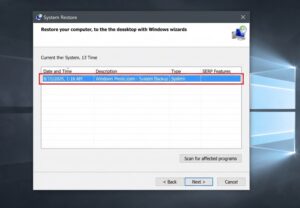
Open the System Protection window and click the System Restore button.
-
Click Next to view available restore points.
-
Select a restore point created before your PC issues began.
-
Click Scan for affected programs to see which apps will be removed or restored.
-
Click Next and then Finish to confirm and start the process.
Step 4: Restore Windows 10 from Advanced Startup Mode
If Windows fails to boot properly into the desktop, perform a restore from Advanced Startup:
-
Hold down the Shift key while clicking Restart from the Start Menu or sign-in screen power icon.
-
Navigate to Troubleshoot > Advanced options > System Restore.
-
Select your user account, enter your password, and choose a restore point.
-
Click Finish to begin rolling back your system configuration.
Step 5: Verify System Integrity After Restore
If your system experienced severe file corruption previously, check our guide on windows 10 blue screen of death.
-
Once your PC reboots after restoration, log into your desktop.
-
Verify that your recent crash or system glitch is resolved.
-
Open Command Prompt as administrator (
Win + S, typecmd). -
Type
sfc /scannowand press Enter to ensure all core system dependencies remain healthy.
Frequently Asked Questions (FAQs)
Does Windows 10 system restore delete personal files?
No, performing a system restore only rolls back system files, updates, registry settings, and installed applications. Your documents, photos, and personal files will remain untouched.
How long does a Windows 10 system restore take?
The restore process typically takes between 20 to 45 minutes, depending on your system’s hard drive speed and the size of the restore point data.
Conclusion
Using windows 10 system restore is one of the safest and quickest ways to fix system crashes, driver failures, and registry errors without losing important personal files. Creating regular restore points ensures your system remains protected. For additional troubleshooting help, visit Microsoft.