
Whether you need to create video tutorials, capture online meetings, or record gameplay footage, knowing how to record screen on windows 10 is an essential digital skill. Windows 10 offers powerful native tools and built-in utilities that allow you to capture high-definition screen video without purchasing expensive third-party software.
In this step-by-step guide, we will break down the primary benefits of recording your desktop and walk you through five practical methods to capture video on your PC.
Table of Contents
Why Record Your Screen on Windows 10?
Capturing desktop video helps communicate technical instructions and preserve live streaming content. Primary advantages include:
Creating step-by-step software walkthroughs and educational tutorials.
Recording high-frame-rate gameplay clips to share on video platforms.
Archiving virtual webinars, online lectures, and video conferences.
Documenting persistent software bugs for technical support teams.
How to Record Screen on Windows 10: 5 Best Methods
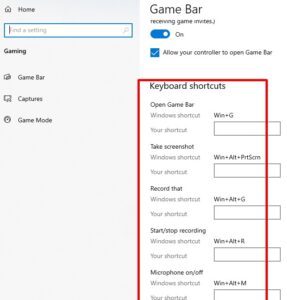
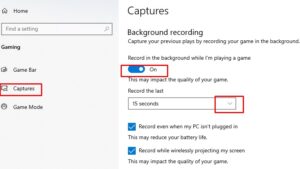
Step 1: Use Xbox Game Bar (Win + Alt + R)
The Xbox Game Bar is a feature-rich utility built into Windows 10 designed specifically for capturing application windows and gameplay:
Open the app or game window you want to record.
Press
Win + Alt + Ron your keyboard to start recording immediately.A small recording timer widget will appear at the top-right corner of your screen.
Click the Microphone icon to toggle background or voice narration audio on or off.
Press
Win + Alt + Ragain to stop recording. Your MP4 video file will save toVideos > Captures.
Step 2: Open Xbox Game Bar Menu (Win + G)
If you prefer configuring audio inputs and screen overlay settings before recording:
Press
Win + Gon your keyboard to open the main Xbox Game Bar overlay.Click the Capture widget from the top navigation bar.
Adjust your audio levels under the Audio settings tab.
Click the round Record button to start capturing your active window.
Step 3: Record Full Screen using Microsoft PowerPoint
While Xbox Game Bar captures single application windows, Microsoft PowerPoint allows you to record your entire desktop interface:
Launch Microsoft PowerPoint and open a blank presentation.
Navigate to the Insert tab at the top menu and click Screen Recording.
Click Select Area and drag the box over the portion of your desktop you wish to capture.
Click Record (or press
Win + Shift + R) to begin recording.Once finished, right-click the recorded video on your slide and select Save Media as to export it as an MP4 file.
Step 4: Use Free Third-Party Software (OBS Studio)
For advanced workflows requiring multi-monitor switching or webcam overlays, free open-source tools like OBS Studio provide complete flexibility:
Download and install OBS Studio from its official website.
Under the Sources panel, click the
+icon and choose Display Capture.Select your monitor and click OK.
Click Start Recording in the bottom-right control panel.
Step 5: Verify Saved Video Integrity and Storage
Once screen recording completes, check your file output settings to ensure smooth video playback. If you previously saved desktop images or setup guidelines, check our guide on how to screenshot on windows 10.
Open File Explorer (
Win + E).Navigate to the default video storage path (
C:\Users\[Username]\Videos\Captures).Open your video clip in Media Player to review audio clarity and frame rate smoothness.
Frequently Asked Questions (FAQs)
Q: Where are screen recordings saved on Windows 10?
A: When learning how to record screen on windows 10 using Xbox Game Bar, videos automatically save in MP4 format inside C:\Users\[Username]\Videos\Captures.
Q: Why can’t Xbox Game Bar record my Windows File Explorer or Desktop?
A: Xbox Game Bar is designed to capture specific open software applications or games rather than the raw desktop interface. To capture your full desktop, use the PowerPoint method or OBS Studio.
Conclusion
Knowing how to record screen on windows 10 using built-in keyboard shortcuts and software applications allows you to capture desktop content easily. Learning how to record screen on windows 10 ensures you can save live meetings and create video content efficiently. For official Microsoft gaming and capture documentation, visit Microsoft.









