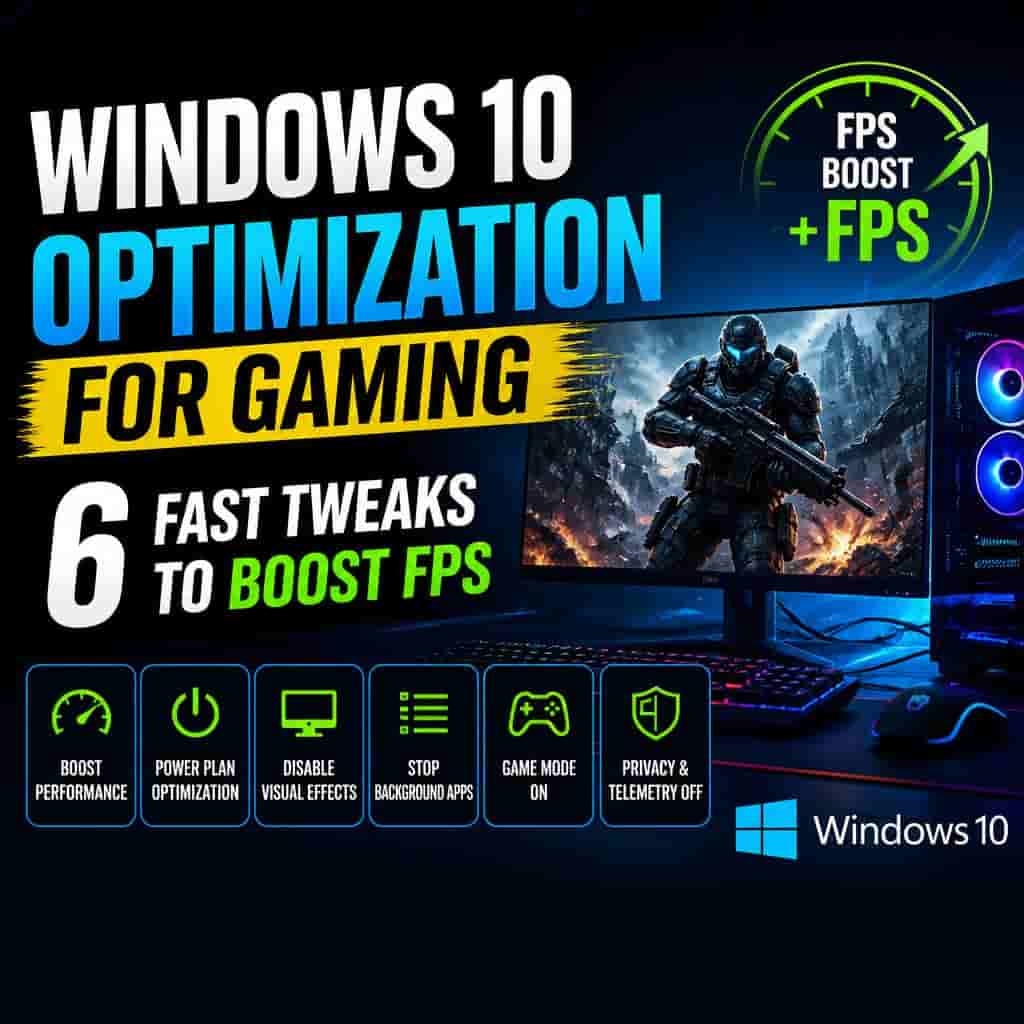
Slow frame rates, unexpected micro-stuttering, and input lag can spoil an immersive PC gaming session. Executing a proper windows 10 optimization for gaming allows you to unlock hidden hardware potential, minimize background system latency, and redirect maximum system memory directly to your active video games.
In this step-by-step guide, we will break down the primary causes of gaming performance bottlenecks and walk you through six actionable steps to maximize your PC’s hardware efficiency.
Table of Contents
Why Perform Windows 10 Optimization for Gaming?
Modern video games demand significant hardware resources from your CPU, GPU, and RAM simultaneously. Tuning your operating system offers key performance advantages:
Higher and Stable FPS: Prevents sudden frame drops during intense multiplayer battles.
Lower Input Latency: Reduces delay between mouse clicks, keyboard presses, and screen action.
Reduced System Overhead: Stops unnecessary background services from consuming processor cores.
Better Thermal Efficiency: Keeps hardware running efficiently without thermal throttling.
Windows 10 Optimization for Gaming: 6 Fast Tweaks
Step 1: Enable Built-in Windows Game Mode
Windows 10 includes a dedicated Game Mode that prioritizes system resources for games:
Press
Win + Ito open Settings and click Gaming.Select Game Mode from the left navigation menu.
Toggle the switch under Game Mode to On.
This prevents Windows Update from installing drivers or sending restart notifications while gaming.
Step 2: Enable Hardware-Accelerated GPU Scheduling
Modern Windows builds allow graphics cards to manage their own memory allocation directly:
Press
Win + I> System > Display.Scroll down and click Graphics settings.
Toggle Hardware-accelerated GPU scheduling to On.
Restart your computer to apply the low-level graphics architecture changes.
Step 3: Configure Ultimate Performance Power Plan
By default, Windows uses a Balanced power scheme that limits hardware voltage to save energy:
Press
Win + S, typecmd, right-click Command Prompt, and select Run as administrator.Paste the following command and press Enter:
powercfg -duplicatescheme e9a42b02-d5df-448d-aa00-03f14749eb61Press
Win + R, typepowercfg.cpl, and hit Enter.Select the newly unlocked Ultimate Performance power profile.
Step 4: Disable Startup Background Applications
Background software running in your system tray steals valuable RAM and CPU execution threads:
Press
Ctrl + Shift + Escto launch Task Manager.Click the Startup tab at the top menu.
Right-click unnecessary background apps (such as updater tools or launchers) and click Disable.
Step 5: Adjust Visual Effects for Maximum Performance
Disabling desktop animations frees up processing capacity for full-screen games:
Press
Win + R, typesysdm.cpl, and press Enter to open System Properties.Navigate to the Advanced tab and click Settings under Performance.
Choose Adjust for best performance and click Apply > OK.
Step 6: Clear System Clutter and Keep Drivers Updated
Keeping your graphics drivers updated ensures day-one game optimization profiles. If you previously configured third-party tools or browsers on your system, check our guide on firefox download 64 bit for windows 10.
Press
Win + R, typecleanmgr, and hit Enter to run Disk Cleanup.Select temporary files and system cache files to free up SSD space.
Download the latest graphics drivers directly from official GPU software control panels (NVIDIA GeForce Experience or AMD Software).
Frequently Asked Questions (FAQs)
Q: Does windows 10 optimization for gaming actually increase FPS?
A: Yes, performing a proper windows 10 optimization for gaming can improve frame rate stability by 5% to 15%, depending on how heavily your background system was cluttered prior to tweaking.
Q: Is Game Mode safe to leave turned on permanently?
A: Yes, Microsoft has refined Game Mode in modern Windows 10 updates. It automatically detects active full-screen games and turns off automatically when you switch back to productivity apps.
Conclusion
Executing a complete windows 10 optimization for gaming gives you a fast, stable, and responsive PC environment. Following these tuning steps ensures your hardware runs smoothly without unexpected background lag. For official gaming support documentation, visit Microsoft.









