Forgetting your wireless network security key can prevent you from connecting new mobile phones, laptops, or smart devices to your home network. Learning how to find wifi password on windows 10 allows you to retrieve saved security credentials directly from your operating system without resetting your internet router.
In this step-by-step guide, we will walk you through four simple methods to reveal your active and saved Wi-Fi passwords.
Table of Contents
Why Find Saved Wi-Fi Passwords on Windows 10?
Checking your saved network credentials using Windows settings saves time and prevents network management errors:
-
Connects New Guest Devices: Allows you to quickly share your home network password with family or new laptops.
-
Avoids Router Hardware Resets: Prevents unnecessary factory resets that erase custom network configurations.
-
Verifies Network Security: Ensures your wireless router is using strong WPA2 or WPA3 encryption protocols.
-
Troubleshoots Connection Dropouts: Helps you re-enter correct passwords when resolving local network authentication conflicts.
How to Find WiFi Password on Windows 10: 4 Fast Methods
Step 1: Find Active Wi-Fi Password via Control Panel
If you are currently connected to the wireless network, you can reveal the security key through Network Properties:
-
Press
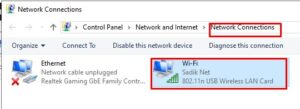
Win + R, typencpa.cpl, and press Enter to open Network Connections. -
Right-click your active Wi-Fi adapter and select Status.
-
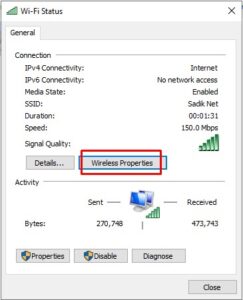
In the Wi-Fi Status window, click the Wireless Properties button.
-
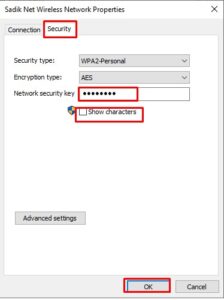
Switch to the Security tab.
-
Check the box next to Show characters. Your Wi-Fi password will appear in plain text in the Network security key box.
Step 2: View Saved Wi-Fi Passwords Using Command Prompt (CMD)
You can retrieve security keys for any network your PC has previously connected to, even if you are currently offline:
-
Press the Windows key, type
cmd, right-click Command Prompt, and select Run as administrator. -
Type the following command to view all saved Wi-Fi profiles and press Enter:
netsh wlan show profiles -
Identify your target network name (SSID), then run this command (replace
WiFi_Namewith your actual network name):netsh wlan show profile name="WiFi_Name" key=clear -
Scroll down to the Security settings section. The password will be listed next to Key Content.
Step 3: Check Wi-Fi Credentials via Windows Settings
Navigate through the modern Windows 10 Network menu to access connection details:
-
Press
Win + Ito open Settings and click Network & Internet. -
Stay on the Status tab and scroll down to click Network and Sharing Center.
-
Click your blue Wi-Fi network connection link next to Connections.
-
Select Wireless Properties > Security tab > check Show characters.
Step 4: Access Router Admin Page via Web Browser
If you need to view or change your default router password:
-
Open Command Prompt and type
ipconfigto find your Default Gateway IP address (e.g.,192.168.1.1). -
Type that IP address into your web browser address bar and press Enter.
-
Log in using your router admin credentials to access the Wireless Security menu. If you need to manage sensitive clipboard text while copying keys, check our guide on how to clear clipboard history windows 10.https://windowsmedic.com/howto-clear-clipboard-history-windows
Frequently Asked Questions (FAQs)
Q: Is learning how to find wifi password on windows 10 safe for network security?
A: Yes, learning how to find wifi password on windows 10 uses built-in administrative tools to display security keys already stored on your authorized device.
Q: Why is “Show characters” grayed out in Wireless Properties?
A: The “Show characters” checkbox requires Windows Administrator privileges. Make sure your user account has admin access or log in as an administrator.
Conclusion
Mastering how to find wifi password on windows 10 helps you manage network access effortlessly across all your devices. Learning how to find wifi password on windows 10 ensures you never lose access to your essential security keys. For official Windows network configuration assistance, visit Microsoft.