The Windows 10 Clipboard allows users to copy multiple items, text fragments, and screenshots simultaneously. However, learning how to clear clipboard history windows 10 is essential to protect personal passwords, prevent sensitive data exposure, and keep your memory buffer clean.
In this quick privacy guide, we will cover why managing your copied history matters and walk you through four simple methods to clear your saved clipboard items.
Table of Contents
Why Clear Clipboard History on Windows 10?
Leaving sensitive information in your active clipboard cache can pose privacy and performance risks:
-
Protects Sensitive Privacy: Removes stored passwords, credit card details, and private notes from system memory.
-
Frees Up System Memory: Wipes heavy screenshots and high-resolution image data from temporary RAM allocation.
-
Prevents Accidental Pastes: Avoids pasting confidential text or outdated links into the wrong chat windows or documents.
-
Organizes Saved Clips: Keeps your pinned items clear and un-cluttered for daily productivity.
How to Clear Clipboard History Windows 10: 4 Easy Steps
Step 1: Clear Individual Clips via Clipboard Panel
If you only want to remove specific entries while leaving pinned items intact:
-
Press
Win + Von your keyboard to launch the Clipboard pop-up panel. -
Scroll through your recently copied items.
-
Click the three horizontal dots (…) next to the specific clip you want to delete.
-
Click Delete to remove that entry permanently.
Step 2: Clear All Clipboard History Instantly
To wipe all unpinned items in a single click:
-
Press
Win + Vto open the Clipboard panel. -
Click the three horizontal dots (…) next to any item.
-
Select Clear all to erase your entire unpinned clipboard buffer.
Step 3: Clear Clipboard History via Windows Settings
You can also wipe your clipboard log directly from the main Windows configuration panel:
-
Press
Win + Ito open Settings and select System. -
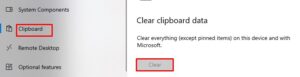
Scroll down the left sidebar menu and click Clipboard.
-
Locate the Clear clipboard data section.
-
Click the Clear button to wipe all history logs stored on your device.
Step 4: Disable Clipboard History Automatically
If you do not want Windows 10 to save multiple copied items continuously:
-
Open Settings (
Win + I) > System > Clipboard. -
Toggle the switch under Clipboard history to Off.
-
Windows will now only retain the single most recently copied item in local RAM. If you need to manage overall system input hardware, check our previous guide on how to test microphone on windows 10.
Frequently Asked Questions (FAQs)
Q: Does clearing clipboard history delete pinned items?
A: No, using the standard Clear all option removes temporary clips while preserving any items you have explicitly pinned using the Win + V menu.
Q: Is learning how to clear clipboard history windows 10 safe?
A: Yes, learning how to clear clipboard history windows 10 is completely safe. It only clears local temporary text and screenshot buffers.
Conclusion
Mastering how to clear clipboard history windows 10 ensures your sensitive information remains secure. Learning how to clear clipboard history windows 10 keeps your data organized and protected from unauthorized access. For official Windows privacy documentation, visit Microsoft.