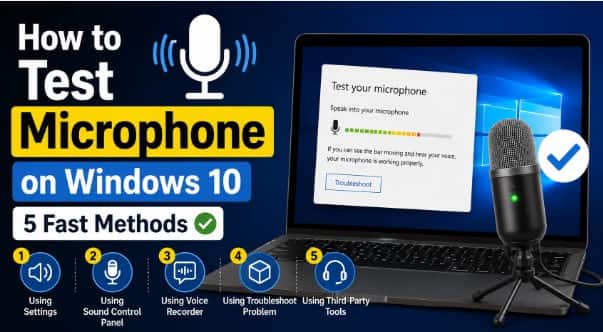
Whether preparing for an online business meeting, streaming, or playing multiplayer games, making sure your audio hardware works properly is essential. Learning how to test microphone on windows 10 allows you to quickly verify audio input levels, fix unexpected mic latency, and clear up voice distortion.
In this step-by-step troubleshooting guide, we will cover the primary reasons behind audio input errors and walk you through five fast methods to test your microphone.
Table of Contents
Why Test Your Microphone on Windows 10?
Testing your audio hardware proactively prevents communication errors during critical voice calls or online gaming:
Verifies Audio Levels: Ensures your voice output is clear, balanced, and loud enough for listeners.
Resolves Mute Issues: Identifies whether hardware mute switches or Windows system permissions are blocking sound.
Reduces Background Noise: Helps you adjust gain levels to isolate background static and ambient echo.
Ensures App Compatibility: Guarantees proper mic detection across web browsers, Discord, and communication software.
How to Test Microphone on Windows 10: 5 Fast Methods
Step 1: Test Microphone via Windows Sound Settings
Windows 10 includes a built-in input meter directly in the main system settings:
Press
Win + Ito open Settings and click System.Select Sound from the left navigation panel.
Scroll down to the Input section and choose your active device under Choose your input device.
Speak clearly into your mic and look at the Test your microphone bar. If the blue bar rises and falls as you speak, your microphone is working correctly.
Step 2: Test Audio Input Using Control Panel
The classic Sound Control Panel provides detailed hardware volume properties:
Press
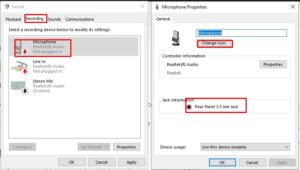
Win + R, typemmsys.cpl, and hit Enter.Switch to the Recording tab.
Speak into your microphone and check if green signal bars rise next to your device name.
Double-click your default microphone, open the Levels tab, and set input volume to 80–90% for clear output.
Step 3: Check App Microphone Permissions
If your hardware works but applications cannot pick up your voice, Windows privacy permissions might be blocking access:
Press
Win + I> Privacy.Scroll down the left sidebar under App permissions and click Microphone.
Ensure Allow apps to access your microphone is toggled to On.
Scroll down further to ensure individual software (browsers, games) has permission enabled.
Step 4: Record Sound Using Windows Voice Recorder
Testing your mic using an actual recording helps you judge voice clarity firsthand:
Press the Windows key, type
Voice Recorder, and press Enter.Click the central Microphone icon (or press
Ctrl + R) to start recording.Speak a few test sentences and click Stop.
Play back the audio file to check for background hiss or static sound.
Step 5: Update Microphone Drivers via Device Manager
If Windows does not detect your microphone input signal, reinstalling your audio driver often resolves connection conflicts. If you recently optimized game performance settings on your PC, check our guide on how to speed up windows 10 for gaming.
Right-click the Start menu button and select Device Manager.
Expand the Audio inputs and outputs section.
Right-click your microphone device and click Update driver.
Choose Search automatically for drivers and restart your computer.
Frequently Asked Questions (FAQs)
Q: Is learning how to test microphone on windows 10 safe for audio devices?
A: Yes, checking your audio input with native Windows settings is completely safe and helps you configure ideal volume levels without damaging hardware.
Q: Why is my microphone plugged in but not picking up sound?
A: This usually occurs due to muted hardware physical switches, disabled privacy permissions in Windows Settings, or incorrect input selection in the Control Panel.
Conclusion
Knowing how to test microphone on windows 10 ensures your voice stays crystal clear during calls and gaming sessions. Learning how to test microphone on windows 10 helps you diagnose input issues and adjust audio levels safely. For official Windows audio hardware support, visit Microsoft.









