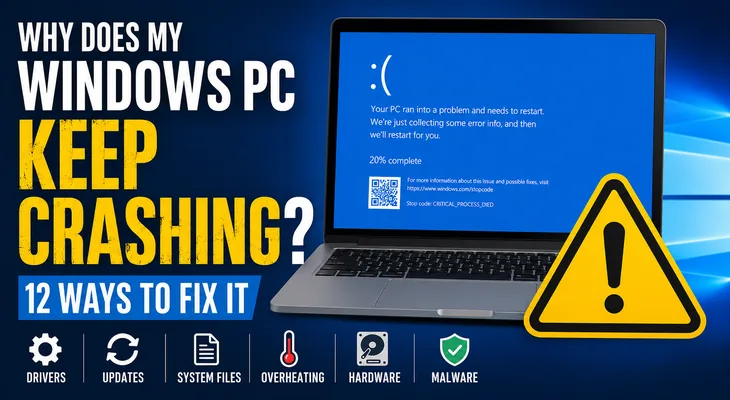
If your Windows PC keeps crashing while you’re working, gaming, browsing, or starting Windows, the problem can be frustrating and difficult to diagnose. Frequent crashes may be caused by faulty drivers, corrupted system files, Windows updates, overheating, hardware problems, or recently installed software.
A Windows crash can sometimes be caused by a temporary software problem, but repeated crashes may also be related to faulty drivers, Windows updates, corrupted system files, hardware problems, overheating, or recently installed software.
Microsoft notes that unexpected Windows restarts and stop-code errors can be caused by hardware, drivers, or software.
The good news is that you can try several troubleshooting steps before considering a Windows reset or reinstallation.
In this guide, we’ll go from the simplest fixes to more advanced solutions.
Important: If your PC is crashing frequently, save and back up important files before performing advanced troubleshooting.
Why Does My Windows PC Keep Crashing?
There are several possible reasons for repeated Windows crashes.
Common causes include:
- Outdated or incompatible drivers
- Corrupted Windows system files
- Faulty hardware
- Overheating
- Recently installed software
- Windows update problems
- Insufficient free storage space
- Memory or RAM problems
- Malware or unwanted software
- Damaged Windows components
- Hardware changes
- Blue screen or stop-code errors
If Windows shows a blue or black screen with a stop code, write down the error code before restarting. Microsoft explains that these codes can help identify the cause of an unexpected restart.
1. Restart Your Windows PC
Before trying advanced troubleshooting, restart your computer.
A temporary Windows process or software problem may cause a one-time crash.
To restart:
- Save your work if possible.
- Click Start.
- Select Power.
- Click Restart.
- Wait for Windows to start again.
If your PC crashes only once and works normally afterward, it may have been a temporary problem.
However, if the crashes keep happening, continue with the next solutions.
2. Check for Windows Updates
An outdated Windows installation can sometimes cause compatibility or stability problems.
To check for updates:
Windows 11
Go to:
Settings → Windows Update → Check for updates
Windows 10
Go to:
Settings → Update & Security → Windows Update
Install available updates and restart your PC.
Microsoft recommends installing the latest Windows updates when troubleshooting unexpected restarts and stop-code errors.
Tip: If the crashes started immediately after a particular update, don’t assume that installing more updates will fix the problem. In that situation, investigate the recent change and consider Windows recovery options.
3. Update Your Device Drivers
Drivers allow Windows to communicate with hardware such as graphics cards, network adapters, storage devices, and other components.
A faulty or incompatible driver can contribute to crashes.
Check Device Manager
- Right-click the Start button.
- Select Device Manager.
- Look for devices with a warning symbol.
- Right-click the affected device.
- Select Update driver.
- Follow the instructions.
Pay particular attention to:
- Display adapters
- Network adapters
- Storage controllers
- Chipset-related devices
Microsoft also recommends checking Device Manager when troubleshooting repeated stop-code errors.
4. Check How Much Free Storage You Have
Windows needs free disk space for temporary files, virtual memory, updates, and other system operations.
If your system drive is nearly full, performance and stability can suffer.
Check your storage
- Open Settings.
- Go to System → Storage.
- Check the available space on your Windows drive.
Remove unnecessary files if your drive is nearly full.
Microsoft recommends keeping a reasonable amount of free space available when troubleshooting Windows stop-code problems.
You can also check out your related guide:
Internal link: Windows Storage Problems: How to Free Up Space
5. Run DISM to Repair Windows Components
Corrupted Windows components can cause system instability.
Windows includes the Deployment Image Servicing and Management (DISM) tool to repair the Windows image.
Run DISM
- Open Start.
- Search for Command Prompt.
- Right-click it.
- Select Run as administrator.
- Click Yes.
Enter:
DISM.exe /Online /Cleanup-image /RestorehealthPress Enter.
Wait for the process to complete.
Don’t close Command Prompt while DISM is running.
Microsoft recommends running DISM as part of Windows system-file repair before running SFC.
6. Run System File Checker (SFC)
After DISM finishes, run System File Checker.
In the Administrator Command Prompt window, type:
sfc /scannowPress Enter.
SFC checks protected Windows system files and attempts to repair corrupted files.
Microsoft’s current instructions recommend running:
- DISM
- Then
sfc /scannow
when using these tools to repair corrupted Windows system files.
After the scan reaches 100%, restart your computer.
7. Check Your PC for Overheating
Overheating can cause instability, shutdowns, or crashes, particularly during demanding tasks such as gaming or video editing.
Possible warning signs include:
- Very loud fans
- Extremely hot laptop or desktop
- Sudden shutdowns during gaming
- Crashes after extended use
- Performance becoming slower before a crash
What you can do
- Keep air vents unobstructed.
- Clean dust from the cooling system.
- Don’t use a laptop on soft surfaces that block ventilation.
- Make sure desktop case fans are working.
- Check whether crashes happen only during heavy workloads.
If the computer becomes unusually hot before crashing, hardware or cooling problems may need professional inspection.
8. Remove Recently Installed Hardware
Did the crashes begin after you installed new hardware?
For example:
- RAM
- Graphics card
- USB device
- Wi-Fi adapter
- Storage device
- Other peripherals
If the timing matches, shut down the computer and remove the newly added hardware if it is safe to do so.
Microsoft specifically recommends removing newly added hardware when troubleshooting repeated stop-code errors.
If the crashes stop afterward, the new hardware or its driver may be involved.
9. Try Windows Safe Mode
If your PC crashes during normal Windows operation, Safe Mode can help determine whether a third-party driver or application is involved.
Safe Mode starts Windows with a limited set of drivers and services.
If your computer remains stable in Safe Mode but crashes during normal startup, investigate:
- Recently installed applications
- Drivers
- Startup programs
- Security software
- Hardware utilities
You can also use your existing guide:
Internal link: Windows 10 Safe Mode
10. Check for Malware
Malware can interfere with Windows processes and cause unexpected behavior.
Use Windows Security to scan your computer.
Run a scan
- Open Windows Security.
- Select Virus & threat protection.
- Choose Scan options.
- Select Full scan.
- Start the scan.
Allow the scan to finish and follow Windows Security’s recommendations if a threat is detected.
Avoid installing questionable “PC repair” software from unknown websites.
11. Use System Restore
If your PC started crashing after installing an application, driver, or system change, System Restore may help.
Press:
Windows + R
Type:
rstrui.exePress Enter.
If a suitable restore point exists, choose one created before the crashes began.
System Restore is particularly useful when a recent change appears to have caused the problem. Microsoft’s recovery guidance lists System Restore as an option when Windows becomes unstable after a recent application or system change.
You can also read:
Internal link: Windows 10 System Restore
12. Check the Stop Code When Windows Crashes
If Windows displays a blue or black screen before restarting, look for a message such as:
MEMORY_MANAGEMENTPAGE_FAULT_IN_NONPAGED_AREASYSTEM_SERVICE_EXCEPTIONCRITICAL_PROCESS_DIED
Write down the exact stop code.
The stop code can provide an important clue about whether the problem may involve memory, drivers, system files, or another component.
Microsoft explains that stop codes are generated when Windows encounters a serious problem and needs to stop or restart.
What If Windows Keeps Crashing Before It Starts?
If Windows crashes during startup or repeatedly restarts, normal troubleshooting may not be possible.
In that situation, use Windows Recovery Environment and consider options such as:
- Startup Repair
- Safe Mode
- System Restore
- Uninstall Updates
- Other recovery options
Microsoft provides different recovery options depending on whether Windows fails to start, recently installed an application, or has other system problems.
You may also find this related guide useful:
Internal link: Windows Automatic Repair: How to Fix Common Errors
Important: Use the exact URL above only if that is your published Automatic Repair article URL. Since it wasn’t in the 65 URLs you previously gave me, don’t add this link unless you confirm the actual URL first.
When Should You Suspect a Hardware Problem?
Software troubleshooting won’t always solve repeated crashes.
Consider possible hardware problems if:
- Windows crashes even after a clean installation
- The PC crashes under heavy workloads
- You see different stop codes repeatedly
- The computer randomly shuts down
- RAM tests report errors
- The storage drive reports errors
- The computer overheats
- Crashes started after hardware installation
If you suspect failing hardware, back up important data as soon as possible.
Frequently Asked Questions
Why does my Windows PC keep crashing?
Frequent Windows crashes can be caused by drivers, corrupted system files, Windows updates, software conflicts, overheating, hardware problems, malware, or insufficient storage space.
Can outdated drivers cause Windows crashes?
Yes. Incompatible or faulty drivers can contribute to Windows crashes and stop-code errors. Checking Device Manager and updating problematic drivers is one recommended troubleshooting step.
Can SFC fix Windows crashes?
SFC can repair corrupted protected Windows system files. If damaged system files are contributing to the crashes, running DISM followed by SFC may help.
Should I reset Windows if my PC keeps crashing?
Not immediately. Try Windows updates, driver troubleshooting, DISM, SFC, Safe Mode, malware scanning, and System Restore first.
Can overheating cause Windows to crash?
Yes. Excessive heat can contribute to instability and unexpected shutdowns, especially during demanding workloads. If your PC becomes unusually hot before crashing, investigate its cooling system.
How do I know what caused a Windows crash?
If Windows displays a stop code, write it down. The code can provide clues about the cause. You can also consider what changed immediately before the crashes started, such as a new driver, application, update, or hardware component.
Final Thoughts
If your Windows PC keeps crashing, don’t immediately assume that Windows needs to be reinstalled.
Start with the basics: restart the computer, install appropriate Windows updates, check your drivers, and make sure you have enough free storage.
If the crashes continue, use Windows’ built-in DISM and SFC tools to check for corrupted system components. Then try Safe Mode, malware scanning, hardware checks, or System Restore.
If Windows shows a stop code, write it down because it can provide an important clue about the underlying problem.
For persistent crashes—especially when they happen during heavy workloads or even after Windows repairs—hardware may need to be investigated.
Recommended Windows Troubleshooting Guides
- Windows Storage Problems: How to Free Up Space
- Windows 10 Safe Mode
- Windows 10 System Restore
- Windows 10 Automatic Repair Loop









