As operating systems evolve, Microsoft periodically phases out older platforms to focus on newer technologies. Understanding when will windows 10 support end is crucial for personal computer users, businesses, and IT professionals who need to plan their system security and hardware upgrades effectively.
In this comprehensive guide, we will break down the official Microsoft support timeline, what happens after support stops, and five practical options to prepare your PC.
Table of Contents
Official Windows 10 End of Support Date
Microsoft has officially announced that support for Windows 10 Home, Pro, Enterprise, and Education editions will end on October 14, 2025.
After this date, Microsoft will no longer provide:
-
Technical support or live customer service for OS issues.
-
Monthly security updates and bug fixes to protect against cyber threats.
-
Feature updates or performance enhancements for built-in tools.
What Happens When Windows 10 Support Ends?
Your computer will not stop working on the end-of-support date, but running an unsupported operating system presents major risks:
-
Security Vulnerabilities: Without monthly security patches, your PC becomes highly vulnerable to malware and ransomware attacks.
-
Software Incompatibility: Popular web browsers, antivirus tools, and third-party software will gradually drop support for Windows 10.
-
Hardware Limitations: Newer printers, webcams, and computer components will lack compatible Windows 10 drivers.
When Will Windows 10 Support End: 5 Best Options
Step 1: Check Your Windows 11 Hardware Compatibility
Before making any decisions, test if your current computer hardware supports a free upgrade to Windows 11:
-
Press
Win + Ito open Settings and click Update & Security. -
Click Windows Update to see if your PC meets the minimum system requirements.
-
Alternatively, download Microsoft’s official PC Health Check tool to verify your CPU, RAM, and TPM 2.0 module.
Step 2: Upgrade to Windows 11 for Free
If your desktop or laptop meets Microsoft’s hardware requirements, upgrading is completely free:
-
Open Settings > Update & Security > Windows Update.
-
Click Check for updates.
-
When the Windows 11 upgrade banner appears, click Download and install.
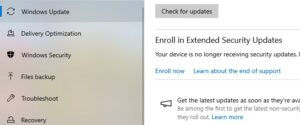
Step 3: Enroll in the Extended Security Updates (ESU) Program
For users who cannot upgrade their hardware immediately, Microsoft offers an Extended Security Updates program:
-
Commercial and individual users can purchase yearly ESU subscriptions.
-
ESU provides critical security patches beyond the official end-of-life date.
-
Keep in mind that ESU only includes security fixes, not new software features.
Step 4: Perform System Backups and Maintenance
While planning your transition, keep your current Windows 10 installation stable and protected. If you ever experience system recovery problems during updates, check our guide on windows 10 safe mode.
-
Open Settings > Update & Security > Backup.
-
Connect an external hard drive and configure File History to protect your personal files.
-
Regularly run system maintenance scans using Command Prompt (
sfc /scannow).
Step 5: Consider Upgrading Your Hardware or OS
If your computer cannot run Windows 11, you have two practical choices:
-
Purchase a new PC: Modern computers come pre-installed with Windows 11 and offer faster processing speeds.
-
Switch to Linux: Installing a lightweight Linux distribution (like Ubuntu or Linux Mint) can safely extend the life of older hardware.
Frequently Asked Questions (FAQs)
Will my PC turn off or stop working after October 14, 2025?
No, your PC will continue to boot and function normally, but it will no longer receive security updates from Microsoft, making it unsafe for online browsing.
Is the upgrade from Windows 10 to Windows 11 free?
Yes, if your computer meets the hardware requirements (including TPM 2.0 and a supported processor), upgrading to Windows 11 is completely free.
Conclusion
Knowing when will windows 10 support end allows you to prepare your computer system before the October 14, 2025 deadline. Whether you upgrade to Windows 11, purchase an ESU subscription, or replace older hardware, taking action early ensures your data remains secure. For official lifecycle details, visit Microsoft.