

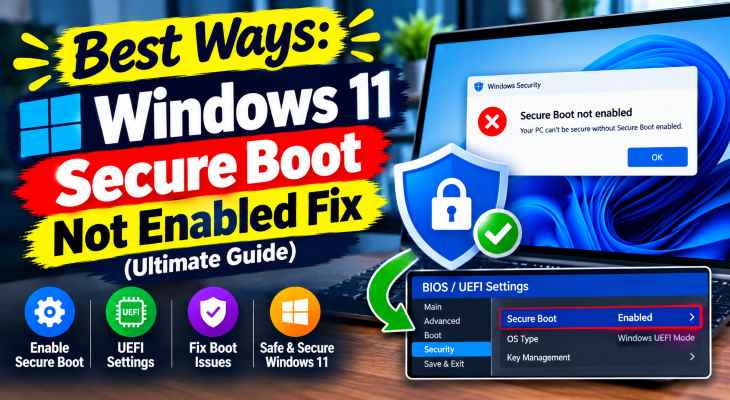
If you want to windows 11 secure boot not enabled fix, encountering compatibility errors during system updates or hardware checks can severely disrupt your PC upgrade path and gaming performance. If you have been searching for an effective method to windows 11 secure boot not enabled fix, you are in the right place. This frustrating security configuration issue typically occurs due to disabled UEFI firmware settings, legacy CSM boot mode conflicts, or uninitialized factory security keys.
In this comprehensive guide, we will walk you through the top troubleshooting steps to resolve secure boot restrictions on your Windows 11 computer and restore optimal system compatibility.
Table of Contents
What Causes Windows 11 Secure Boot Not Enabled Errors?
Before applying the fixes, understanding why this happens helps:
Disabled UEFI Firmware Settings: Motherboard security parameters lacking active secure boot certificates.
Compatibility Support Module (CSM) Enabled: Running legacy boot loaders that block native UEFI security features.
Missing Platform Keys: Motherboard security keys requiring factory defaults restoration.
Top Methods to Apply Windows 11 Secure Boot Not Enabled Fix
Method 1: Enable Secure Boot in BIOS/UEFI Settings
Switching on the native hardware security layer directly from your Microsoft system firmware is the standard solution:
Restart your PC and repeatedly press the designated BIOS key (F2, Del, F12, or Esc).
Navigate to the Security, Boot, or Authentication tab.
Locate Secure Boot, change its state to Enabled, and save changes before exiting.
Method 2: Disable CSM (Compatibility Support Module)
Disabling legacy boot support allows UEFI and Secure Boot to function correctly:
Access your motherboard BIOS/UEFI settings during system startup.
Find the Boot or Boot Options menu and look for CSM or Legacy Boot.
Set CSM to Disabled, save your configurations, and restart your computer.
if you’re also experiencing other Windows 10 & 11 Best Ways: Fix Windows 11 Memory Leak High RAM Usage
Method 3: Restore Factory Secure Boot Keys
If the option remains greyed out or restricted, restoring default keys clears platform key locks:
Inside your BIOS/UEFI settings, go to the Secure Boot configuration page.
Select the option to Restore Factory Keys or Install Factory Secure Boot Keys.
Confirm the action, save changes, and reboot your system into Windows 11.
Frequently Asked Questions (FAQs)
Q: Why is the Secure Boot option greyed out in my BIOS?
A: It usually stays greyed out if your system is currently booting in Legacy/CSM mode. Disabling CSM in your boot settings will allow you to modify Secure Boot.
Q: Is Secure Boot mandatory to run Windows 11?
A: Yes, Microsoft requires Secure Boot and TPM 2.0 support as core hardware security baselines for officially running Windows 11.
Conclusion
Keeping your system firmware security frameworks fully active ensures compliance with modern OS standards and protects against low-level malware. By mastering these techniques to windows 11 secure boot not enabled fix, you can resolve compatibility blocks and keep your computer fully up to date.
Important Note:
Always save your BIOS configuration changes carefully and avoid modifying deep motherboard cryptographic keys unless necessary.
Final Thoughts on Hardware Security and System Compliance
To wrap it up, maintaining a fully functional and optimized motherboard security ecosystem is crucial for seamless daily operations and OS updates. By proactively managing UEFI firmware settings and clearing legacy boot conflicts, you protect your workflow against unexpected feature blocks and maintain maximum digital efficiency. Always keep regular backups of your important configuration files before executing deep system modifications or registry edits. Staying proactive with modern diagnostic tools guarantees long-term digital efficiency and peace of mind.