

If you want to fix windows 11 explorer.exe restarting loop, encountering a constant screen flashing, disappearing taskbar, and freezing desktop interface can severely disrupt your daily workflow. If you have been searching for an effective method to fix windows 11 explorer.exe restarting loop, you are in the right place. This frustrating system error typically occurs due to corrupted shell extensions, damaged system files, or conflicting third-party application background overlays.
In this comprehensive guide, we will walk you through the top troubleshooting steps to resolve the file explorer crash loop on your Windows 11 computer and restore optimal desktop stability.
Table of Contents
What Causes Windows 11 Explorer.Exe Restarting Loops?
Before applying the fixes, understanding why this happens helps:
Corrupted Shell Extensions: Incompatible context menu items added by third-party software crashing the Windows shell.
Damaged System Files: Corrupted core operating system binaries preventing the graphical user interface from loading properly.
Faulty App Cache: Broken thumbnail or icon caches triggering endless restart cycles of the explorer process.
Top Methods to Fix Windows 11 Explorer.Exe Restarting Loop
Method 1: Clear File Explorer History and Cache
Clearing corrupted cache records often stops the continuous crashing cycle:
Press
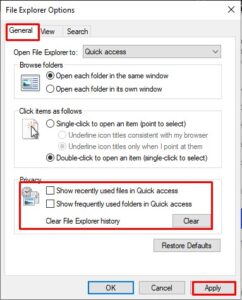
Win + S, type File Explorer Options, and open it.Under the General tab, look for the Privacy section.
Click the Clear button next to “Clear File Explorer history” and click Apply to reset the cache.
Method 2: Run SFC and DISM Scans
Repairing damaged core system files fixes underlying shell stability issues:
Press
Ctrl + Shift + Escto open Task Manager, click Run new task, typecmd, check “Create this task with administrative privileges”, and press Enter.Type
sfc /scannowand press Enter to let Windows scan and repair corrupted files.Once completed, type
DISM /Online /Cleanup-Image /RestoreHealthand press Enter to repair the system image.if you’re also experiencing other Windows 10 & 11 Best Ways: Windows 11 Secure Boot Not Enabled Fix
Method 3: Uninstall Faulty Shell Extensions via ShellExView
Removing problematic third-party context menu integrations stops explorer conflicts:
Download a trusted utility like ShellExView from a reputable source.
Open the tool, filter out non-Microsoft shell extensions, and disable recently installed context menu handlers.
Restart your computer to check if the explorer loop has stopped.
Frequently Asked Questions (FAQs)
Q: Why is my Windows 11 taskbar flashing and restarting continuously?
A: This flashing usually indicates that explorer.exe (the graphical shell) is crashing and attempting to restart over and over again due to a software conflict or corrupted file.
Q: How can I access settings if the desktop keeps crashing?
A: You can use keyboard shortcuts like Ctrl + Shift + Esc to open Task Manager or Win + R to open the Run dialog box and launch tools like Command Prompt.
Conclusion
Keeping your Windows desktop interface stable ensures a seamless and productive computing experience. By mastering these techniques to fix windows 11 explorer.exe restarting loop, you can resolve shell crashes and keep your computer running smoothly.
Important Note:
Always create a system restore point before modifying core registry keys or removing advanced shell extensions to protect your data.
Final Thoughts on System Stability and Shell Management
To wrap it up, maintaining a fully functional and optimized user interface ecosystem is crucial for seamless daily operations and system longevity. By proactively repairing system files and clearing outdated caches, you protect your workflow against unexpected performance degradation and maintain maximum digital efficiency. Always keep regular backups of your important configuration files before executing deep system modifications or registry edits. Staying proactive with modern diagnostic tools guarantees long-term digital efficiency and peace of mind. fix windows 11 explorer.exe restarting loop