

If you want to windows 11 installation assistant stuck fix, encountering a frozen upgrade progress bar at 99%, 71%, or during the download phase can severely disrupt your operating system transition. If you have been searching for an effective method to windows 11 installation assistant stuck fix, you are in the right place. This frustrating upgrade error typically occurs due to corrupted background installation caches, conflicting security software, or stopped Windows Update services.
In this comprehensive guide, we will walk you through the top troubleshooting steps to resolve the installation assistant freeze on your computer and complete your seamless upgrade.
Table of Contents
What Causes Windows 11 Installation Assistant to Freeze?
Before applying the fixes, understanding why this happens helps:
Interrupted Update Services: Background staging components failing to communicate with Microsoft update servers.
Corrupted Temporary Setup Files: Broken download packages stored within local system directories.
Third-Party Antivirus Interference: Security tools blocking system file replacements during the upgrade.
Top Methods to Apply Windows 11 Installation Assistant Stuck Fix
Method 1: Run the Assistant as Administrator and Compatibility Mode
Running the setup executable with elevated system privileges bypasses permission blocks:
Locate your downloaded Windows 11 Installation Assistant file.
Right-click the application and select Run as administrator.
If it still freezes, right-click it, go to Properties > Compatibility, check “Run this program in compatibility mode for Windows 10”, and apply.
Method 2: Reset Windows Update Components
Clearing out stuck system update queues allows the assistant to resume downloading files smoothly:
Open Command Prompt as administrator (press
Win + S, typecmd, and choose Run as administrator).Stop update services by typing
net stop wuauserv,net stop cryptSvc,net stop bits, andnet stop msiserverone by one, pressing Enter after each.Restart the services afterward using the
net startcommands to resume fresh staging.if you’re also experiencing other Windows 10 & 11 Best Ways: Fix Windows 11 Explorer.Exe Restarting Loop
Method 3: Clear SoftwareDistribution Temporary Files
Deleting corrupted cache files forces the assistant to re-download clean installation packages:
Press
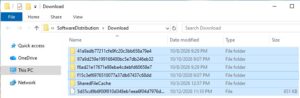
Win + R, typeC:\Windows\SoftwareDistribution\Downloadand press Enter.Select all files and folders inside this directory and delete them permanently.
Restart your computer and launch the installation assistant again.
Frequently Asked Questions (FAQs)
Q: Why does the Windows 11 Installation Assistant get stuck at 99%?
A: Sticking at 99% usually means the system is performing final background cleanups, verifying installed files, or waiting for a pending driver hand-shake to finish.
Q: How long should I wait before closing a stuck installation assistant?
A: If the progress bar has shown zero movement for more than 1 to 2 hours and disk activity lights are completely idle, it is safe to restart and troubleshoot.
Conclusion
Keeping your system upgrade path smooth ensures you can safely access the latest operating system features without data loss. By mastering these techniques to windows 11 installation assistant stuck fix, you can resolve update freezes and keep your PC transition fully on track.
Important Note:
Always ensure your important personal files are backed up to an external drive or cloud storage before attempting major operating system upgrades.
Final Thoughts on System Upgrades and OS Deployment
To wrap it up, maintaining a fully functional and optimized update ecosystem is crucial for seamless daily operations and software longevity. By proactively clearing cache directories and managing background update services, you protect your workflow against unexpected upgrade blocks and maintain maximum digital efficiency. Always keep regular backups of your important configuration files before executing deep system modifications or registry edits. Staying proactive with modern diagnostic tools guarantees long-term digital efficiency and peace of mind.