

If you want to fix windows 11 sound output device missing, encountering a sudden silent system tray, missing speakers, or unlisted headphones can severely disrupt your media playback and communication. If you have been searching for an effective method to fix windows 11 sound output device missing, you are in the right place. This frustrating audio error typically occurs due to disabled audio endpoints, outdated sound card drivers, or malfunctioning Windows Audio background services.
In this comprehensive guide, we will walk you through the top troubleshooting steps to resolve the missing output device error on your Windows 11 computer and restore crystal-clear audio.
Table of Contents
What Causes Windows 11 Sound Output Device Missing?
Before applying the fixes, understanding why this happens helps:
Disabled Audio Endpoints: Hidden or accidentally disabled speakers/headphones within system sound settings.
Corrupted Audio Drivers: Outdated or malfunctioning Realtek/Intel audio software preventing hardware communication.
Stopped Audio Services: Windows Audio or Windows Audio Endpoint Builder services failing to run in the background.
Top Methods to Fix Windows 11 Sound Output Device Missing
Method 1: Enable Hidden Sound Output Devices
Sometimes Windows hides disconnected or disabled audio endpoints by default:
Press
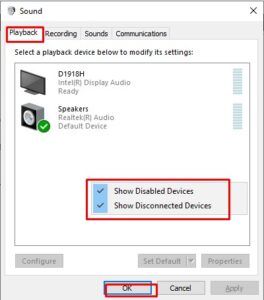
Win + R, typemmsys.cpland press Enter to open classic Sound settings.In the Playback tab, right-click anywhere in the empty white space.
Check both “Show Disabled Devices” and “Show Disconnected Devices”. If your speakers appear, right-click them and select Enable.
Method 2: Restart Windows Audio Services
Ensuring underlying audio background processes are active resolves detection failures:
Press
Win + R, typeservices.msc, and press Enter.Scroll down and locate Windows Audio. Right-click it and select Restart (also set its Startup type to Automatic).
Do the same for Windows Audio Endpoint Builder and Remote Procedure Call (RPC).
Method 3: Update or Reinstall Audio Drivers via Device Manager
Refreshing corrupted audio hardware drivers restores native communication:
Right-click the Start button and select Device Manager.
Expand the Sound, video and game controllers category.
Right-click your audio driver (e.g., Realtek Audio), select Update driver, or choose Uninstall device and restart your PC to let Windows reinstall it automatically.
if you’re also experiencing other Windows 10 & 11 Best Ways: Windows 11 Installation Assistant Stuck Fix.
Frequently Asked Questions (FAQs)
Q: Why does my Windows 11 say “No Audio Output Device is Installed”?
A: This message usually appears when the system cannot detect your physical sound card due to a missing driver, disabled service, or loose hardware connection.
Q: How do I run the built-in sound troubleshooter in Windows 11?
A: Go to Settings > System > Troubleshoot > Other troubleshooters, and click Run next to Playing Audio to let Windows automatically fix sound problems.
Conclusion
Keeping your system audio output fully operational ensures seamless media consumption and clear communication. By mastering these techniques to windows 11 sound output device missing, you can resolve hardware detection blocks and keep your computer sounding great.
Important Note:
Always download official audio drivers directly from your laptop or motherboard manufacturer’s support page for maximum compatibility.
Final Thoughts on System Audio and Device Management
To wrap it up, maintaining a fully functional and optimized audio subsystem is crucial for seamless daily operations and entertainment. By proactively managing audio drivers and restarting background endpoint services, you protect your workflow against unexpected sound failures and maintain maximum digital efficiency. Always keep regular backups of your important configuration files before executing deep system modifications or registry edits. Staying proactive with modern diagnostic tools guarantees long-term digital efficiency and peace of mind. fix windows 11 sound output device missing