
A stable Wi-Fi connection with no actual internet access can instantly derail your daily workflow. When facing the windows 10 wi-fi connected no internet error, IP address assignment conflicts, DNS cache corruption, or outdated network adapter drivers are usually responsible for the drop in connectivity.
In this step-by-step guide, we will examine why this network error occurs and walk you through five practical fixes to restore your internet connection.
Table of Contents
Understanding Wi-Fi Connectivity Mismatches
When Windows displays a “Connected, no internet” status, your computer has successfully linked to your local router, but the router cannot route traffic to the wider web. The most common causes include:
Corrupted TCP/IP stack configuration.
Stale DNS cache files holding invalid routing data.
Incorrect default gateway or subnet settings.
Outdated network adapter drivers struggling with system protocols.
How to Fix Windows 10 Wi-Fi Connected No Internet: 5 Easy Steps
Step 1: Run Network Commands (Flush DNS and Reset IP)
Clearing your network cache and resetting socket protocols often fixes silent routing errors immediately:
Press the Windows key, type
cmd, right-click Command Prompt, and select Run as administrator.Type
netsh winsock resetand press Enter.Type
netsh int ip resetand press Enter.Type
ipconfig /releasefollowed byipconfig /renewand press Enter.Type
ipconfig /flushdnsand press Enter.Restart your computer to complete the network reset.
Step 2: Change DNS Server Addresses
ISP-provided DNS servers can frequently experience downtime. Switching to reliable public DNS servers solves name resolution failures:
Press
Win + R, typencpa.cpl, and press Enter to open Network Connections.Right-click your active Wi-Fi adapter and select Properties.
Select Internet Protocol Version 4 (TCP/IPv4) and click Properties.
Choose Use the following DNS server addresses.
Set Preferred DNS server to
8.8.8.8and Alternate DNS server to8.8.4.4(Google Public DNS).Check Validate settings upon exit and click OK.
Step 3: Run the Network Adapter Troubleshooter
Windows includes an automated diagnostic utility to repair corrupted adapters:
Open Settings (
Win + I) and click on Update & Security.Navigate to Troubleshoot on the left menu and select Additional troubleshooters.
Click on Network Adapter and click Run the troubleshooter.
Select Wi-Fi when prompted and follow the on-screen steps.
Step 4: Reinstall the Network Adapter Driver
If the wireless driver becomes corrupted, Windows fails to receive incoming data packets properly. If you faced audio or hardware detection issues previously, check our troubleshooting guide on windows 10 microphone not working.
Press
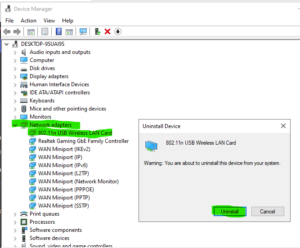
Win + Xand select Device Manager.Expand the Network adapters section.
Right-click your wireless card (e.g., Intel, Realtek, or Qualcomm) and select Uninstall device.
Keep the driver deletion box unchecked and click Uninstall.
Restart your PC to force Windows to reinstall a clean copy of the driver.
Step 5: Disable Fast Startup
Fast Startup can sometimes load cached network session data incorrectly upon boot:
Press
Win + R, typepowercfg.cpl, and press Enter.Click Choose what the power buttons do from the left pane.
Click Change settings that are currently unavailable.
Uncheck Turn on fast startup (recommended) and click Save changes.
Frequently Asked Questions (FAQs)
Why does my Wi-Fi say connected but no internet on only one device?
Ans: This usually points to a local IP address collision or corrupted network drivers on that specific device rather than an issue with your internet service provider.
Will resetting the network remove my saved Wi-Fi passwords?
Ans: Yes, running a full network reset clears all saved Wi-Fi networks and passwords, so you will need to re-enter your network key after rebooting. windows 10 Wi-Fi connected no internet.
Conclusion
Resolving the windows 10 Wi-Fi connected no internet problem requires clearing DNS caches, reassigning IP protocols, and updating wireless drivers. Following these steps ensures a stable online connection across your network. For further support on Windows updates and network configurations, windows 10 Wi-Fi connected no internet. visit Microsoft.









