
A sudden stop code crash accompanied by a system reboot can interrupt your work instantly. When encountering the windows 10 blue screen of death error (BSOD), corrupted system files, outdated hardware drivers, or conflicting background software are typically the primary culprits.
In this step-by-step guide, we will break down why system stop codes occur and guide you through five effective fixes to stabilize your operating system.
Table of Contents
What Causes the Blue Screen of Death?
System crashes happen when Windows encounters a critical failure that forces it to stop running to prevent hardware damage. Common triggers include:
Corrupted Windows system files (DLLs or registry entries).
Incompatible or outdated device drivers (GPU, Network, or Audio).
Conflicts caused by recently installed third-party software or updates.
Memory (RAM) errors or hard drive disk corruption.
How to Fix Windows 10 Blue Screen of Death: 5 Easy Solutions
Step 1: Run System File Checker (SFC) and DISM
Corrupted system files are the most frequent cause of random BSOD crashes:
Press the Windows key, type
cmd, right-click Command Prompt, and select Run as administrator.Type
sfc /scannowand press Enter. Wait for the scan to reach 100%.If errors remain, type
DISM /Online /Cleanup-Image /RestoreHealthand press Enter.Restart your computer once the repair completes.
Step 2: Uninstall Recent Updates or Software
If BSOD errors started after installing a new program or Windows update, rolling back the changes can fix it:
Press
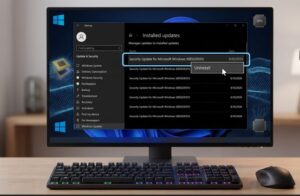
Win + Ito open Settings and click Update & Security.Click View update history and select Uninstall updates.
Locate the most recent update, right-click it, and select Uninstall.
Alternatively, go to Apps > Apps & features to remove recently installed third-party software.
Step 3: Update Critical Hardware Drivers
Faulty graphics, storage, or network drivers frequently trigger fatal system stop codes. If you previously experienced connectivity glitches, check our guide on windows 10 Wi-Fi connected no internet.
Press
Win + Xand select Device Manager.Expand categories like Display adapters and Network adapters.
Right-click your active device drivers and select Update driver.
Choose Search automatically for drivers or visit your manufacturer’s site for manual updates.
Step 4: Run Windows Memory Diagnostic Tool
Faulty RAM hardware can cause system instability and repeated stop errors:
Press
Win + R, typemdsched.exe, and press Enter.Select Restart now and check for problems (recommended).
Your PC will restart into a diagnostic mode to scan your memory modules automatically.
Step 5: Check Disk for Errors (Chkdsk)
Hard drive corruption can prevent Windows from accessing system dependencies:
Open Command Prompt as administrator (
Win + S, typecmd).Type
chkdsk C: /f /rand press Enter.Type
Yto schedule a disk check on the next system restart and reboot your PC.
Frequently Asked Questions (FAQs)
Will fixing the blue screen of death delete my files?
No, running diagnostic tools like SFC, DISM, or updating drivers will not affect your personal files. However, reinstalling Windows completely will require a backup.
Can a virus cause a blue screen of death on Windows 10?
Yes, malware can corrupt system files or interfere with core OS processes, leading to critical BSOD stop codes.
Conclusion
Resolving the windows 10 blue screen of death issue involves repairing system files, removing bad software updates, and keeping your device drivers updated. Following these steps will keep your PC running stably without random crashes. For additional diagnostic resources, If system crashes continue even after executing these troubleshooting procedures, perform a clean reinstallation of Windows using a bootable installation media drive. visit Microsoft.









