Encountering update installation failures, stuck progress bars, or error codes like *0x80070002* can compromise your operating system’s security. Knowing how to resolve cases where **windows 10 updates fail to install** ensures your computer stays patched, stable, and protected against emerging digital threats.
In this troubleshooting guide, we will break down five practical solutions to fix corrupt update files and restore normal Windows Update functionality.
—
## Table of Contents
* [Common Causes of Windows Update Failure](#causes)
* [How to Fix Windows 10 Updates Fail to Install: 5 Easy Steps](#solutions)
* [Frequently Asked Questions (FAQs)](#faq)
* [Conclusion](#conclusion)
—
## Common Causes of Windows Update Failure
Understanding what prevents Windows from downloading or applying patches saves time during troubleshooting:
* **Corrupted Update Cache:** Damaged system files in the *Software Distribution* folder blocking new downloads.
* **Insufficient Disk Space:** Lack of storage space on the primary partition ($C:$) required for installation.
* **Third-Party Antivirus Interference:** Overzealous security software blocking Windows Update services.
—
## How to Fix Windows 10 Updates Fail to Install: 5 Easy Steps
Follow these tested steps sequentially to restore normal system update operations on your desktop PC.
### Step 1: Run the Built-in Windows Update Troubleshooter
Windows includes an automated tool designed to detect and repair standard update glitches:
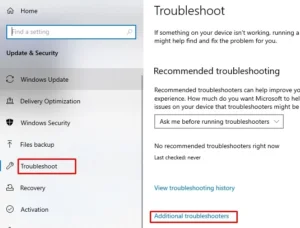
1. Open **Settings** by pressing `Win + I`.
2. Go to **Update & Security > Troubleshoot**.
3. Click **Additional troubleshooters**.
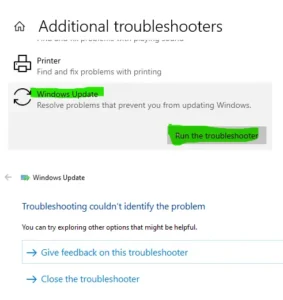
4. Select **Windows Update** and click **Run the troubleshooter**.
5. Apply any recommended fixes suggested by the system tool.
Step 2: Reset Windows Update Cache Components
Corrupt temporary update files frequently halt progress. Clearing the cache refreshes the update service:
1. Type **cmd** in the Start Menu search bar, right-click **Command Prompt**, and choose **Run as administrator**.
2. Stop the core update services by entering these commands one by one (press *Enter* after each):
* `net stop wuauserv`
* `net stop bits`
3. Press `Win + R`, type `C:\Windows\SoftwareDistribution`, and press *Enter*.
4. Delete all files and subfolders inside this folder.
5. Re-open Command Prompt as administrator and restart the services using:
* `net start wuauserv`
* `net start bits`
### Step 3: Run SFC and DISM System Scans
System file corruption often leads to update installation errors:
1. Open **Command Prompt as administrator**.
2. Type `sfc /scannow` and press *Enter*. Allow the scan to complete.
3. Once finished, run the DISM repair command:
`DISM.exe /Online /Cleanup-image /Restorehealth`
4. Restart your computer after both processes finish. windows 10 updates fail to install.
### Step 4: Free Up Storage Space on System Drive
Windows 10 updates require several gigabytes of free disk space to extract and apply patches:
1. Open **File Explorer** and click on **This PC**.
2. Ensure drive **C:** has at least 10–15 GB of free space.
3. Use **Storage Sense** or **Disk Cleanup** to clear unnecessary temporary files.
### Step 5: Temporarily Disable Third-Party Antivirus
Sometimes security software misidentifies update packages as suspicious activity:
1. Temporarily disable your third-party antivirus software from the system tray.
2. Navigate to **Settings > Update & Security > Windows Update**.
3. Click **Check for updates** to attempt the installation again.
*(Remember to re-enable your antivirus software immediately after updating).*
—
## Frequently Asked Questions (FAQs)
### FAQ 1: Will resetting Windows Update components delete my personal files?
*Ans:* No. Resetting Windows Update components only clears temporary system update cache files and does not affect your personal photos, documents, or installed apps.
### FAQ 2: What should I do if an update gets stuck at 99%?
*Ans:* Give the process at least 1–2 hours. If it remains completely frozen, restart the PC, clear the *Software Distribution* folder as outlined in Step 2, and try updating again.
—
## Conclusion
Resolving issues where **windows 10 updates fail to install** requires running automated troubleshooters, resetting corrupt cache folders, and ensuring sufficient disk space. Following these steps ensures your PC runs smoothly with the latest security definitions. windows 10 updates fail to install.
**Pro Tip:** For official patch notes and update catalogs, visit the official [Microsoft](https://www.microsoft.com) support portal.









