As Microsoft shifts focus toward newer operating systems, understanding the **windows 10 end of support** policy becomes critical for all PC users. Knowing what this lifecycle deadline means helps you protect your personal data, maintain system security, and plan hardware upgrades effectively.
In this essential guide, we will break down what happens when support ends and the best action steps you should take right now.
—
## Table of Contents
* [What Does Windows 10 End of Support Mean?](#overview)
* [Key Risks After Official Support Ends](#risks)
* [Windows 10 End of Support: Best Options for Users](#solutions)
* [Frequently Asked Questions (FAQs)](#faq)
* [Conclusion](#conclusion)
—
## What Does Windows 10 End of Support Mean?
When Microsoft reaches the end of life phase for an operating system, key services transition:
* **No More Security Updates:** Microsoft stops patching newly discovered system vulnerabilities.
* **Lack of Technical Support:** Official customer service and bug fixes become unavailable.
* **Software Incompatibility:** Third-party app developers gradually drop support for older OS versions.
—
## Key Risks After Official Support Ends
Continuing to use an unsupported operating system exposes your computer to several issues:
* **Malware Vulnerability:** Unpatched security holes leave your computer vulnerable to virus infections.
* **New App Errors:** Newer software versions and web browsers may refuse to install or run properly.
* **Performance Lag:** Lack of driver updates for modern hardware components limits optimization.
—
## Windows 10 End of Support: Best Options for Users
Here are the practical steps you can take to keep your computer secure and fully operational.
### Step 1: Upgrade to Windows 11 for Free
If your PC meets Microsoft’s system requirements, upgrading remains the smoothest option:
1. Open **Settings** by pressing **Windows Key + I**.
2. Click **Update & Security**, then select **Windows Update**.
3. Click **Check for updates** to see if your hardware qualifies for the free upgrade.
### Step 2: Enable Extended Security Updates (ESU)
For users who cannot upgrade hardware immediately, Microsoft offers extended security patches:
1. Check Microsoft’s official portal for Extended Security Updates enrollment.
2. Subscribe to receive critical security patches while preparing a hardware transition.
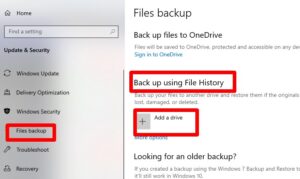
### Step 3: Back Up Your Important Personal Files
Before making any major system changes, safeguard your essential documents and media:
1. Connect an external hard drive or USB flash drive.
2. Go to **Settings > Update & Security > Backup**.
3. Set up **File History** or upload key folders to cloud storage services like OneDrive.
Step 4: Invest in Compatible PC Hardware
If your current desktop or laptop lacks TPM 2.0 or modern processor support:
1. Inspect your current motherboard and CPU specs using system information tools.
2. Consider upgrading key hardware components or migrating to a modern Windows
Step 5: Switch to Alternative Operating Systems
If your current PC hardware cannot handle Windows 11 and you prefer not to buy a new machine, consider lightweight alternatives:
1. Try installing lightweight Linux distributions (such as Linux Mint or Ubuntu) to keep your desktop secure and fast.
2. Convert your system into a cloud-focused device using ChromeOS Flex for daily web browsing and office streaming.—-
## Frequently Asked Questions (FAQs)
### FAQ 1: Will my PC stop working after Windows 10 end of support?
*Ans:* No, your computer will continue to turn on and run existing software, but it will no longer receive critical security updates against new threats.
### FAQ 2: the Windows 11 upgrade free for Windows 10 users?
*Ans:* Yes, if your hardware satisfies the minimum system requirements, upgrading to Windows 11 remains completely free.
## Conclusion
Preparing for **windows 10 end of support** requires verifying hardware compatibility, backing up personal data, and planning a smooth upgrade path. Taking proactive steps today ensures your desktop remains secure and fully functional.
**Pro Tip:** For official lifecycle dates and hardware compatibility checklists, visit the official [Microsoft](https://www.microsoft.com) support knowledge base.









