Encountering visual glitches, stretched screen resolutions, or unexpected black screens can severely disrupt your workflow. Knowing how to solve a **windows 10 display problem** ensures your desktop monitor renders sharp, accurate visuals without performance lag.
In this practical troubleshooting guide, we will break down five easy solutions to resolve common display errors on Windows 10.
—
## Table of Contents
* [Common Causes of Windows Display Errors](#causes)
* [How to Fix Windows 10 Display Problem: 5 Quick Steps](#solutions)
* [Frequently Asked Questions (FAQs)](#faq)
* [Conclusion](#conclusion)
—
## Common Causes of Windows Display Errors
Understanding what triggers screen irregularities makes troubleshooting much faster:
* **Outdated Display Adapter Drivers:** Incompatible graphics drivers following major Windows updates.
* **Incorrect Resolution Settings:** Desktop display parameters mismatching your monitor’s native resolution.
* **Loose Cable Connections:** Damaged HDMI or DisplayPort wiring causing signal loss.
—
## How to Fix Windows 10 Display Problem: 5 Quick Steps
Follow these tested steps sequentially to restore normal display output on your PC.
### Step 1: Adjust Desktop Display Resolution
Incorrect display scaling can make icons look stretched or blurry:
1. Right-click on an empty space on your desktop and select **Display settings**.
2. Scroll down to **Display resolution**.
3. Choose the option marked **(Recommended)** to match your monitor’s physical pixel count.
4. Verify that **Scale and layout** is set to 100% (or recommended percentage).
### Step 2: Restart the Graphics Driver Hotkey
If your screen freezes or flickers, you can reset your GPU drivers instantly:
1. Press **Windows Key + Ctrl + Shift + B** simultaneously on your keyboard.
2. The screen will blink briefly and you will hear a beep sound as the graphics driver resets.
### Step 3: Update Graphics Driver via Device Manager
Outdated display drivers are the primary cause of any **windows 10 display problem**:
1. Right-click the **Start Button** and choose **Device Manager**.
2. Expand the **Display adapters** section.
3. Right-click your active graphics card (e.g., *NVIDIA*, *AMD*, or *Intel*) and select **Update driver**.
4. Click **Search automatically for drivers** and let Windows install the latest software.
### Step 4: Reinstall the Display Adapter Driver
If updating does not resolve the issue, perform a clean reinstall:
1. Open **Device Manager** and expand **Display adapters**.
2. Right-click your display adapter and select **Uninstall device**.
3. Restart your computer. Upon reboot, Windows will reinstall the default driver automatically.
### Step 5: Adjust Refresh Rate Settings
Incompatible refresh rates can cause screen stuttering or black screens:
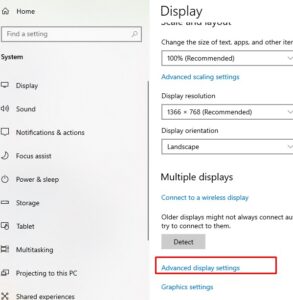
1. Go to **Settings > System > Display**.
2. Scroll down and click **Advanced display settings**.
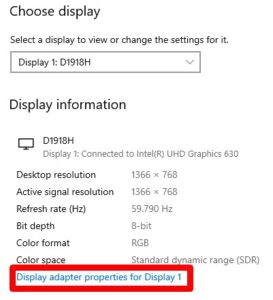
3. Click **Display adapter properties for Display 1**.
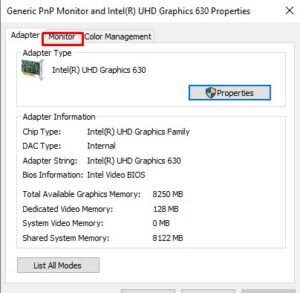
4. Switch to the **Monitor** tab and set the *Screen refresh rate* to 60 Hz (or your monitor’s default value).

### Step 6: Use Windows System Restore for Recent Display Failure
If your display problems started after installing a new program or updating Windows, System Restore can revert your PC back to a stable state:
1. Press **Windows Key + S**, type `Create a restore point`, and press **Enter**.
2. Under the *System Protection* tab, click **System Restore**.
3. Click **Next**, choose a restore point dated before the screen issue began, and click **Finish**.
4. Allow your computer to restart and complete the restoration process.
## Frequently Asked Questions (FAQs)
### FAQ 1: Why is my Windows 10 screen blurry after an update?
*Ans:* Updates sometimes reset custom display resolutions to generic defaults. Re-selecting the recommended resolution in Display Settings usually fixes the blurriness.
### FAQ 2: What should I do if my screen goes black randomly?
*Ans:* Try pressing `Win + Ctrl + Shift + B` to restart your display drivers, or inspect your physical HDMI/DisplayPort cable connection.
—
## Conclusion
Solving a **windows 10 display problem** requires checking physical cable connections, configuring correct screen resolutions, and updating display drivers. Following these steps restores crisp visual quality to your system.
**Pro Tip:** For official OS driver support and technical help, visit the official [Microsoft](https://www.microsoft.com) support knowledge base.









