Losing your internet connection due to missing network protocols error can halt your online activities and disrupt browsing. Knowing how to resolve instances where **windows 10 missing network protocols** errors occur ensures your desktop restores stable, high-speed Wi-Fi or Ethernet connectivity.
In this practical networking guide, we will break down five tested solutions to repair corrupted network drivers, reset sockets, and restore internet access.
—
## Table of Contents
* [Common Causes of Missing Network Protocol Errors](#causes)
* [How to Fix Windows 10 Missing Network Protocols: 5 Easy Steps](#solutions)
* [Frequently Asked Questions (FAQs)](#faq)
* [Conclusion](#conclusion)
—
## Common Causes of Missing Network Protocol Errors
Understanding what triggers network protocol glitches helps isolate the issue faster:
* **Corrupted Winsock Catalog:** Corrupted network socket configurations blocking standard TCP/IP communication.
* **Outdated Network Adapter Drivers:** Incompatible Wi-Fi or Ethernet drivers following Windows major updates.
* **Third-Party Antivirus Restrictions:** Firewall software blocking necessary communication protocols.
—
## How to Fix Windows 10 Missing Network Protocols: 5 Easy Steps
Follow these troubleshooting steps sequentially to restore normal internet connectivity on your system.
### Step 1: Reset NetBIOS and Winsock Catalog
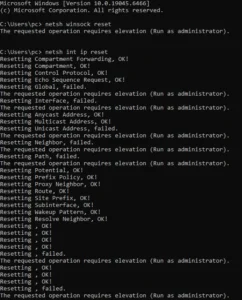
Resetting the Winsock catalog clears corrupt network configurations and restores default socket protocols:
1. Press the **Windows Key**, type **cmd**, right-click **Command Prompt**, and select **Run as administrator**.
2. Type `netsh winsock reset` and press **Enter**.
3. Type `netsh int ip reset` and press **Enter**.
4. Restart your computer to apply the network socket reset.
Step 2: Update Network Adapter Drivers
Outdated network drivers often trigger errors stating that **windows 10 missing network protocols** exist on your machine:
1. Right-click the **Start Button** and select **Device Manager**.
2. Expand the **Network adapters** section.
3. Right-click your primary Wi-Fi or Ethernet adapter and select **Update driver**.
4. Click **Search automatically for drivers** to install the official network software.
### Step 3: Reinstall Network Adapter Hardware
If updating does not resolve the issue, performing a clean hardware reinstall clears protocol conflicts:
1. Open **Device Manager** and expand **Network adapters**.
2. Right-click your active Wi-Fi or Ethernet card and click **Uninstall device**.
3. Check the box to delete driver software if prompted, then click **Uninstall**.
4. Reboot your system. Windows will reinstall the network adapter automatically.
### Step 4: Disable IPv6 Protocol Temporarily
Incompatible Internet Protocol Version 6 settings can cause network protocol handshaking failures:
1. Press `Win + R`, type `ncpa.cpl`, and press **Enter** to open Network Connections.
2. Right-click your active Wi-Fi or Ethernet connection and select **Properties**.
3. Locate **Internet Protocol Version 6 (TCP/IPv6)** in the list and uncheck its box.
4. Click **OK** to save changes and restart your web browser.
### Step 5: Flush DNS and Renew IP Configuration
Clearing your local DNS cache resolves underlying network addressing errors:
1. Open **Command Prompt as administrator**.
2. Execute the following commands in sequence (press *Enter* after each line):
* `ipconfig /flushdns`
* `ipconfig /release`
* `ipconfig /renew`
3. Restart your router and test your internet connection.
#### Additional Troubleshooting Tips for Protocol Errors If basic network resets do not resolve the missing protocol message immediately, consider checking your network adapter drivers. Outdated or corrupted network drivers frequently disrupt socket communication: 1. Press `Win + X` and select **Device Manager**. 2. Expand the **Network adapters** section. 3. Right-click your active Wi-Fi or Ethernet adapter and select **Update driver**. 4. Choose **Search automatically for drivers** and follow the on-screen instructions.
Frequently Asked Questions (FAQs)
###FAQ 1: What causes network protocols to go missing on Windows 10? *Ans:* Missing network protocols usually result from corrupted registry keys, system file corruption following an update, or interference from third-party VPNs and antivirus applications.
### FAQ 2: Will resetting network protocols delete my saved Wi-Fi passwords? *Ans:* Performing a Winsock and IP reset restores default network configurations. In some cases, you may need to re-enter your Wi-Fi passwords, so keep them handy before proceeding.
### FAQ 3: Is it safe to run netsh winsock reset on my PC? *Ans:* Yes, running `netsh winsock reset` is completely safe. It is a built-in Windows diagnostic command designed to restore network sockets to their default state without harming your files.
###FAQ 4: Why does Windows say “One or more network protocols are missing”?
*Ans:* This error typically occurs when the TCP/IP or Winsock settings become corrupted due to unexpected system shutdowns, updates, or software conflicts.
### FAQ 5: Will resetting network protocols delete my saved Wi-Fi passwords?
*Ans:* Running basic Winsock resets usually preserves saved profiles, but performing a full network reset via Windows Settings will require re-entering Wi-Fi passwords.
—
## Conclusion
Fixing issues where **windows 10 missing network protocols** prevent internet access requires executing command-line resets, updating adapter drivers, and clearing DNS caches. Following these steps restores smooth online connectivity.
**Pro Tip:** For official networking documentation and driver assistance, visit the official [Microsoft](https://www.microsoft.com) support knowledge base.









