Experiencing unexpected system slowdowns and frozen apps can often be traced back to underlying hardware communication glitches. When **windows 10 system interrupts high cpu** spikes occur, the process acts as an official representative for hardware drivers requesting processor attention, causing severe performance drops.
In this troubleshooting guide, we will explore five practical solutions to resolve driver conflicts, disable problematic hardware, and fix high CPU consumption.
—
## Table of Contents
* [Understanding System Interrupts in Windows 10](#understanding)
* [Common Causes of High CPU Usage](#causes)
* [How to Fix Windows 10 System Interrupts High CPU: 5 Easy Steps](#solutions)
* [Frequently Asked Questions (FAQs)](#faq)
* [Conclusion](#conclusion)
—
## Understanding System Interrupts in Windows 10
System Interrupts is not an actual background application or process. Instead, it serves as a system placeholder used by the OS to manage incoming hardware communication requests.
Under normal operational conditions, System Interrupts consumes between **0.1% and 2%** of your processor power. However, if corrupt drivers or malfunctioning external hardware components send continuous requests to your processor, CPU usage can surge to **50% or higher**, causing system freezing and fan noise.
—
## Common Causes of High CPU Usage
Identifying hardware communication errors saves time during diagnostics:
* **Outdated Hardware Drivers:** Incompatible network, audio, or graphics drivers continuously interrupting CPU cycles.
* **Faulty USB Peripheral Devices:** Malfunctioning external hard drives, keyboards, or mice sending broken signals.
* **Fast Startup Feature Conflicts:** Power management glitches causing driver communication loops upon booting.
—
## How to Fix Windows 10 System Interrupts High CPU: 5 Easy Steps
Follow these tested steps sequentially to eliminate hardware processing delays and restore normal CPU usage.
### Step 1: Update All System Hardware Drivers
Outdated device software is the most common reason why **windows 10 system interrupts high cpu** errors trigger on desktop systems:
1. Press `Win + X` and choose **Device Manager** from the quick access menu.
2. Expand key sections such as **Network adapters**, **Sound, video and game controllers**, and **Display adapters**.
3. Right-click each hardware component and click **Update driver**.
4. Select **Search automatically for drivers** to install official updates.
### Step 2: Unplug and Test External USB Peripherals
Faulty hardware devices or damaged USB ports can send constant interrupt requests to the CPU:
1. Safely disconnect all external USB devices (including flash drives, webcams, and external hard drives).
2. Keep only your essential mouse and keyboard connected.
3. Open **Task Manager** (`Ctrl + Shift + Esc`) and check if CPU usage normalizes.
4. Reconnect each USB device one by one to identify the faulty peripheral.
### Step 3: Disable Fast Startup Mode
Windows Fast Startup relies on power hibernation states that sometimes cause driver initialization loops:
1. Press `Win + R`, type `powercfg.cpl`, and press **Enter** to open Power Options.
2. Click **Choose what the power buttons do** in the left sidebar.
3. Select **Change settings that are currently unavailable**.
4. Uncheck **Turn on fast startup (recommended)** and click **Save changes**.
5. Restart your computer.
### Step 4: Disable Audio Enhancements and Network Effects
Advanced sound settings and network adapter offload options can overload system resources:
1. Open the **Control Panel** and click **Sound**.
2. Right-click your active playback device and choose **Properties**.
3. Navigate to the **Enhancements** tab and check **Disable all enhancements**.
4. Click **Apply** and then **OK**.
### Step 5: Run System File Checker and Check Disk Scan
Corrupted internal system files or hard disk sectors can cause processing delays:
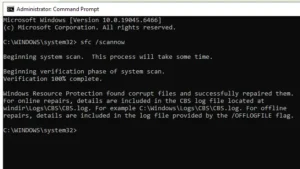
1. Type **cmd** in the Start search bar, right-click **Command Prompt**, and select **Run as administrator**.
2. Type `sfc /scannow` and press **Enter** to repair corrupted system files.
3. Once completed, type `chkdsk C: /f /r` and press **Enter** to check the system disk drive for errors.
4. Reboot your system when prompted.
## Frequently Asked Questions (FAQs)
### FAQ 1: Is System Interrupts a virus or malware?
*Ans:* No. System Interrupts is an official Windows system component. However, high CPU consumption by this process usually points to a faulty physical device or driver issue rather than a malware infection.
### FAQ 2: What is the normal CPU usage for System Interrupts?
*Ans:* Under typical system operation, System Interrupts should consistently stay below 2% CPU usage. Anything consistently above 10% indicates an active hardware or driver conflict.
### FAQ 3: Can a failing power supply cause high system interrupts?
*Ans:* Yes. Voltage instabilities caused by a degraded power supply or failing laptop battery can trigger continuous hardware interrupts across system components.
—
## Conclusion
Resolving issues where **windows 10 system interrupts high cpu** spikes slow down performance requires updating hardware drivers, disconnecting faulty USB peripherals, and turning off fast startup modes. Following these steps restores system responsiveness and optimal processor efficiency.
**Pro Tip:** For hardware diagnostic tools and system updates, visit the official [Microsoft](https://www.microsoft.com) support catalog.









