Encountering a sudden system crash while working on critical tasks can be frustrating. When a **windows 10 blue screen of death memory management** error occurs, the operating system halts all operations to protect system hardware from corrupted system memory processes.
In this comprehensive guide, we will analyze common triggers for BSOD memory crashes and walk you through five practical troubleshooting methods.
—
## Table of Contents
* [Understanding the Memory Management BSOD Error](#understanding)
* [Common Causes of Memory Stop Codes](#causes)
* [How to Fix Windows 10 Blue Screen of Death Memory Management: 5 Steps](#solutions)
* [Frequently Asked Questions (FAQs)](#faq)
* [Conclusion](#conclusion)
—
## Understanding the Memory Management BSOD Error
The Memory Management process in Windows handles system RAM allocation across active applications and hardware processes. When a system driver or application attempts to access improper physical memory addresses, Windows halts execution to prevent file corruption.
Under regular conditions, Windows automatically balances RAM caching. However, when physical memory modules fail or storage system structures degrade, a system stop code is triggered to avoid permanent hardware damage.
—
## Common Causes of Memory Stop Codes
Diagnosing the root cause helps shorten system repair times:
* **Faulty Physical RAM Modules:** Defective memory sticks generating read and write register errors.
* **Corrupted Graphic and Hardware Drivers:** Outdated video drivers interfering with system memory allocation.
* **Damaged System Files:** Broken registry entries or missing system files disrupting system boot structures.
—
## How to Fix Windows 10 Blue Screen of Death Memory Management: 5 Steps
Follow these tested troubleshooting procedures to resolve memory allocations and prevent future system crashes.
### Step 1: Run the Windows Memory Diagnostic Tool
Checking physical hardware health is the first essential step in resolving memory crashes:
1. Press `Win + R`, type `mdsched.exe`, and press **Enter**.
2. Select **Restart now and check for problems (recommended)**.
3. Windows will reboot into a blue diagnostic environment and test your RAM modules.
4. Once completed, your system will restart and display the memory status report.
### Step 2: Update Graphics and Display Drivers
Incompatible graphics card software frequently triggers memory management crashes:
1. Press `Win + X` and select **Device Manager**.
2. Expand the **Display adapters** section.
3. Right-click your active graphics processor (NVIDIA, AMD, or Intel) and click **Update driver**.
4. Choose **Search automatically for drivers** and install available updates.
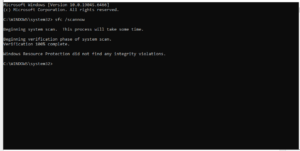
### Step 3: Execute System File Checker Scan
Corrupted core system files disrupt system memory balance and stability:
1. Type **cmd** in the Start search bar, right-click **Command Prompt**, and select **Run as administrator**.
2. Type `sfc /scannow` and press **Enter**.
3. Allow the scanning process to complete and automatically repair damaged system resources.
Step 4: Run CHKDSK to Scan Hard Drive Errors
Bad storage sectors can prevent the Windows page file from reading virtual memory correctly:
1. Open **Command Prompt** as Administrator.
2. Type `chkdsk C: /f /r` and press **Enter**.
3. Type **Y** when prompted to schedule the volume scan during the next reboot.
4. Restart your computer to allow the disk check to complete.
### Step 5: Check for Recent Software and Windows Updates
Pending software patches fix known operating system bug triggers:
1. Press `Win + I` to open **Settings** and click **Update & Security**.
2. Click **Check for updates** to download official software patches.
3. Restart your computer to apply system updates.
## Advanced Hardware Checks for Persistent BSOD Errors. If standard software updates and disk scans fail to stop crashes, you should inspect physical memory modules directly:
* **Reseat Physical RAM Sticks:** Power off your desktop PC, open the side panel, and carefully remove your RAM modules. Wipe the contacts clean and re-seat them back firmly into their slots.
* **Test RAM Slots Individually:** Try booting your computer with only one RAM stick inserted at a time. This pinpoints if a specific physical memory card or motherboard slot triggers the **windows 10 blue screen of death memory management** error.
## Frequently Asked Questions (FAQs)
### FAQ 1: Does a memory management BSOD mean my RAM is broken?
*Ans:* Not always. While a faulty RAM stick is a common cause, driver conflicts or corrupted system files can also trigger the exact same stop code.
### FAQ 2: Can software issues cause memory management stop codes?
*Ans:* Yes. Outdated graphics drivers, third-party antivirus utilities, and damaged system files frequently cause virtual memory allocation errors.
### FAQ 3: How long does the Windows Memory Diagnostic test take?
*Ans:* The basic memory diagnostic scan usually takes between 15 to 30 minutes depending on your total installed RAM capacity.
—
## Conclusion
Fixing a **windows 10 blue screen of death memory management** error involves testing physical RAM components, updating display drivers, and repairing system files. Performing routine maintenance ensures long-term system stability.
**Pro Tip:** For official diagnostic instructions and software downloads, check the official [Microsoft](https://www.microsoft.com) support library.









