
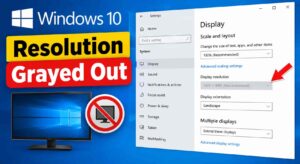
Stuck with a blurry screen or distorted aspect ratio after a Windows update? When the option for **windows 10 resolution grayed out** appears in your display settings, the operating system is unable to communicate properly with your graphics hardware, locking your display options.
In this troubleshooting guide, we will examine why screen resolution settings become unclickable and walk you through five effective solutions to restore full monitor control.
—
## Table of Contents
* [Understanding Grayed-Out Resolution Settings](#understanding)
* [Common Causes of Frozen Display Settings](#causes)
* [How to Fix Windows 10 Resolution Grayed Out: 5 Easy Steps](#solutions)
* [Frequently Asked Questions (FAQs)](#faq)
* [Conclusion](#conclusion)
—
## Understanding Grayed-Out Resolution Settings
Screen resolution settings depend on active communication between your graphics processing unit (GPU), display driver, and connected monitor. When Windows replaces your dedicated display driver with a generic Microsoft basic display adapter, advanced monitor resolutions become locked.
Under normal conditions, Windows automatically detects the native pixel count of your display. However, corrupted display driver registries or loose video cables force the operating system to drop down to safe display modes, making resolution dropdown menus non-clickable.
If you’re also experiencing other Windows 11 Activation Problems, check our guide on How to Make Windows 10 Run Faster
—
## Common Causes of Frozen Display Settings
Identifying the root cause speeds up the restoration process:
* **Generic Display Drivers:** Windows fallback drivers limiting hardware performance after system updates.
* **Corrupted Graphics Card Software:** Outdated or damaged NVIDIA, AMD, or Intel GPU software.
* **Loose Cable Connections:** Faulty HDMI or DisplayPort cables sending improper display identification signals.
—
## How to Fix Windows 10 Resolution Grayed Out: 5 Easy Steps
Follow these tested methods step by step to unlock your screen settings and restore native display resolutions.
### Step 1: Update Your Display Adapter Driver
Reinstalling or updating display drivers is the primary fix when **windows 10 resolution grayed out** errors occur:
1. Press `Win + X` and select **Device Manager**.
2. Expand the **Display adapters** category.
3. Right-click your active graphics card (NVIDIA, AMD, or Intel) and click **Update driver**.
4. Select **Search automatically for drivers** and follow the instructions to complete the installation.
Step 2: Roll Back the Display Driver
If resolution options became grayed out right after a Windows update, rolling back to the previous driver version can fix the issue:
1. Open **Device Manager** and expand **Display adapters**.
2. Right-click your display driver and choose **Properties**.
3. Select the **Driver** tab and click **Roll Back Driver** if the option is available.
4. Restart your computer and check Display Settings.
### Step 3: Reinstall Microsoft Basic Display Adapter
Forcing Windows to reinstall default display configurations can reset locked settings:
1. Open **Device Manager**, right-click your graphics adapter, and select **Uninstall device**.
2. Check **Delete the driver software for this device** if prompted, and click **Uninstall**.
3. Restart your PC. Windows will automatically reinstall a fresh display adapter driver upon rebooting.
### Step 4: Check Hardware Cables and Port Connections
Loose monitor cables can prevent display data transmission:
1. Power down your monitor and desktop computer.
2. Unplug your HDMI or DisplayPort cable from both the PC and monitor.
3. Inspect cable ends for dust or bent pins and reconnect them securely.
4. If available, test a different display cable or port on your GPU.
### Step 5: Adjust Resolution via Custom GPU Control Panel
If Windows display settings remain frozen, use your graphics hardware software:
1. Right-click on your desktop and select **NVIDIA Control Panel**, **AMD Radeon Software**, or **Intel Graphics Command Center**.
2. Navigate to the **Display** or **Change Resolution** section.
3. Choose your native screen resolution from the list and click **Apply**.
—
## Frequently Asked Questions (FAQs)
### FAQ 1: Why is my display resolution dropdown grayed out?
*Ans:* This usually happens when Windows cannot detect your graphics driver properly, often substituting it with a generic display adapter that lacks custom resolution support.
### FAQ 2: Can a faulty HDMI cable cause grayed out resolution options?
*Ans:* Yes. Damaged HDMI or DisplayPort cables can fail to convey display identification data (EDID) from your monitor to your graphics card, locking resolution settings.
### FAQ 3: Will updating Windows fix display resolution errors?
*Ans:* Updating Windows can automatically fetch missing display drivers, resolving driver incompatibility issues causing grayed out resolution menus.
—
## Conclusion
Resolving issues where **windows 10 resolution grayed out** prevents display adjustments requires updating graphics drivers, checking hardware cable connections, or utilizing GPU software. Following these steps restores crisp visuals and full screen functionality.
**Pro Tip:** For official display driver downloads and graphics utility software, visit the official [Microsoft](https://www.microsoft.com) support catalog.









