Encountering a frozen or unclickable taskbar disrupts daily workflow by restricting access to Start menu shortcuts, system trays, and active applications. When the **windows 10 taskbar not working** bug occurs, background process collisions or system file corruptions cause the interface to stop responding to mouse clicks and keyboard shortcuts.
In this comprehensive guide, we will examine why the taskbar freezes and guide you through five effective step-by-step solutions to restore full taskbar functionality. If you are also facing startup issues, check out our guide on how to fix windows 10 automatic repair loop errors.
—
## Table of Contents
* [Understanding Taskbar Unresponsiveness](#understanding)
* [Common Causes of Taskbar Crashes](#causes)
* [How to Fix Windows 10 Taskbar Not Working: 5 Easy Steps](#solutions)
* [Frequently Asked Questions (FAQs)](#faq)
* [Conclusion](#conclusion)
—
## Understanding Taskbar Unresponsiveness
The taskbar interface in Windows operates under the Windows Explorer shell process (`explorer.exe`). This process manages desktop icons, file directories, and taskbar navigation. When background service memory leaks or app overlay updates conflict with system resources, the shell process hangs.
Under standard conditions, Windows automatically refreshes frozen system shells. However, severe system file corruptions or outdated graphics drivers force the interface to remain unresponsive until manual recovery commands are executed.
—
## Common Causes of Taskbar Crashes
Identifying primary failure points speeds up system restoration:
* **Explorer Process Hangs:** Windows Explorer process stalling due to high RAM or CPU usage.
* **Corrupted System App Packages:** Damaged Windows AppX packages disrupting Start menu and system tray renders.
* **System File Corruption:** Damaged core binaries preventing UI components from responding.
—
## How to Fix Windows 10 Taskbar Not Working: 5 Easy Steps
Follow these tested troubleshooting procedures to unfreeze your system tray and taskbar interface.
### Step 1: Restart Windows Explorer via Task Manager
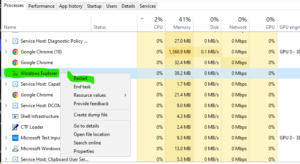
Restarting the primary shell process resolves temporary UI freezes without rebooting your PC:
1. Press `Ctrl + Shift + Esc` to open **Task Manager**.
2. Scroll down the **Processes** tab and locate **Windows Explorer**.
3. Right-click **Windows Explorer** and select **Restart**.
4. Allow your desktop screen to refresh completely.
Step 2: Re-register AppX Packages using PowerShell
Re-registering built-in Windows applications resolves interface glitches when the **windows 10 taskbar not working** issue persists:
1. Press `Ctrl + Shift + Esc`, click **File > Run new task**.
2. Type `powershell`, check **Create this task with administrative privileges**, and click **OK**.
3. Paste the following command and press **Enter**:
`Get-AppXPackage -AllUsers | Foreach {Add-AppxPackage -DisableDevelopmentMode -Register “$($_.InstallLocation)\AppXManifest.xml”}`
4. Wait for the process to complete, then restart your PC.
### Step 3: Run SFC and DISM Scans
Repairing core system file structures restores system tray responsiveness:
1. Open **Task Manager**, click **File > Run new task**, type `cmd`, check administrative rights, and click **OK**.
2. Type `sfc /scannow` and press **Enter**.
3. Once completed, type `DISM /Online /Cleanup-Image /RestoreHealth` and press **Enter**.
4. Restart your system after scans finish. Right-click Windows Explorer and select Restart to solve windows 10 taskbar not working errors quickly.
### Step 4: Restart User Manager Service
An inactive User Manager service can block taskbar clicks:
1. Press `Win + R`, type `services.msc`, and press **Enter**.
2. Scroll down and locate **User Manager**.
3. Double-click **User Manager**, set **Startup type** to **Automatic**, and click **Start** if stopped.
4. Click **Apply** and **OK**, then reboot your PC.
### Step 5: Perform a System Restore
If software conflicts broke your taskbar recently, revert to a clean system point:
1. Open **Task Manager**, click **File > Run new task**, type `rstrui.exe`, and click **OK**.
2. Select a restore point created before taskbar issues started.
3. Follow the onscreen instructions to restore system configuration.
—
## Frequently Asked Questions (FAQs)
### FAQ 1: Why is my taskbar frozen and not responding to clicks?
*Ans:* This usually occurs when the `explorer.exe` process freezes or when corrupted Windows application packages interfere with taskbar rendering.
### FAQ 2: Will restarting Windows Explorer delete my open files?
*Ans:* No. Restarting Windows Explorer only refreshes the desktop interface and taskbar. However, save active document changes first to prevent data loss.
### FAQ 3: Can a Windows update fix taskbar unresponsiveness?
*Ans:* Yes. Microsoft regularly releases patch updates that fix known system shell bugs causing the **windows 10 taskbar not working** error.
—
## Conclusion
Resolving issues where the **windows 10 taskbar not working** limits desktop control involves restarting system processes, re-registering AppX packages, and running system scans. Following these steps ensures a stable and smooth desktop interface.
**Pro Tip:** For official OS recovery tools and patch notes, visit the official [Microsoft](https://www.microsoft.com) support catalog.









