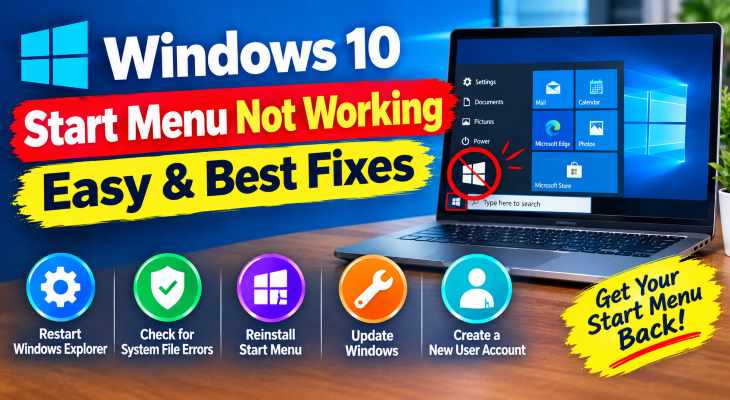
An unresponsive Start menu severely hinders daily PC navigation by blocking access to installed programs, system settings, and power options. When the **windows 10 start menu not working** error occurs, background application process freezes or corrupted system database entries prevent the interface from opening upon clicking.
In this troubleshooting guide, we will analyze why the Start interface freezes and walk you through five effective solutions to restore normal menu performance.
—
## Table of Contents
* [Understanding Start Menu System Freezes](#understanding)
* [Common Causes of Start Menu Failures](#causes)
* [How to Fix Windows 10 Start Menu Not Working: 5 Easy Steps](#solutions)
* [Frequently Asked Questions (FAQs)](#faq)
* [Conclusion](#conclusion)
—
## Understanding Start Menu System Freezes
The Windows 10 Start menu operates as a dedicated application package integrated with the Start Experience Host process (`StartMenuExperienceHost.exe`). This service renders app tiles, recent files, and system search bars.
When background indexer services stall or system file updates corrupt registry packages, the Start Experience Host fails to launch. Under normal conditions, Windows restarts this process automatically, but severe corruptions require manual command intervention.
—
## Common Causes of Start Menu Failures
Identifying core triggers simplifies fixing your system:
* **Corrupted Start Experience Host:** Stalled background app processes failing to trigger UI rendering.
* **Damaged Windows Search Index:** Search indexing errors causing Start menu search bars to freeze.
* **Corrupted System AppX Packages:** Corrupted system app binaries blocking menu launch commands.
—
## How to Fix Windows 10 Start Menu Not Working: 5 Easy Steps
Follow these step-by-step troubleshooting procedures to unfreeze your Start menu and restore full system functionality.
### Step 1: Restart Start Experience Host via Task Manager
Restarting the primary Start menu process directly resolves temporary UI freezes:
1. Press `Ctrl + Shift + Esc` to launch **Task Manager**.
2. Click on the **Details** tab.
3. Locate `StartMenuExperienceHost.exe` in the process list.
4. Right-click the process, select **End task**, and confirm. Windows will automatically restart the service.
### Step 2: Re-register the Start Menu via PowerShell
Rebuilding the Start menu package fixes corrupted system dependencies when the **windows 10 start menu not working** problem persists:
1. Press `Ctrl + Shift + Esc`, click **File > Run new task**.
2. Type `powershell`, check **Create this task with administrative privileges**, and click **OK**.
3. Copy and paste the following command into the window and press **Enter**:
`Get-AppXPackage -AllUsers | Foreach {Add-AppxPackage -DisableDevelopmentMode -Register “$($_.InstallLocation)\AppXManifest.xml”}`
4. Allow the deployment script to run, then restart your PC.
### Step 3: Run SFC and DISM Repairs
Scanning system files fixes corrupted operating system binaries affecting Start menu triggers:
1. Open **Task Manager**, click **File > Run new task**, type `cmd`, check administrative rights, and click **OK**.
2. Type `sfc /scannow` and press **Enter**.
3. Once completed, type `DISM /Online /Cleanup-Image /RestoreHealth` and press **Enter**.
4. If you recently experienced taskbar issues, see our guide on [windows 10 taskbar not working](YOUR_28TH_POST_URL_HERE) for additional shell fixes.
### Step 4: Rebuild Windows Search Index
A corrupted search database frequently freezes the Start menu search bar:
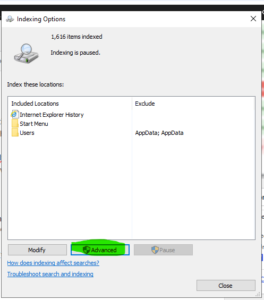
1. Press `Win + R`, type `control.exe srchadmin.dll`, and press **Enter**.
2. Click **Advanced** in the Indexing Options window.
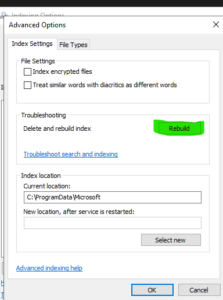
3. Under the Troubleshooting section, click **Rebuild** and click **OK**.
4. Restart your system after indexing completes.
Step 5: Create a New Local User Account
If system user profile registries are damaged beyond repair, migrating to a fresh user profile restores Start menu functionality:
1. Press `Win + I` to open **Settings** and go to **Accounts > Family & other users**.
2. Click **Add someone else to this PC**.
3. Select **I don’t have this person’s sign-in information** and choose **Add a user without a Microsoft account**.
4. Set up the new account, log out, and log in to the new user profile.
—
## Frequently Asked Questions (FAQs)
### FAQ 1: Why won’t my Windows 10 Start menu open when clicked?
*Ans:* This usually occurs when the Start Experience Host process hangs, or when corrupted system files prevent Windows application packages from launching.
### FAQ 2: Will re-registering AppX packages delete my installed apps?
*Ans:* No. Re-registering AppX packages only resets default Windows interface components and system apps without removing your personal files or third-party software.
### FAQ 3: Can a corrupt user account cause Start menu errors?
*Ans:* Yes. Damaged user profile registry hives can prevent the **windows 10 start menu not working** issue from being resolved through basic restarts, requiring a new profile setup.
—
## Conclusion
Fixing a **windows 10 start menu not working** error involves restarting system processes, re-registering Windows application packages, and running DISM system scans. Performing these troubleshooting steps restores seamless navigation across your computer.
**Pro Tip:** For official system recovery tools and troubleshooting documentation, visit the official [Microsoft](https://www.microsoft.com) support center.









