
Hearing continuous crackling, popping, or buzzing sounds through your headphones or external speakers disrupts media playback and video calls. When the **windows 10 audio static noise** issue occurs, outdated sound card drivers, ground loop interference, or incorrect audio formats distort your system’s digital sound output.
In this step-by-step troubleshooting guide, we will analyze why audio distortion happens and walk you through five practical methods to restore crystal-clear sound quality.
—
## Table of Contents
* [Understanding Audio Crackling and Static](#understanding)
* [Common Causes of Speaker Noise](#causes)
* [How to Fix Windows 10 Audio Static Noise: 5 Easy Steps](#solutions)
* [Frequently Asked Questions (FAQs)](#faq)
* [Conclusion](#conclusion)
—
## Understanding Audio Crackling and Static
Digital audio processing relies on stable buffer sampling rates between your sound card, graphics card audio channels, and peripheral devices. When background system latency spikes or sampling rates mismatch, audio buffer underruns cause noticeable popping and crackling artifacts.
Under regular conditions, Windows processes real-time audio seamlessly. However, power management settings or outdated Realtek audio drivers often interfere with signal processing, forcing continuous static humming across speakers.
—
## Common Causes of Speaker Noise
Pinpointing sound distortion triggers simplifies system troubleshooting:
* **Sampling Rate Mismatches:** Incorrect audio bit depth configurations creating buffer playback delays.
* **Corrupted Sound Drivers:** Outdated Realtek or High Definition Audio drivers causing processing glitches.
* **Hardware Signal Interference:** Loose audio jack plugs or electromagnetic interference from neighboring cables.
—
## How to Fix Windows 10 Audio Static Noise: 5 Easy Steps
Follow these tested recovery procedures to eliminate background audio crackling and humming on your PC.
### Step 1: Change Default Audio Sample Rate
Adjusting default speaker bit depth fixes digital timing errors causing static:
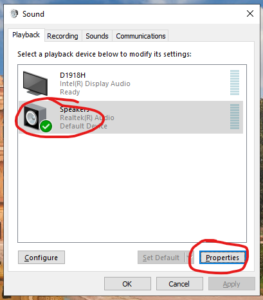
1. Press `Win + R`, type `mmsys.cpl`, and press **Enter** to open Sound settings.
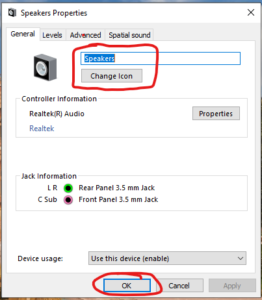
2. Right-click your active playback device (Speakers or Headphones) and select **Properties**.
3. Go to the **Advanced** tab.
4. Open the **Default Format** dropdown and select `24-bit, 44100 Hz (Studio Quality)` or `16-bit, 44100 Hz (CD Quality)`.
5. Click **Apply**, then **OK**, and test your audio.
### Step 2: Disable Audio Enhancements and Spatial Sound
Third-party sound effects and spatial filters frequently introduce static processing noise:
1. Open Sound settings via `mmsys.cpl` and access your active playback device **Properties**.
2. Navigate to the **Enhancements** tab and check **Disable all enhancements** (or **Disable all sound effects**).
3. Go to the **Spatial sound** tab and set the dropdown to **Off**.
4. Click **Apply** and test playback.
### Step 3: Update or Roll Back Audio Drivers
Reinstalling sound card software clears corrupted audio channel registries:
1. Press `Win + X` and select **Device Manager**.
2. Expand the **Sound, video and game controllers** category.
3. Right-click your audio processor (e.g., Realtek High Definition Audio) and click **Update driver**.
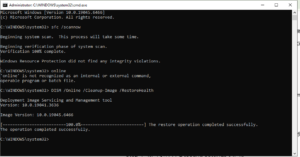
4. Choose **Search automatically for drivers**. If static started right after a Windows update, choose **Properties > Driver tab > Roll Back Driver** instead.
Step 4: Disable High Definition Audio Bus Power Management
Windows power-saving features often cause audio static noise when waking up sound hardware:
1. Open **Device Manager** and expand **System devices**.
2. Locate **High Definition Audio Controller**.
3. Right-click it, select **Properties**, and switch to the **Power Management** tab.
4. Uncheck **Allow the computer to turn off this device to save power** and click **OK**.
5. If you also experience navigation issues, see our fix for [windows 10 start menu not working](YOUR_29TH_POST_URL_HERE).
Step 5: Check Physical Cables and Eliminate Ground Loops
Hardware interference frequently creates continuous background static:
1. Unplug headphones or speaker jacks and wipe dust off the 3.5mm connector.
2. Plug the audio jack firmly into another USB or 3.5mm port (prefer back panel ports on desktops).
3. Keep audio cables separated from power cords to prevent electromagnetic interference.
—
## Frequently Asked Questions (FAQs)
### FAQ 1: Why do my speakers make static noise on Windows 10?
*Ans:* Speaker static is usually caused by outdated sound drivers, sample rate format mismatches, or physical cable interference.
### FAQ 2: Does disabling audio enhancements reduce sound quality?
*Ans:* No. Disabling enhancements outputs clean, raw audio signals without artificial EQ filters that cause crackling or lag.
### FAQ 3: Can high CPU usage cause audio crackling?
*Ans:* Yes. Heavy CPU loads cause audio buffer delays, resulting in temporary popping or buzzing sounds during playback.
—
## Conclusion
Resolving **windows 10 audio static noise** issues involves adjusting sample rates, disabling spatial effects, and updating audio drivers. Following these steps restores clean, uninterrupted audio across all playback devices.
**Pro Tip:** For official audio diagnostic drivers and patch updates, visit the official [Microsoft](https://www.microsoft.com) support center.









