“Many users face a frustrating situation when their WiFi Connected But No Internet error appears out of nowhere.” It can be incredibly frustrating when your Windows 10 PC shows that you are connected to your WiFi network, but you cannot load any websites or use online apps. This “Connected, No Internet” status is a very common network glitch that usually happens due to faulty IP configurations, DNS issues, or temporary system bugs.
Fortunately, you don’t need to be a tech expert to solve this. In this step-by-step guide, we will look at two of the most effective and easiest methods to restore your internet connection instantly.
Method 1: How to fix Wi-Fi Connected but no internet error
Windows 10 comes with a powerful built-in tool called the Network Troubleshooter. WiFi Connected But No Internet. It automatically scans your computer’s network adapters, identifies connectivity issues, and fixes them without requiring any manual changes.
Step 1: Locate the WiFi Icon
Move your mouse cursor to the bottom-right corner of your desktop screen (the Windows Taskbar) and locate the WiFi/Network icon.
Step 2: Open Troubleshoot Problems
Right-click on the WiFi icon and select Troubleshoot problems from the small context menu that appears.
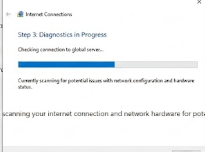
Step 3: Let Windows Scan for Errors
“If the basic steps don’t work and you still see the WiFi Connected But No Internet status, it’s time to flush your DNS.” Windows will instantly launch a new diagnostic window and begin scanning your internet connection and network hardware for potential faults, WiFi Connected But No Internet.
Step 4: Apply the Fixes
Follow any simple on-screen instructions provided by the wizard. In most cases, Windows will automatically reset your network settings and restore your internet access.
Method 2: Flush the DNS Cache (Quick Network Reset)
If the troubleshooter doesn’t solve the issue, your PC might be stuck with outdated or corrupted DNS (Domain Name System) cache data. Flushing the DNS forces Windows to clear old connection records and request a fresh, clean link from your router.
Step 1: Open Command Prompt as Administrator
Press the Windows Key on your keyboard, type cmd into the search bar, right-click on Command Prompt, and select Run as administrator.
Step 2: Run the DNS Flush Command
In the black Command Prompt window, type the following command exactly as shown and press Enter: ipconfig /flushdns
Step 3: Success Confirmation
You will instantly see a confirmation message stating: “Successfully flushed the DNS Resolver Cache.” WiFi Connected But No Internet, Close the window, restart your web browser, and check if your internet is workings “If you are also facing other system errors, check our guide on…”)
Frequently Asked Questions (FAQ)
Q1: Will I lose my files if I troubleshoot or reset Windows Update components? Ans: No, resetting or troubleshooting Windows Update components will not delete your personal files, photos, or documents. It only clears the temporary update cache and restarts system services.
Q2: Why does Windows Update often get stuck at 100% or a specific percentage? Ans: This usually happens due to a slow internet connection, corrupted update files in the Software Distribution folder, or background software (like third-party antivirus) interfering with the installation process.
Q3: How long should I wait if a Windows Update appears to be frozen? Ans: It is best to wait at least 30 to 60 minutes. Sometimes, large updates take time to process depending on your hardware speed. If there is no activity after an hour, it might be safely considered frozen.
Q4: Is it safe to permanently disable Windows Updates? Ans: It is highly discouraged to permanently disable Windows Updates. Updates include critical security patches that protect your PC from malware, viruses, and system vulnerabilities.
Conclusion
“Hopefully, one of these methods helped you resolve the WiFi Connected But No Internet issue on your Windows PC.” Most “WiFi Connected, But No Internet” errors on Windows 10 can be resolved simply by running the built-in troubleshooter or forcing a quick DNS flush. If the problem persists after trying both methods, try restarting your internet router or checking with your internet service provider (ISP) to ensure there isn’t a wider local outage. WiFi Connected But No Internet.
Note: Always make sure your PC has at least 10–15 GB of free storage space before installing major Windows updates. A lack of disk space is one of the most common reasons why updates fail or get stuck halfway.









