
“If you are constantly seeing the Virus and Threat Protection warnings on your PC, it can be quite alarming.” Is your Windows 10 PC showing yellow warning triangles or red cross marks in the Windows Security app? If you open Windows Security and see alerts under “Security at a Glance,” it means your computer is currently vulnerable to viruses, malware, and network threats. Keeping these security features disabled can put your important files and personal data at high risk.</ <img src=”https://windowsmedic.com/wp-content/uploads/2026/07/thret.png” class=”aligncenter” alt=”Fix Windows Defender Virus and threat protection settings turn on” />
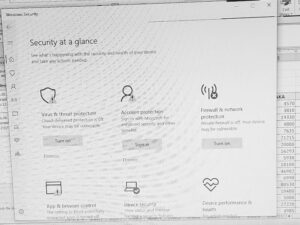
<p>In this step-by-step guide, we will show you how to easily fix all “Security at a Glance” issues and get those reassuring green checkmarks back on your system.</p>
<h2>Method 1: How to Fix Virus and Threat Protection Warnings. Turn On Virus & Threat Protection</h2>
<p>The most critical component of Windows Security is real-time virus scanning. If this is turned off, malware can infect your PC without any restriction.”If you are also facing internet issues, check our guide on how to fix [WiFi Connected But No Internet] error.”</p>
<ul>
<li><strong>Step 1:</strong> Click on the <strong>Turn on</strong> button directly under the <em>Virus & threat protection</em> section.</li>
<li><strong>Step 2:</strong> If a User Account Control (UAC) prompt appears asking for permission, click <strong>Yes</strong>.</li>
<li><strong>Step 3:</strong> Windows Defender will instantly reactivate and start protecting your device in the background.<Virus and Threat Protection/li>
</ul> 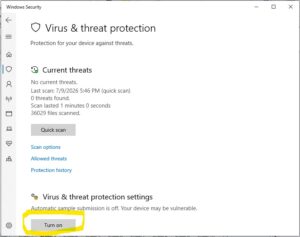
<h2>Method 2: How to Fix Virus and Threat Protection Warnings. How to Customize Virus and Threat Protection Settings. Enable Windows Defender Firewall</h2>
<p>A disabled firewall means hackers or malicious software from the internet can easily access your office or home network.</p>
<ul>
<li><strong>Step 1:</strong> Locate the <em>Firewall & network protection</em> option displaying a red cross.</li>
<li><strong>Step 2:</strong> Click the <strong>Turn on</strong> button beneath it.</li>
<li><strong>Step 3:</strong> This will automatically activate the private and public firewalls to block unauthorized network traffic.</li>
</ul>
<h2>Method 3: How to Fix Virus and Threat Protection Warnings . How to Fix Virus and Threat Protection Warnings Fix App & Browser Control Settings</h2>
<p>This feature protects your operating system from downloading potentially unwanted applications (PUA) and dangerous websites.</p>
<ul>
<li><strong>Step 1:</strong> Click on the <strong>App & browser control</strong> icon with the yellow warning sign Virus and Threat Protection. </li>
<li><strong>Step 2:</strong> Inside the settings, enable “Reputation-based protection” by clicking <strong>Turn on</strong> or <strong>Fix</strong>.</li>
<li><strong>Step 3:</strong> This ensures your browser filters out dangerous files before they reach your storage.</li>
</ul>
<h2>Method 4: How to Fix Virus and Threat Protection Warnings .Dismiss or Fix Account Protection Alerts</h2>
<p>Windows often asks you to sign in with a microsoft account for enhanced security. If you prefer using a local offline account, you can clear this warning without changing your login type.</p>
<ul>
<li><strong>Step 1:</strong> Look at the <em>Account protection</em> section.</li>
<li><strong>Step 2:</strong> If you don’t want to sign in with a Microsoft account, simply click the small <strong>Dismiss</strong> button at the bottom of that box.</li>
<li><strong>Step 3:</strong> The yellow warning will immediately turn into a healthy green checkmark.</li>
</ul>
<h2>Frequently Asked Questions (FAQ)</h2>
<p><strong>Q1: Why did my Windows Security features turn off automatically?</strong><br>
<em>
Ans:</em> This can happen after a major Windows update, due to a malware infection attempting to bypass security, or if a third-party antivirus software was recently uninstalled.</p>
<p><strong>Q2: What should I do if the “Turn on” button is grayed out or not working?</strong><br>
<em>
Ans:</em> If you cannot click the button, your PC might be infected with a virus blocking it, or your office system administrator group policies might restrict it. Try restarting your PC or running a malware scan using a portable scanner.</p>
<p><strong>Q3: Is Windows Defender enough to protect my office computer?</strong><br>
<em>
Ans:</em> Yes, Windows Defender (Windows Security) is highly capable and consistently ranks among the best antivirus programs. As long as all green checkmarks are active, your PC is fully safe.</p>
<h2>Conclusion</h2>
<p>A secure computer is the backbone of smooth everyday work. By fixing the “Security at a Glance” warnings, you eliminate the loopholes that malware exploits. Make sure to check this dashboard at least once a month to ensure your operating system remains completely safe and optimized. Virus and Threat Protection</p<hr>
<blockquote><strong>Note:</strong> If you have another third-party antivirus installed (like Kaspersky, Avast, or ESET), it is normal for some Windows Defender features to remain turned off. The external antivirus takes over the responsibility of protecting your system.</blockquote>









