Method 1: Use Windows Key Shortcut to Wake the Screen
“Facing a windows 10 black screen with a cursor after a new update can be very frustrating.” Sometimes, after a new update, Windows 10 loses its connection with the display. The quickest way to fix this is by using a secret official keyboard shortcut that restarts your graphics driver safely.
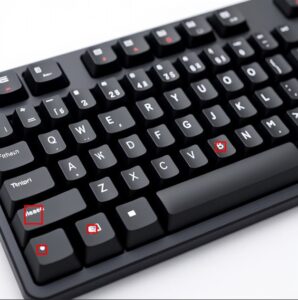
Step 1: Press the
Windows Key + Ctrl + Shift + Bkeys simultaneously on your keyboard.Step 2: Your PC screen will flicker or blink for a second, and you will hear a short “beep” sound.
Step 3: Wait for a few seconds. This will instantly refresh your display driver and bring your screen back to life

Method 2: Restart Windows Explorer via Task Manager If the keyboard shortcut doesn’t work, it means the main Windows user interface (Explorer.exe) failed to load properly during the boot process. You can manually restart it using Task Manager.
Step 1: Press
Ctrl + Shift + Esctogether on your keyboard to open the Task Manager.Step 2: Click on the
Filemenu at the top-left corner and selectRun new task.Step 3: In the box, type
explorer.exeand make sure to check the box that says “Create this task with administrative privileges.”
Method 3: Roll Back or Update Graphics Driver
Sometimes, a corrupted or incompatible graphics driver update causes the black screen issue. Rolling back to a previous stable driver or updating it manually can solve this problem.”If you are still stuck on the windows 10 black screen, follow the next step carefully.”
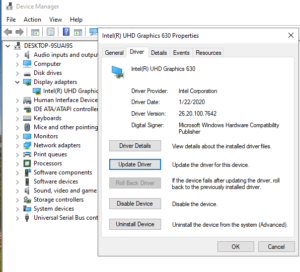
Step 1: Open Device Manager by pressing
Windows Key + Xand selecting it from the menu.Step 2: Locate and expand the
Display adaptersoption.Step 3: Right-click on your graphics card (e.g., Intel, NVIDIA, or AMD) and select
Properties.Step 4: Go to the
Drivertab and click onRoll Back Driver(if available) or selectUpdate driver.
Method 4: Run SFC and DISM Commands
Corrupted or missing system files can prevent Windows 10 from loading the desktop properly, resulting in a black screen with a cursor. You can use Windows built-in utility tools to repair these system files.
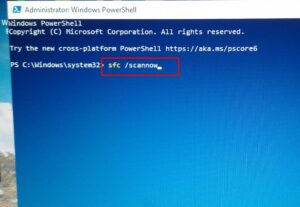
Step 1: Press
Windows Key + Xand selectWindows PowerShell (Admin)from the menu.Step 2: In the blue window, type
sfc /scannowand pressEnter.Step 3: Wait for the system scan to complete (100%). If it finds any corrupted files, Windows will automatically repair them.

Step 4: If the SFC scan doesn’t fix the issue, type the following DISM command and press
Enter:DISM /Online /Cleanup-Image /Restore Health
Method 5: Uninstall the Recent Windows Update
“This method is very effective to solve windows 10 black screen issues.”If the black screen issue started immediately after installing a new Windows update, a buggy or incompatible update package is likely the culprit. Uninstalling the most recent update can quickly revert your system to a working state.
Step 1: Go to Settings > Update & Security > Windows Update and click on
View update history.Step 2: Click on
Uninstall updatesat the top-left corner of the window.Step 3: A Control Panel window will open showing a list of installed updates. Look at the “Installed On” date to find the most recent update.
Step 4: Select the recent update from the list, click
Uninstallat the top, and follow the onscreenprompts. Restart your PC afterward.
Conclusion
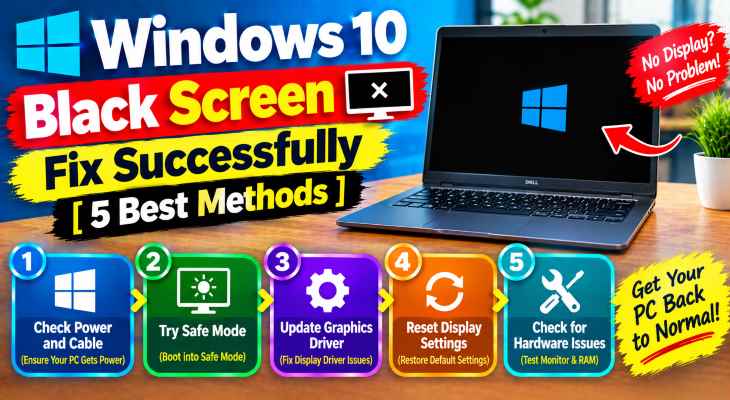
A Windows 10 black screen with a cursor after an update can be frustrating, but it is rarely a sign of hardware failure. In most cases, it is simply a temporary glitch in the graphics driver or a corrupted system file. By following the five methods outlined above—ranging from a quick keyboard shortcut to uninstalling the buggy update—you can safely recover your desktop without losing any data.”Hopefully, these methods helped you fix the windows 10 black screen with cursor on your PC.”
Frequently Asked Questions (FAQs)
Q1: Will I lose my personal files or software if I try these fixes?
Ans: No, none of these methods will delete your personal data, photos, or installed applications. They only refresh, update, or repair core system files and graphics drivers.
Q2: What if the keyboard shortcut (Win + Ctrl + Shift + B) makes a beep sound but nothing happens?
Ans: If you hear the beep, it means Windows registered the command but the graphics driver failed to restart. In this case, move directly to Method 2 and try restarting
explorer.exemanually through the Task Manager.Q3: How can I prevent the black screen issue from happening after future updates?
Ans: To prevent this, always keep your dedicated graphics card drivers (Intel, NVIDIA, or AMD) updated to their latest versions directly from the manufacturer’s official website before installing major Windows updates.
📌 Note: Only uninstall the updates that were installed around the exact date and time your black screen issue started. Do not uninstall older updates, as they contain important security patches required to keep your Windows system safe. “You can also check our other guides to “optimize Windows performance