

If you want to fix windows 11 bluetooth keeps disconnecting, dealing with wireless headphones dropping audio mid-call, mice losing connection, or constant pairing failures can severely disrupt your productivity. If you have been searching for an effective method to fix windows 11 bluetooth keeps disconnecting, you are in the right place. This frustrating wireless issue typically occurs due to aggressive USB power-saving settings, outdated Bluetooth radio drivers, stopped Bluetooth Support Services, or 2.4GHz wireless signal interference.
In this comprehensive guide, we will walk you through the top troubleshooting steps to eliminate connection drops and restore rock-solid wireless stability on Windows 11.
Table of Contents
What Causes Bluetooth Keeps Disconnecting in Windows 11?
Before applying the fixes, understanding why this happens helps:
Aggressive Power Management: Windows turning off the Bluetooth adapter automatically to conserve battery or system power.
Outdated Bluetooth Radio Drivers: Incompatibility between new Windows 11 cumulative updates and older Intel, Realtek, or Qualcomm Bluetooth drivers.
Glitched Bluetooth Support Service: The core background Windows service managing wireless device pairings hanging or failing to restart.
Top Methods to Fix Windows 11 Bluetooth Keeps Disconnecting
Method 1: Disable Bluetooth Power Saving in Device Manager
Preventing Windows from powering down your Bluetooth radio module stops random idle disconnections:
Right-click the Start button and select Device Manager.
Expand the Bluetooth category.
Right-click your primary Bluetooth adapter (e.g., Intel Wireless Bluetooth or Realtek Bluetooth Adapter) and select Properties.
Switch to the Power Management tab, uncheck “Allow the computer to turn off this device to save power”, and click OK.
Verification: Leave your Bluetooth headphones or mouse idle for 10 minutes and test if they respond immediately without reconnecting.
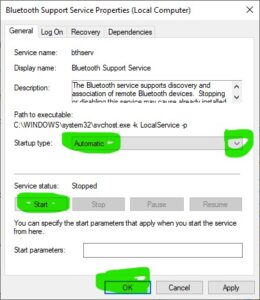
Method 2: Set Bluetooth Support Service to Automatic
Ensuring the core Bluetooth background service runs continuously prevents sudden pairing drops:
Press
Win + R, typeservices.msc, and press Enter.Scroll down to locate Bluetooth Support Service.
Double-click the service, change the Startup type dropdown to Automatic, and click Start (or Restart if already running).
Click Apply and then click OK.
Verification: Open Settings > Bluetooth & devices to confirm your paired peripherals show a stable “Connected” status.
Method 3: Run the Windows Bluetooth Troubleshooter & Reinstall Drivers
Resetting corrupted pairing caches and reloading clean hardware drivers resolves persistent radio glitches:
Press
Win + Ito open Settings, go to System > Troubleshoot > Other troubleshooters.Click Run next to Bluetooth and follow the on-screen diagnostic steps.
If disconnects persist, open Device Manager, right-click your Bluetooth adapter, select Uninstall device, and restart your PC.
Verification: Re-pair your Bluetooth device after rebooting and play audio or move your cursor for 15 minutes to confirm uninterrupted performance.
- If you,re also experiencing other windows 10 & 11 Fix Windows 10 Mouse Stuttering Lag Fix
Frequently Asked Questions (FAQs)
Q: Why does my Bluetooth headset disconnect only when I connect Wi-Fi?
A: Many budget laptops use a combo Wi-Fi/Bluetooth card operating on the same 2.4GHz frequency band. Switching your Wi-Fi connection to a 5GHz network eliminates signal interference and stops Bluetooth audio drops.
Q: Will uninstalling the Bluetooth adapter delete my Bluetooth permanently?
A: No, Windows 11 automatically detects the hardware upon reboot and reinstalls the clean default driver for your Bluetooth chip.
Conclusion
Keeping your wireless radio drivers and power management settings properly configured ensures an uninterrupted computing experience. By mastering these techniques to fix windows 11 bluetooth keeps disconnecting, you can eliminate frustrating audio dropouts and maintain reliable peripheral connectivity.
Important Note:
Keep physical obstructions and active USB 3.0 hard drives away from external Bluetooth USB dongles, as USB 3.0 ports emit radio frequency interference on the 2.4GHz band.
Final Thoughts on Wireless Stability and System Performance
To wrap it up, maintaining updated Bluetooth drivers and unthrottled power states is essential for seamless wireless peripheral performance. By proactively adjusting power management profiles and optimizing background services, you protect your workflow against sudden device dropouts and enjoy smooth daily operation. Always keep regular system restore points before modifying core hardware drivers. Staying proactive with modern diagnostic tools guarantees long-term PC stability and peace of mind.