

If you want to fix windows 10 mouse stuttering lag fix, dealing with unpredictable cursor skips, dragging input delays, or sudden pointer freezes during gaming and desktop work can be extremely frustrating. If you have been searching for an effective method to fix windows 10 mouse stuttering lag fix, you are in the right place. This annoying input issue typically occurs due to misconfigured pointer precision settings, outdated mouse driver software, high USB polling rates, corrupted display driver overlays, or aggressive power-saving throttles.
In this comprehensive guide, we will walk you through the top troubleshooting steps to eliminate pointer latency and restore buttery-smooth tracking on Windows 10.
Table of Contents
What Causes Mouse Stuttering and Lag in Windows 10?
Before applying the fixes, understanding why this happens helps:
Corrupted or Outdated Mouse Drivers: Outdated HID-compliant hardware drivers causing signal processing delays.
Enhanced Pointer Precision Conflicts: Windows mouse acceleration algorithm miscalculating high-DPI mouse sensor inputs.
Overly High USB Polling Rate: Gaming mice polling at 1000Hz or higher overwhelming CPU thread queues.
Top Methods to Fix Windows 10 Mouse Stuttering Lag Fix
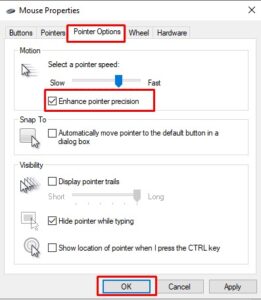
Method 1: Disable Enhanced Pointer Precision
Turning off hardware-assisted mouse acceleration eliminates erratic pointer acceleration and cursor skipping:
Press
Win + R, typemain.cpl, and press Enter to open Mouse Properties.Click the Pointer Options tab at the top of the window.
Uncheck the box next to “Enhance pointer precision” under the Motion section.
Click Apply and then click OK.
Verification: Move your mouse quickly across the screen to confirm that pointer motion feels 1:1 and consistent.
Method 2: Update or Reinstall Mouse Device Drivers
Refreshing generic USB HID mouse driver files resolves software driver lockup and communication lag:
Right-click the Start menu button and select Device Manager.
Expand the Mice and other pointing devices section.
Right-click your active mouse device and select Update driver.
Choose Search automatically for drivers. If lag persists, right-click the mouse device again, select Uninstall device, and restart your PC.
Verification: Upon rebooting, Windows reloads clean default drivers—test mouse movements to verify stuttering has stopped.
Method 3: Lower Mouse USB Polling Rate in Brand Software
Reducing excessive polling frequency prevents CPU thread overload caused by high report rates:
Open your official peripheral configuration software (such as Logitech G HUB, Razer Synapse, or Corsair iCUE).
Locate the Polling Rate or Report Rate setting for your connected mouse device.
Change the polling rate from 1000Hz down to 500Hz or 250Hz.
Save your changes and minimize the software.
Verification: Drag a desktop window in circles to ensure the motion remains fluid without causing CPU usage spikes.
- If you,re also experiencing other windows 10 Best ways: Fix windows 10 PIN Setup Error Something Went Wrong.
Frequently Asked Questions (FAQs)
Q: Why is my mouse lagging only when playing games?
A: In-game mouse lag is frequently caused by active display overlays (like Discord or GeForce Experience), uncapped frame rates triggering GPU bottlenecks, or high polling rates conflicting with game engines.
Q: Can a USB 3.0 port cause wireless mouse stuttering?
A: Yes, USB 3.0 ports can cause 2.4GHz wireless interference with USB dongles. Plug your wireless mouse receiver into a USB 2.0 port or use an extension cable to keep it away from active USB 3.0 ports.
Conclusion
Keeping your input drivers and polling parameters optimized ensures a fast, precise desktop experience. By mastering these techniques to fix windows 10 mouse stuttering lag fix, you can eliminate annoying cursor delays and maintain maximum digital efficiency.
Important Note:
If using a wireless peripheral, ensure your mouse is fully charged or replace the batteries before executing deep system settings modifications.
Final Thoughts on Input Optimization and System Health
To wrap it up, maintaining updated hardware drivers and stable USB polling rates is crucial for fluid system control and gaming performance. By proactively adjusting power management settings and disabling unwanted acceleration features, you protect your system against sudden input latency and enjoy seamless navigation. Always keep regular backups of your settings before tweaking advanced registry values. Staying proactive with modern diagnostic tools guarantees long-term PC stability and peace of mind.