

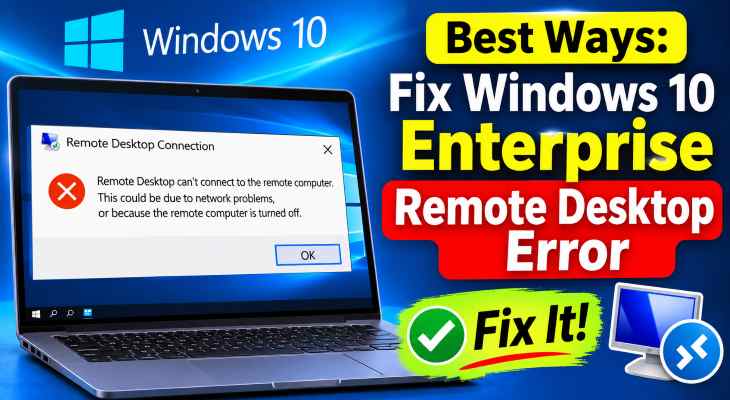
If you want to fix windows 10 enterprise remote desktop error, encountering sudden disconnection messages, CredSSP encryption oracle remediation errors, or authentication failures during remote sessions can disrupt business operations. If you have been searching for an effective method to fix windows 11 enterprise remote desktop error, you are in the right place. This frustrating network error typically occurs due to misconfigured Remote Desktop Services, Network Level Authentication (NLA) mismatches, Windows Firewall blockages, or outdated Group Policy settings.
In this comprehensive guide, we will walk you through the top troubleshooting steps to resolve RDP connection failures and restore seamless remote management on Windows 10 Enterprise.
Table of Contents
What Causes Remote Desktop Errors in Windows 10 Enterprise?
Before applying the fixes, understanding why this happens helps:
Blocked Firewall Ports: Windows Defender Firewall blocking port 3389 required for incoming RDP connections.
Network Level Authentication (NLA) Mismatch: Security enforcement policies failing to authorize incoming user credentials.
Disabled Remote Desktop Services: The core background RDP service hanging or failing to launch automatically upon boot.
Top Methods to Fix Windows 10 Enterprise Remote Desktop Error
Method 1: Allow Remote Desktop Through Windows Defender Firewall
Ensuring that RDP traffic is permitted through the system firewall restores active server communication:
Press
Win + R, typecontrol firewall.cpl, and press Enter to open Windows Defender Firewall.Click Allow an app or feature through Windows Defender Firewall in the left panel.
Click Change settings, scroll down to locate Remote Desktop, and check both Private and Public checkboxes.
Click OK to save the changes.
Verification: Launch Remote Desktop Connection (
mstsc) from another computer and check if the login prompt appears.If you’re also experiencing other windows 10 & 11 Fix Windows 11 System Interrupts High Disk Usage
Method 2: Adjust Group Policy Security Layer and CredSSP Settings
Modifying Group Policy rules eliminates encryption remediation and credential handshake errors:
Press
Win + R, typegpedit.msc, and press Enter to launch the Local Group Policy Editor.Navigate to: Computer Configuration > Administrative Templates > Windows Components > Remote Desktop Services > Remote Desktop Session Host > Security.
Double-click Require use of specific security layer for remote (RDP) connections, set it to Enabled, and choose RDP from the dropdown menu. Click Apply and OK.
Open Command Prompt as administrator and run
gpupdate /forceto apply policy changes instantly.Verification: Reconnect to your Windows 10 Enterprise PC to ensure connection handshake proceeds without dropping.
Method 3: Restart Remote Desktop Core Services
Refreshing background RDP management services clears temporary software locks:
Press
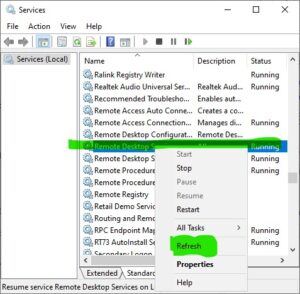
Win + R, typeservices.msc, and press Enter.Scroll down to locate Remote Desktop Services, right-click it, and select Restart (if stopped, click Start).
Right-click Remote Desktop Services User Mode Port Redirector and restart it as well.
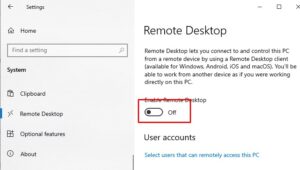
Verification: Open Windows Settings (
Win + I> System > Remote Desktop) to confirm the toggle switch stays firmly On.
Frequently Asked Questions (FAQs)
Q: Why am I getting “An authentication error has occurred” on RDP?
A: This error usually happens when there is a CredSSP update mismatch between the client machine and the host computer. Updating Group Policy settings fixes this.
Q: Which port does Windows 10 Remote Desktop use?
A: Windows Remote Desktop uses default TCP and UDP port 3389 for establishing remote communication.
Conclusion
Keeping your remote infrastructure responsive ensures an efficient, lag-free management environment. By mastering these techniques to fix windows 10 enterprise remote desktop error, you can overcome system network blocks and maintain peak remote productivity.
Important Note:
Always ensure you have administrator privileges before modifying Local Group Policy or modifying firewall rules.
Final Thoughts on Enterprise RDP and System Reliability
To wrap it up, maintaining a fully configured network security layer and updated service stack is crucial for uninterrupted system administration and business efficiency. By proactively managing firewall rules and adjusting CredSSP parameters, you protect your environment against unexpected authentication drops and maintain peak digital efficiency. Always keep regular backups of your important configuration files before executing deep policy resets. Staying proactive with modern diagnostic tools guarantees long-term digital stability and peace of mind.