

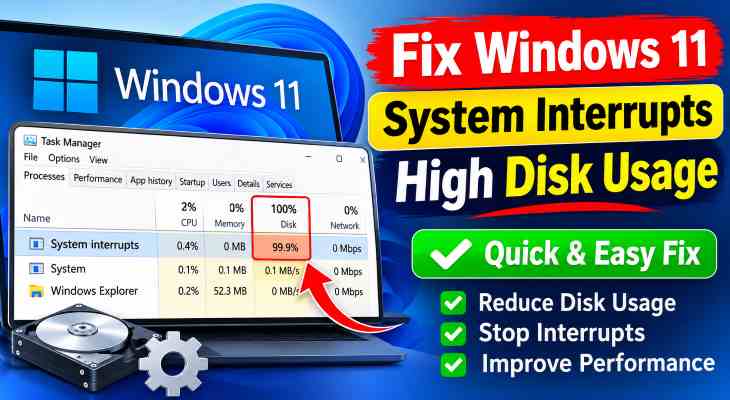
If you want to fix windows 11 system interrupts high disk usage, experiencing system freezes, disk usage spiking to 100%, or continuous PC lag can severely ruin your computing performance. If you have been searching for an effective method to fix windows 11 system interrupts high disk usage, you are in the right place. This frustrating system error typically occurs due to corrupted storage controller drivers, hardware Interrupt Request (IRQ) conflicts, SATA controller power throttling, or failing hard drive sectors.
In this comprehensive guide, we will walk you through the top troubleshooting steps to eliminate disk bottlenecks and restore optimal drive performance on Windows 11.
Table of Contents
What Causes System Interrupts High Disk Usage in Windows 11?
Top Methods to Fix Windows 11 System Interrupts High Disk Usage
What Causes System Interrupts High Disk Usage in Windows 11?
Before applying the fixes, understanding why this happens helps:
Storage Controller Driver Conflicts: Outdated SATA AHCI or NVMe storage drivers spamming hardware signals to the CPU and disk controller.
Corrupted Disk System Files: Bad drive sectors or file system errors forcing Windows to constantly re-read system files.
Aggressive AHCI Link Power Management: Power-saving features causing storage drives to constantly enter and exit low-power states.
Top Methods to Fix Windows 11 System Interrupts High Disk Usage
Method 1: Update Storage AHCI Controller Drivers
Replacing generic Windows storage drivers with updated manufacturer drivers eliminates IRQ disk loops:
Right-click the Start button and select Device Manager.
Expand Storage controllers or IDE ATA/ATAPI controllers.
Right-click your storage controller (e.g., Standard SATA AHCI Controller or NVMe Controller) and select Update driver.
Choose Search automatically for drivers or manually install updated drivers from your motherboard manufacturer.
Verification: Open Task Manager (
Ctrl + Shift + Esc) and verify that Disk Usage drops back to normal baseline levels (0%–5%).if you’re also experiencing other Windows 10 & 11 Best Ways: Windows 10 Hardware Acceleration Stutter Fix
Method 2: Run CHKDSK to Scan and Repair Disk Errors
Fixing bad drive sectors and file allocation table errors stops continuous system interrupt requests:
Press
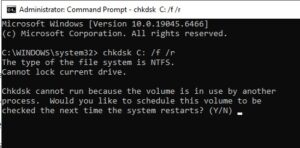
Win + S, typecmd, right-click Command Prompt, and select Run as administrator.Type
chkdsk C: /f /rand press Enter.Type
Ywhen prompted to schedule the volume scan upon next restart, then reboot your computer.Verification: Allow the disk scan to complete during boot, after which your storage drive will read without background stuttering.
Method 3: Disable AHCI PCIe Link Power Management
Preventing drive power throttling stops disk controller communication delays:
Press
Win + R, typepowercfg.cpl, and press Enter to open Power Options.Click Change plan settings next to your active power plan, then select Change advanced power settings.
Expand Hard disk > Turn off hard disk after and set the time to 0 (Never). Click Apply and OK.
Verification: Check your drive read/write activity in Resource Monitor to ensure sustained stability.
Frequently Asked Questions (FAQs)
Q: Does high disk usage from System Interrupts mean my hard drive is failing?
A: Not necessarily. While physical drive degradation can trigger hardware interrupts, it is most commonly caused by storage controller driver conflicts or Windows system cache glitches.
Q: Will running CHKDSK delete my personal files?
A: No, CHKDSK scans and repairs bad file system sectors and lost clusters without touching your personal documents or installed applications.
Conclusion
Keeping your storage subsystem optimized ensures a smooth, highly responsive computing experience. By mastering these techniques to fix windows 11 system interrupts high disk usage, you can eliminate frustrating hardware lag and maintain peak PC performance.
Important Note:
Always keep your critical files backed up to cloud storage or an external drive before performing deep disk check operations.
Final Thoughts on System Storage and Hardware Optimization
To wrap it up, maintaining an updated driver stack and healthy storage subsystem is crucial for seamless daily operations and overall system efficiency. By proactively managing storage controller settings and repairing corrupted drive sectors, you protect your PC against unexpected performance bottlenecks and maintain maximum digital efficiency. Always keep regular backups of your important configuration files before executing deep storage fixes. Staying proactive with modern diagnostic tools guarantees long-term digital stability and peace of mind.