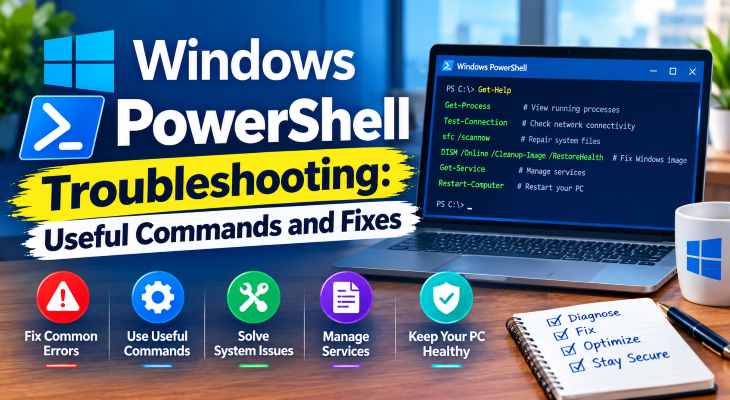
“Windows PowerShell troubleshooting is essential when stubborn system glitches, network drops, or corrupted files refuse to resolve through regular settings.”
In this comprehensive guide, we will walk you through the most effective PowerShell commands to diagnose, repair, and optimize your Windows 10/11 computer. Windows PowerShell troubleshooting.
Table of Contents
Why Use PowerShell for Windows Troubleshooting?
Before jumping into the commands, understanding why PowerShell is effective helps:
Automation and Speed: Execute deep system diagnostics and repairs with a single text command instead of clicking through multiple menus.
Administrator Privileges: Access core Windows components, services, and system files that regular user accounts cannot modify.
Deep Repair Capabilities: Fix underlying system corruption that standard GUI troubleshooters often fail to detect.
Top PowerShell Commands to Troubleshoot Windows Problems
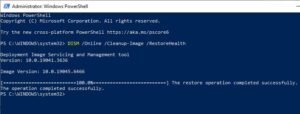
1. Check and Repair System Image Files (DISM)
If your operating system is acting unstable or core features are broken, your system image might be corrupted:
Press
Win + Xand select Terminal (Admin) or Windows PowerShell (Admin).Type the following command and press Enter:
DISM /Online /Cleanup-Image /RestoreHealthAllow the process to reach 100%. This command downloads healthy system files from Windows Update to replace damaged components.
2. Scan and Fix Corrupted System Files (SFC)
Often paired with DISM, the System File Checker scans all protected operating system files:
Open PowerShell as administrator.
Type the command:
sfc /scannowand press Enter.Windows will automatically detect and repair any missing or corrupted DLL files and system resources. Windows PowerShell troubleshooting.
3. Restart the Network Adapter for Internet Issues
If your Wi-Fi or Ethernet connection drops or stops responding, you can force-reset the network adapter without restarting your PC:
Open PowerShell as administrator.
Type
Restart-NetAdapter -Name "Wi-Fi"(replace"Wi-Fi"with"Ethernet"if you are using a wired cable) and press Enter.
4. Find and Stop Unresponsive or Frozen Processes
When an app freezes and won’t close through Task Manager, you can terminate it instantly via PowerShell:
Open PowerShell as administrator.
Type
Get-Processto list all running tasks, or search for a specific app.Use the command
Stop-Process -Id [PID](replace[PID]with the process identification number) to forcefully close the frozen background process.If you’re also experiencing other Windows 10 Activation Problems, check our guide How to Fix Storage Problems in Windows.
Frequently Asked Questions (FAQs)
Q: Do I need to run PowerShell as Administrator to use these commands?
A: Yes. System-level commands like DISM, SFC, and network restarts modify core operating system files, which requires administrative privileges.
Q: What is the difference between Command Prompt and PowerShell?
A: PowerShell is a more advanced, object-oriented shell built by Microsoft that replaces traditional Command Prompt, offering deeper scripting and management capabilities for Windows.
“Additionally, keeping your operating system updated and maintaining regular system backups ensures that when you run advanced Windows PowerShell troubleshooting commands, your data remains completely secure and protected against unexpected disruptions.”
Conclusion
Mastering PowerShell commands to troubleshoot Windows problems gives you ultimate control over your computer’s health and stability. By utilizing DISM, SFC, and network reset tools, you can resolve complex system errors in minutes. For additional support, visit Microsoft Support.









