

Encountering a sudden Blue Screen of Death with the error code related to network driver timeouts can severely disrupt your workflow. If you have been searching for an effective method to apply a windows 11 ndis watchdog violation bsod fix, you are in the right place. This frustrating system crash typically occurs due to outdated network interface card (NIC) drivers, corrupted wireless adapter configurations, or conflicting third-party virtual private network (VPN) software packets.
In this comprehensive guide, we will walk you through the top troubleshooting steps to resolve network watchdog violations on your Microsoft Windows 11 computer and restore long-term system stability.
Table of Contents
What Causes Windows 11 NDIS Watchdog Violation BSOD Errors?
Before applying the fixes, understanding why this happens helps:
Network Driver Timeouts: The Network Driver Interface Specification (NDIS) failing to respond within the allocated time limit.
Corrupt Wi-Fi or Ethernet Drivers: Incompatible network card software installed during major Windows feature updates.
Aggressive Power Management: Windows putting the network adapter into a deep sleep state, causing packet delivery failures.
Top Methods to Apply Windows 11 NDIS Watchdog Violation BSOD Fix
Method 1: Update Your Network Adapter Drivers
Using outdated or generic drivers is the primary trigger for NDIS watchdog crashes:
Right-click the Start button and select Device Manager.
Expand the Network adapters category.
Right-click your Ethernet or Wi-Fi adapter and select Update driver.
Choose search automatically for drivers, or install the latest manufacturer-recommended driver manually.
Method 2: Disable Power Saving for the Network Adapter
Preventing Windows from turning off your network card to save power stops abrupt hardware disconnects:
Open Device Manager and expand Network adapters.
Right-click your active network adapter and select Properties.
Go to the Power Management tab and uncheck the box that says Allow the computer to turn off this device to save power.
Click OK and restart your computer.
If you’re also experiencing other Windows 10 & 11 Best Ways: Fix Windows 11 Printer Sharing Access Denied
Method 3: Run Network Reset and System File Scans
Clearing corrupted network stacks and checking system integrity restores baseline protocol health:
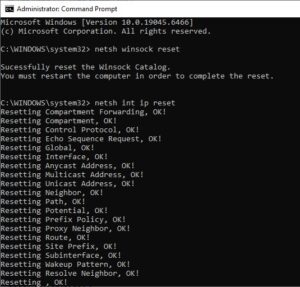
Open Command Prompt as administrator (press
Win + S, typecmd, and select Run as administrator).Type
netsh winsock resetand press Enter.Next, type
netsh int ip resetand press Enter, followed by a system reboot.
Frequently Asked Questions (FAQs)
Q: What does NDIS Watchdog Violation mean on Windows 11?
A: It means a network-related driver or component took too long to complete a task, prompting the Windows kernel to trigger a protective Blue Screen crash.
Q: Can third-party antivirus or VPN apps cause this BSOD?
A: Yes, aggressive third-party firewall filtering drivers or VPN virtual adapters can interfere with network packet handling and trigger NDIS errors.
Conclusion
Keeping your system kernel stable ensures an uninterrupted computing experience without sudden shutdowns. By mastering these techniques to apply a windows 11 ndis watchdog violation bsod fix, you can resolve driver timeouts and keep your network connections running smoothly.
Important Note:
Always maintain regular system backups and keep your hardware drivers updated to prevent unexpected kernel panics during heavy data transfers.
Final Thoughts on Kernel Stability and Network Management
To wrap it up, maintaining a fully functional and optimized network stack is crucial for seamless daily operations. By proactively updating driver software and managing power saving protocols, bạn protect your workflow against unexpected blue screen failures and maintain maximum digital efficiency. Always keep regular backups of your important configuration files before executing deep system modifications or registry edits. Staying proactive with modern diagnostic tools guarantees long-term digital efficiency and peace of mind.