

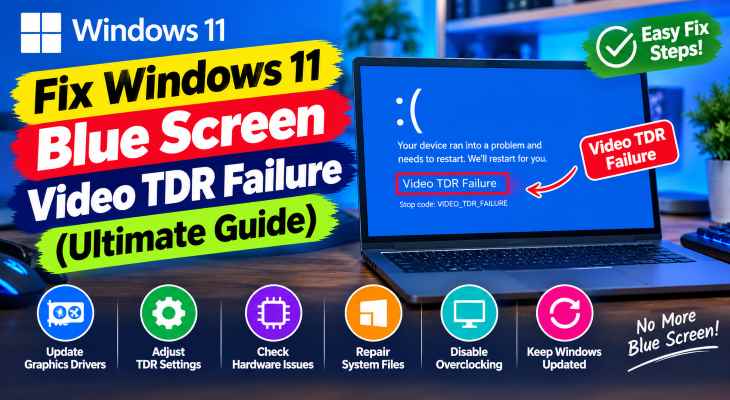
If you want to windows 11 blue screen video tdr failure fix, encountering sudden system crashes with stop codes like atikmpag.sys, nvlddmkm.sys, or igdkmd64.sys can severely disrupt your workflow and gaming. If you have been searching for an effective method to windows 11 blue screen video tdr failure fix, you are in the right place. This frustrating display driver error typically occurs due to corrupted graphics card drivers, aggressive power management states, or damaged system files failing to recover within the GPU timeout limit.
In this comprehensive guide, we will walk you through the top troubleshooting steps to resolve video TDR failures and stabilize your Windows 11 system.
Table of Contents
What Causes Video TDR Failure Blue Screen in Windows 11?
Before applying the fixes, understanding why this happens helps:
Unresponsive Graphics Driver: The GPU driver crashing and failing to recover its processing thread within the Windows timeout period.
Corrupted Driver Installations: Leftover driver cache files conflicting with newer system updates or DirectX runtimes.
Aggressive Link Power States: PCIe power saving features starving the graphics card of stable voltage during idle-to-load transitions.
if you’re also experiencing other Windows 10 & 11 Best Ways: Fix Windows 11 Internet Speed Slow Wi-Fi 6 (Ultimate Guide)
Top Methods to Apply Windows 11 Blue Screen Video TDR Failure Fix
Method 1: Perform a Clean Reinstall of Graphics Drivers Using DDU
Completely wiping old driver remnants and installing a fresh package resolves driver corruption:
Download the latest official driver for your GPU (NVIDIA, AMD, or Intel) and get the Display Driver Uninstaller (DDU) tool.
Disconnect your internet connection, boot your PC into Safe Mode, and run DDU to completely clean your GPU drivers, then restart normally.
Install the fresh driver package you downloaded and reconnect your internet.
Verification: Open Device Manager (
Win + X> Device Manager), expand Display adapters, and confirm your dedicated graphics card is listed cleanly without any warning icons.
Method 2: Disable PCI Express Link State Power Management
Preventing Windows from throttling power to your graphics card stops voltage-drop crashes:
Press
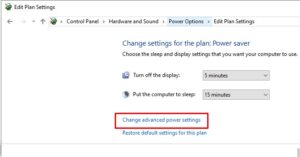
Win + R, typepowercfg.cpland press Enter to open Power Options.Click Change plan settings next to your active power plan, then select Change advanced power settings.
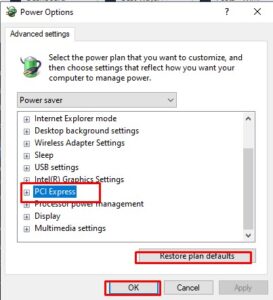
Scroll down, expand PCI Express > Link State Power Management, and change the setting to Off. Click Apply and OK.
Verification: Monitor system stability during graphic-heavy tasks to ensure the power-state shift no longer triggers a crash.
Method 3: Repair Corrupted System Files via DISM and SFC
Restoring damaged operating system files ensures seamless kernel-level communication:
Press
Win + S, typecmd, right-click Command Prompt, and select Run as administrator.Type
DISM.exe /Online /Cleanup-image /Restorehealthand press Enter. Once finished, typesfc /scannowand press Enter.Verification: The scanner will display a message confirming that corrupt files were successfully repaired or that no integrity violations were found.
Frequently Asked Questions (FAQs)
Q: What does the file name in parentheses like nvlddmkm.sys mean?
A: The file name indicates which specific manufacturer driver crashed. For instance, nvlddmkm.sys points to NVIDIA, atikmpag.sys to AMD, and igdkmd64.sys to Intel graphics.
Q: Can overheating cause a VIDEO_TDR_FAILURE?
A: Yes. If your GPU or CPU temperatures spike too high during intense workloads, thermal protection can trigger driver timeouts and system crashes.
Conclusion
Keeping your graphics subsystem stable ensures uninterrupted productivity and gaming performance. By mastering these techniques to windows 11 blue screen video tdr failure fix, you can overcome system crashes and maintain total desktop reliability.
Important Note:
Always back up essential personal files and documents before executing deep driver reinstalls or system file repairs.
Final Thoughts on System Stability and Driver Management
To wrap it up, maintaining a fully updated and optimized graphics environment is crucial for long-term hardware health and smooth daily operations. By proactively managing display drivers and power configurations, you protect your system against unexpected Blue Screen errors and maximize overall efficiency. Always keep regular backups of your important configuration files before executing deep system modifications. Staying proactive with modern diagnostic tools guarantees long-term digital stability and peace of mind.