

If you want to fix windows 11 right click context menu lag, encountering sluggish response times, freezing, or delayed pop-ups when right-clicking on your desktop or File Explorer can severely disrupt your workflow. If you have been searching for an effective method to fix windows 11 right click context menu lag, you are in the right place. This frustrating interface delay typically occurs due to heavy third-party shell extensions, corrupted context menu handlers, or bloated registry background processes.
In this comprehensive guide, we will walk you through the top optimization steps to resolve context menu lag and restore snappy performance on Windows 11.
Table of Contents
What Causes Right Click Context Menu Lag in Windows 11?
Before applying the fixes, understanding why this happens helps:
Third-Party Shell Extensions: Bloatware apps (like WinRAR, 7-Zip, or old utility software) injecting heavy items into the modern context menu.
Corrupted Windows Explorer Shell: Temporary memory glitches affecting the graphical user interface rendering thread.
Outdated Registry Entries: Leftover command handlers from uninstalled applications causing response delays.
Top Methods to Apply Fix Windows 11 Right Click Context Menu Lag
Method 1: Restore the Classic Context Menu via Registry or Command
Bypassing the modern animated context menu style instantly eliminates rendering lag:
Press
Win + S, typecmd, right-click Command Prompt, and select Run as administrator.Type the following command and press Enter to restore the classic context menu:
reg add "HKCU\Software\Classes\CLSID\{86ca1aa0-34aa-4e8b-a509-50c905bae2a2}\InprocServer32" /f /veRestart Windows Explorer from Task Manager or restart your PC to apply the changes.
Verification: Right-click any file on your desktop and confirm that the classic, instantaneous context menu appears immediately without delay.
Method 2: Disable Third-Party Context Menu Extensions Using ShellExView
Removing heavy or conflicting shell handlers clears out menu bottlenecks:
Download and open the free NirSoft ShellExView utility on your PC.
Sort the list by Type and look for context menu extensions added by third-party software.
Select suspect items, right-click, and choose Disable Selected Items.
Verification: Open File Explorer and test right-clicking files to see if the menu opens instantly now that bloatware handlers are disabled.
if you’re also experiencing other Windows 10 & 11 Best Ways: Windows 11 Blue Screen Video TDR Failure Fix
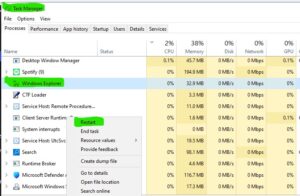
Method 3: Restart Windows Explorer Process
Refreshing the desktop shell manager clears temporary memory lags:
Press
Ctrl + Shift + Escsimultaneously to open Task Manager.Scroll down the Processes tab to locate Windows Explorer.
Right-click it and select Restart.
Verification: Your taskbar and desktop icons will flash briefly, after which interface response times will return to normal.
Frequently Asked Questions (FAQs)
Q: Why is the Windows 11 right-click menu slower than Windows 10?
A: Windows 11 introduced a redesigned modern context menu with transition animations and dynamic app grouping, which can lag if third-party software adds too many background handlers.
Q: Can I revert back to the modern Windows 11 menu if needed?
A: Yes, you can easily restore the modern menu by opening Command Prompt as administrator and running the removal registry command: reg delete "HKCU\Software\Classes\CLSID\{86ca1aa0-34aa-4e8b-a509-50c905bae2a2}" /f.
Conclusion
Keeping your system interface responsive ensures a seamless and productive daily computing experience. By mastering these techniques to fix windows 11 right click context menu lag, you can eliminate frustrating delays and enjoy total desktop speed.
Important Note:
Always back up your system registry keys before executing manual command prompt modifications or edits.
Final Thoughts on System Interface and Shell Optimization
To wrap it up, maintaining a fully tuned graphical operating environment is crucial for seamless daily operations and efficiency. By proactively managing shell extensions and clearing out redundant context menu handlers, you protect your workflow against unexpected interface lags and maintain maximum digital performance. Always keep regular backups of your important configuration files before executing deep registry modifications. Staying proactive with modern diagnostic tools guarantees long-term digital efficiency and peace of mind.