Encountering display glitches, black screens, or resolution mismatches can disrupt your everyday desktop experience. Knowing how to resolve **monitor problems windows 10** users face helps you identify whether an issue stems from damaged display cables, outdated graphics card drivers, or incorrect refresh rate configurations.
In this practical troubleshooting guide, we will explore five efficient solutions to fix common display and monitor problems on Windows 10 quickly.”If you are searching for how to fix monitor problems windows 10 desktop users face, this guide is for you.”
—
## Table of Contents
* [Common Causes of Windows Display Issues](#causes)
* [How to Fix Monitor Problems on Windows 10: 5 Fast Solutions](#solutions)
* [Frequently Asked Questions (FAQs)](#faq)
* [Conclusion](#conclusion)
—
## Common Causes of Windows Display Issues
Understanding why display errors occur makes identifying the correct fix much easier:
* **Faulty Cable Connections:** Loose or damaged HDMI, DisplayPort, or VGA cables.
* **Corrupted Graphics Drivers:** Outdated GPU driver software following a major system update.
* **Incorrect Resolution Settings:** Desktop display configuration mismatched with monitor hardware parameters.”If you are searching for how to fix monitor problems windows 10 desktop users face, this guide is for you.”
—
## How to Fix Monitor Problems on Windows 10: 5 Fast Solutions
Follow these tested steps sequentially to resolve active screen and display errors.
### Step 1: Verify Hardware and Physical Connections
Before altering system software settings, check your physical desktop equipment:
1. Ensure the monitor power cable is plugged securely into a working outlet.
2. Disconnect and re-seat the HDMI or DisplayPort cable at both ends.
3. Test a different video cable or connect your PC to a second monitor to rule out hardware failure.
### Step 2: Adjust Resolution and Refresh Rate Settings
Incorrect refresh rates or resolutions often cause screen flickering and blank displays:
1. Right-click on an empty area of your desktop and select **Display settings**.
2. Under *Display resolution*, select the option marked **(Recommended)**.
3. Scroll down and click **Advanced display settings**.
4. Click **Display adapter properties for Display 1**, navigate to the **Monitor** tab, and set the *Screen refresh rate* to your hardware standard (e.g., 60 Hz or 144 Hz).
### Step 3: Detect Multiple Monitors Automatically
If Windows 10 fails to recognize a connected secondary monitor:
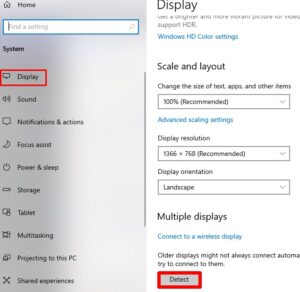
1. Open **Settings** by pressing **Windows Key + I**.
2. Navigate to **System > Display**.
3. Under the *Rearrange your displays* section, scroll down and click the **Detect** button.
4. Ensure your multiple display setup is set to **Extend these displays** or **Duplicate these displays**.
Step 4: Update or Reinstall Graphics Card Drivers
Outdated GPU drivers are the primary culprit behind **monitor problems windows 10** systems experience:
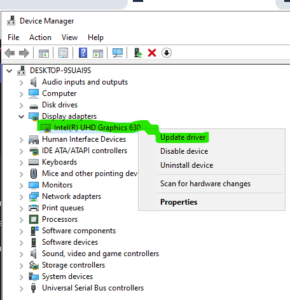
1. Right-click the **Start Button** and select **Device Manager**.
2. Expand the **Display adapters** category.
3. Right-click your dedicated or integrated graphics card (e.g., *NVIDIA*, *AMD*, or *Intel HD Graphics*) and select **Update driver**.
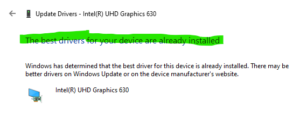
4. Choose **Search automatically for drivers**. If issues persist, select **Uninstall device**, restart your computer, and let Windows reinstall the default display driver.
### Step 5: Roll Back Graphics Drivers After an Update
If screen flickering or black screen glitches started immediately after a Windows software update:
1. Open **Device Manager** and expand **Display adapters**.
2. Right-click your active display adapter and select **Properties**.
3. Go to the **Driver** tab and click **Roll Back Driver** (if available).
4. Restart your system to restore the previous stable display configuration.
## Frequently Asked Questions (FAQs)
### FAQ 1: Why is my secondary monitor showing a “No Signal” message?
*Ans:* A “No Signal” error usually indicates a loose cable, an incorrect input source selected on the monitor menu button, or an outdated display driver.
### FAQ 2: What causes screen flickering in Windows 10?
*Ans:* Display flickering is commonly caused by an incompatible application or an outdated display adapter driver.
—
## Conclusion
Resolving **monitor problems windows 10** involves checking display cables, adjusting desktop resolution parameters, and updating display adapter drivers. Following these systematic fixes ensures a stable, high-quality visual setup for work or gaming.
**Pro Tip:** For official diagnostic assistance and official GPU driver updates, visit the official [Microsoft](https://www.microsoft.com) support knowledge base.









