How to Speed Up Windows 10: 2 Simple Methods for a Faster PC
“If your PC is lagging, learning how to Make Windows 10 faster can instantly improve your productivity.” Is your Winhttps://windowsmedic.com/wp-admin/post.php?post=284&action=editdows 10 PC running slower than usual? Over time, junk files and background applications can heavily drain your system’s resources, causing lags and performance drops. Fortunately, you don’t need expensive hardware upgrades to fix this.
In this step-by-step guide, we will look at two incredibly easy and effective methods to boost your Windows 10 performance instantly.
Method 1: Disable Startup Applications
make Windows 10 faster, When you turn on your computer, many applications automatically launch and run in the background. This drastically slows down your PC’s boot time and consumes valuable RAM. Disabling unnecessary startup apps is the quickest way to get a performance boost. How to Make Windows 10 Faster Easily
Step 1: Open the Task Manager
Press the keyboard shortcut Ctrl + Shift + Esc together to open the Windows Task Manager.
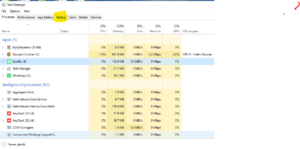
Step 2: Navigate to Startup Apps
Once the Task Manager window opens, click on the Startup apps tab located on the left-side menu (it looks like a small speedometer icon).
Step 3: Disable Unnecessary Programs
Look through the list of applications. Identify the ones you don’t need immediately upon booting up (such as third-party launchers, cloud services you don’t use daily, or chat apps). Right-click on the app and select Disable.

Method 2: Clear Temporary Junk Files
Windows 10 creates temporary files every time you open apps or browse the web. While these files help apps load faster initially, an accumulation of thousands of cached files can eventually clog your storage drive and slow down your entire operating system How to Make Windows 10 Faster Easily. make Windows 10 faster
Step 1: Open the Run Dialog Box
Press the Windows Key + R on your keyboard to launch the Run command box.
Step 2: Access the Temporary Directory
In the text box, type %temp% and hit Enter or click OK. This will instantly open the Windows Temporary folder.
Step 3: Delete the Files permanently
Once the folder opens, select all the files inside by pressing Ctrl + A. Then, press Shift + Delete to permanently erase them from your drive. If Windows prompts you that some files are currently in use, simply check the box for “Do this for all current items” and click Skip. make Windows 10 faster
Frequently Asked Questions (FAQ)
FAQ 1: Will disabling startup apps delete my programs? Ans: No, disabling startup apps will not delete or uninstall your programs. It only prevents them from launching automatically when your computer boots up.
FAQ 2: How often should I restart my Windows 10 PC? Ans: Restarting your PC at least once a week is highly recommended. It clears the system RAM, closes background leaks, and keeps your system running smoothly.
FAQ 3: Is it safe to delete temporary files in Windows 10? Ans: Yes, it is completely safe to delete temporary files. These are just leftover files created by apps and windows, and deleting them frees up storage and boosts performance.
Conclusion
By managing your startup applications and regularly cleaning out hidden junk files, you can keep your Windows 10 system running smoothly and efficiently. If you found this quick guide helpful, feel free to share it with your friends! “Last week my PC became very slow, and I used these 2 methods to fix it.” make Windows 10 faster
Note: Always make sure to restart your computer after applying these performance tweaks. Restarting clears the RAM and allows Windows 10 to apply system configuration changes properly, helping your PC run much faster and smoother.









